Users encounter an error message when attempting to import Excel files using the "Add External Data" feature in Strategy One March 2024 after an upgrade of the Strategy Environment.
Error in importing file. Check the file to import.[GetInformation failed. Error in importing files. Please check the file to import. Error type: Data Import Error. Failed to write to temp file. MFileSystem::WriteableFileImpl::WriteableFileImpl: ::open failed for '/tmp/4E4FF9774E651B8DCFC2538387B6D2A7/C225A4CFDE48D8E127BB22B930BD6904'.System Error (EACCES): --- Permission denied. Connection String: BINARY;TESTIMPORT.XLSX;.]
This issue may be due to insufficient disk space when the Web server attempts to write the temporary files to the disk, despite the user running the web server and Intelligence server having sufficient permissions to the /tmp directory. Or probably the user should only disable and re-enable the 'Enable URL file upload via' to refresh the Import options.
Use the following steps to mitigate the issue:
1. Verify user permissions for both the web server and Intelligence server.
2. Free up the disk space for the Tomcat folder by restarting the Web server or enlarging the Tomcat container's space.
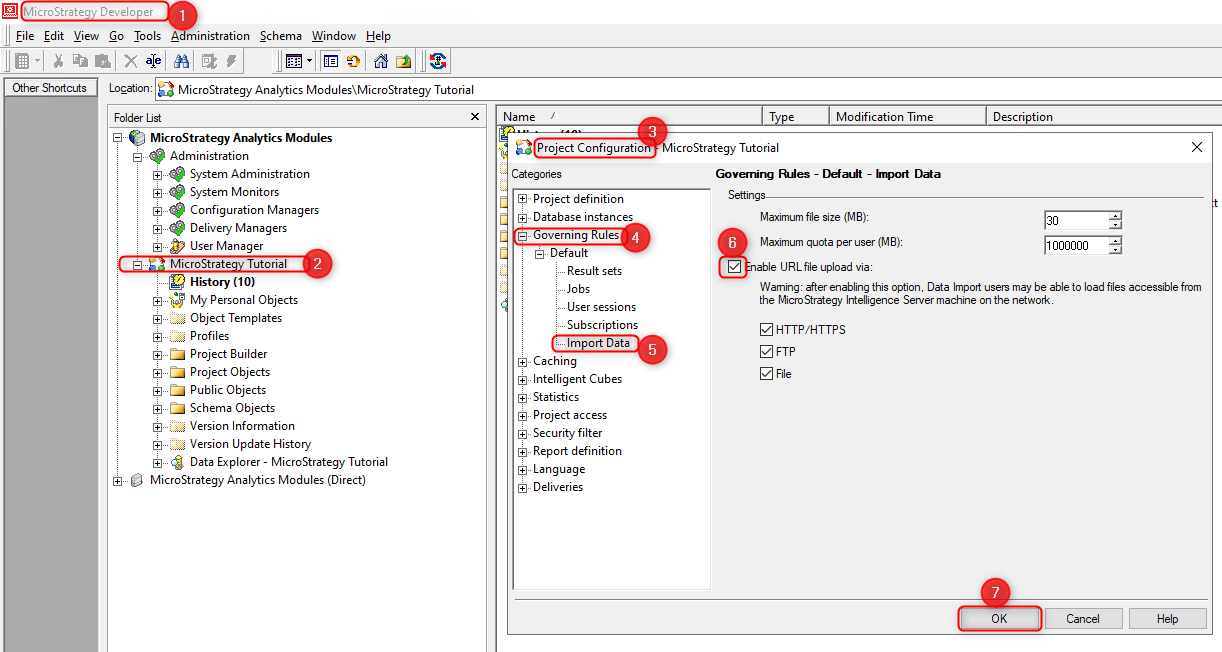
3. If space is not the issue, go to 'Strategy Developer'.
4. Log in as the 'Administrator' user.
5. Expand the affected project.
6. Right-click on the Project and select 'Project Configuration'.
7. Expand 'Governing Rules' and select 'Import Data'.
8. In 'Import Data', uncheck the 'Enable URL file upload via' and click 'OK'.
9. Repeat steps 1 to 5, return to the same option, and re-enable it.
10. Click 'OK' once again.
- https://www2.Strategy.com/producthelp/Current/Workstation/en-us/Content/import_data_file.htm
- https://community.Strategy.com/s/article/KB484293-Please-check-the-file-being-imported?language=en_US
