To review and compare VLDB settings, support may request various VLDB Settings Reports. These reports, which can be created via Developer for all three levels (DBI, Project, and Report), specify all the default and custom values set for each VLDB setting. Support will need to compare the VLDB settings across different environments, for this, multiple reports will need to be generated for each environment to provide valuable information for troubleshooting any issue.
To access each VLDB Setting Level, please follow these steps:
Access at Project Level
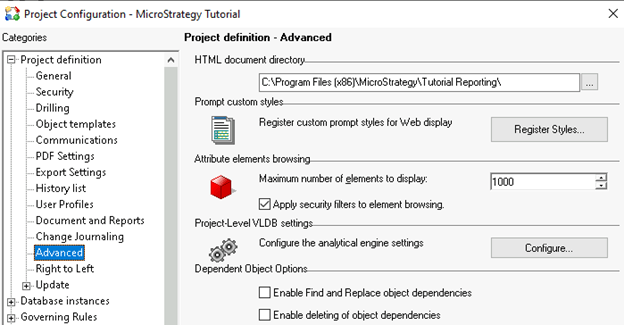
1. Right Click the desired project and choose 'Project Configuration' then navigate towards 'Project Definition' -> 'Advanced' and under 'Project-Level VLDB settings' click the 'Configure...' Button.
Access at Database Instance Level
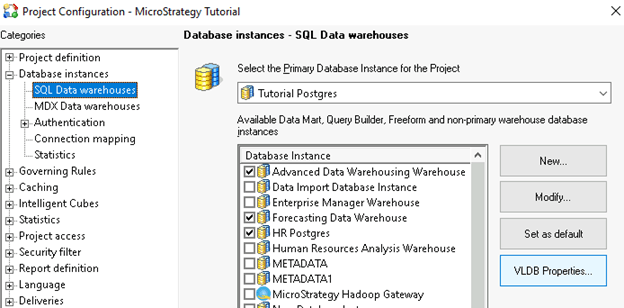
1. In the same 'Project Configuration' window, navigate to 'Database instances' -> SQL Data warehouses' and in this window click the 'VLDB Properties...' button.
Access at Report Level
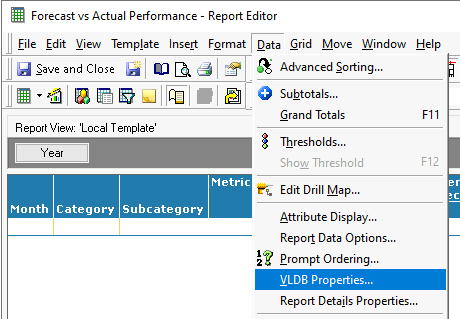
1. Navigate to the desired report, right-click and choose 'Edit', in the Report Editor, go to the top bar and select the 'Data' tab, and then 'VLDB Properties'.
Once you have access to the VLDB Properties window the process will be the same for each level:
1. In the VLDB Properties window, go to the 'Tools' tab and confirm that the 'Show Advanced Settings' box is checked.
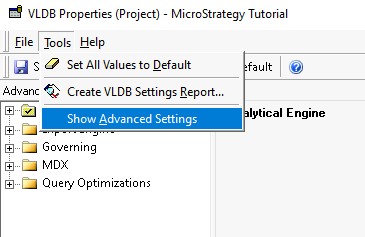
2. Once this box is checked, in the same 'Tools' menu click the 'Create VLDB Settings Report...' option, which will open the VLDB Settings Report window.
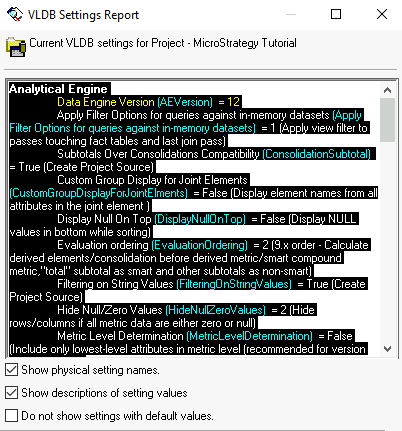
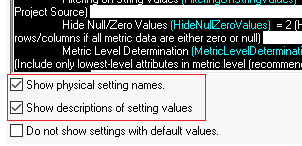
3. Check the 'Show physical setting names.' and 'Show descriptions of setting values.' boxes at the bottom of the VLDB Setting Report window.
4. This will generate a text report containing all of the VLDB Settings and their respective values, copy the text (You can select all of the text with CTRL + A) and paste it into a Text file.
5. Once the file is created, save each file as 'VLDB Settings Report *Level* - *Project Source*
6. Compress the files into a ZIP file and submit them to the Strategy case, or attach it to the Support case email chain. The Engineer will be notified via a Strategy Case once the files have been sent.
