Following an update to the Strategy version of the Intelligence Server, the customer reports encountering an issue where numerous button images are not displaying correctly on Strategy Web. This issue is persistent on both Chrome and Edge browsers. Despite multiple tests and efforts to re-deploy the images using local and relative paths, the problem persists, causing end user disruption.
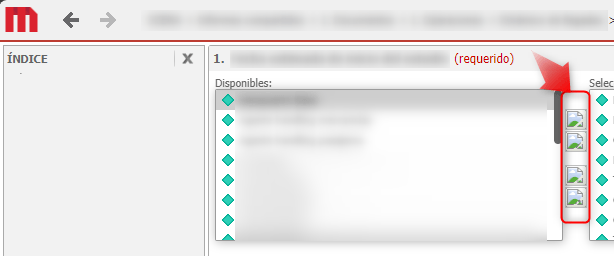
The root cause of this issue most likely lies in the version inconsistency between the updated Intelligence Server and the Strategy Web. The Web deployment may not have been updated following the version update of the Intelligence Server, leading to functional discrepancies and display issues of some buttons.
Follow these steps to resolve the display issue of button images in Strategy:
1. The buttons may be missing in Strategy Web likely because the Web Deployment was not updated following the Intelligence Server update.
2. To ensure your Intelligence Server and Strategy Web are on the same version, navigate to Strategy Web and select 'About Strategy'.
3. Should a discrepancy between the versions be noted, proceed to the machine hosting your Web Server. It is necessary to redeploy the Strategy Web to an updated version that is consistent with your Intelligence Server.
4. To do so, open Services (services.msc), locate the Apache Tomcat Service, and stop it.
5. Back up the current Strategy Web folder in another directory or simply rename it, for example, to 'Strategy_OLD'.
6. Navigate to the installation path 'Program Files (x86)\MicroStrategy\Web JSP' and copy the 'Strategy.war' file.
7. Paste the 'Strategy.war' file into the installation path '\Common Files\MicroStrategy\Tomcat\apache-tomcat-9.0.86\webapps'.
8. Return to Services (services.msc), locate the Apache Tomcat Service, and start it.
9. A new folder for Strategy Web will be deployed, indicated by the creation of a new Strategy Web folder.
10. Access the Strategy Web Admin page in a browser, reconnect the server by selecting 'Add a server Manually' and then 'connect'.
11. Finally, visit Strategy Web, and the buttons should now be displayed.

1. https://www2.Strategy.com/producthelp/Current/InstallConfig/en-us/Content/images_in_library.htm
2. https://www2.Strategy.com/producthelp/Current/InstallConfig/en-us/Content/ApplicationServers/Deploying_Strategy_Web__Mobile_Server__or_Ope_3.htm#ic_wuconfig_2660991842_1078777
