EducationSoftwareStrategy.com
StrategyCommunity

Knowledge Base

Product

Community

Knowledge Base

TopicsBrowse ArticlesDeveloper Zone

Product

Download SoftwareProduct DocumentationSecurity Hub

Education

Tutorial VideosSolution GalleryEducation courses

Community

GuidelinesGrandmastersEvents
x_social-icon_white.svglinkedin_social-icon_white.svg
Strategy logoCommunity

© Strategy Inc. All Rights Reserved.

LegalTerms of UsePrivacy Policy
  1. Home
  2. Topics

KB486928: “No apps were successfully updated” error appears when trying to deploy the MicroStrategy for Office Add-in.


Mikolaj Wus

Lead, Cloud Support • MicroStrategy


This article describes why administrators may be getting “No apps were successfully updated” error when trying to deploy the MicroStrategy for Office Add-in through the Microsoft Admin Center.

Symptom

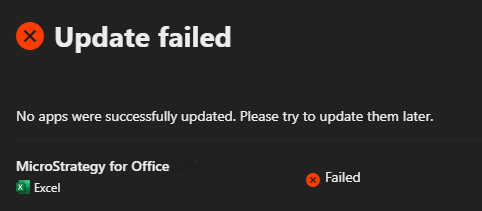
Upon trying to add the Strategy for Office Add-in manifest file in the Microsoft Admin Center to deploy the add-in, the deployment fails with the "No apps were successfully updated. Please try to update them later" error message.
ka0PW00000046GXYAY_0EMPW000009QXo0.jpeg


Steps to reproduce

  1. From the Microsoft Admin Center, select Settings > Services & add-ins.
  2. Click Deploy Add-In on the Services & add-ins page.
  3. Select I have the manifest file from the Deploy Add-In dialog.
  4. Click Browse to add the manifest file from your machine.
  5. Click Next.
  6. Select the group(s) you are deploying add-in to.
  7. Click Deploy Now.

https://www2.microstrategy.com/producthelp/Current/Office/en-us/Content/deploy_as_admin.htm?
 

Root cause


This error may be caused by another Strategy for Office Add-in already being deployed under the same name in the Microsoft Admin Center.
 

Action


The administrator will need to create a new manifest file for the add-in, making sure they’re using a different name for the new Strategy for Office Add-in.

  1. In Workstation, click the Environments tab.
  2. Right-click on the environment and choose Properties.
  3. Go to the Add-ins tab.
  4. Expand, for example, the Strategy for Office, Excel Add-in drop-down.
  5. Make sure that the Ribbon Button and Task Pane names are different from the already deployed add-ins.
  6. Click Generate Microsoft Office Excel Add-in File.
  7. Deploy the add-in with unique ribbon button and task pane names.

https://www2.microstrategy.com/producthelp/Current/Office/en-us/Content/generate_in_workstation.htm


Comment

0 comments

Details

Knowledge Article

Published:

December 23, 2024

Last Updated:

December 23, 2024