EducationSoftwareStrategy.com
StrategyCommunity

Knowledge Base

Product

Community

Knowledge Base

TopicsBrowse ArticlesDeveloper Zone

Product

Download SoftwareProduct DocumentationSecurity Hub

Education

Tutorial VideosSolution GalleryEducation courses

Community

GuidelinesGrandmastersEvents
x_social-icon_white.svglinkedin_social-icon_white.svg
Strategy logoCommunity

© Strategy Inc. All Rights Reserved.

LegalTerms of UsePrivacy Policy
  1. Home
  2. Topics

KB486950: Timezone for resolving dynamic date/datetime in filter/value prompts


Min Zhao

Quality Engineer, Principal • MicroStrategy


In MicroStrategy 2021 Update 8, Timezone feature was introduced supports Time-based reporting using End User's preferred Timezone. However for Dynamic Date/DateTime, it's always resolved as Intelligence Server time zone. In MicroStrategy September 2024, an enhancement is made to consider the user's resolved timezone in resolving dynamic date/datetime for filter/value prompts.

In Strategy September 2024, a new property Time Zone for Resolving Dynamic Date/DateTime in Filters and Value Prompts at Project level is introduced. 

The default value for the property is Intelligence Server time zone, which is backward compatible. To get the new behavior of resolving dynamic date/datetime for user specific time zone, change the property value to User specific time zone: 
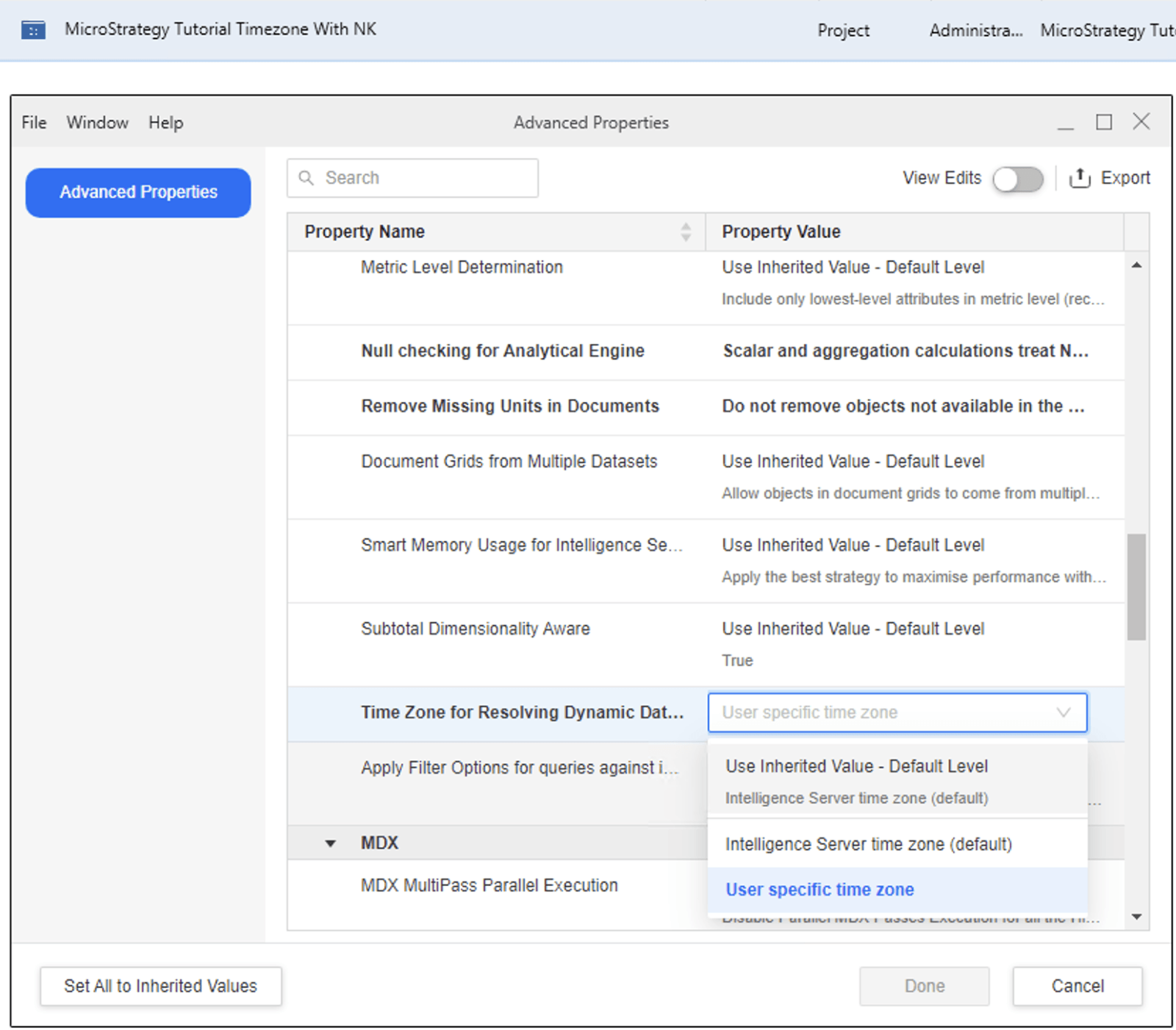
  1. Connect to the environment in Workstation 
  1. Right Mouse Click on project and open Advanced Properties 
  1. Find property under Analytical Engine and change to User specific time zone 
ka0PW0000003F7NYAU_0EMPW00000AG6q6.png


Example: Running report with Dynamic Date/DateTime prompt with different property values

- Intelligence Server time zone is UTC -4, user specific time zone is UTC +14 
Property Value = Default value – Intelligence Server time zone 
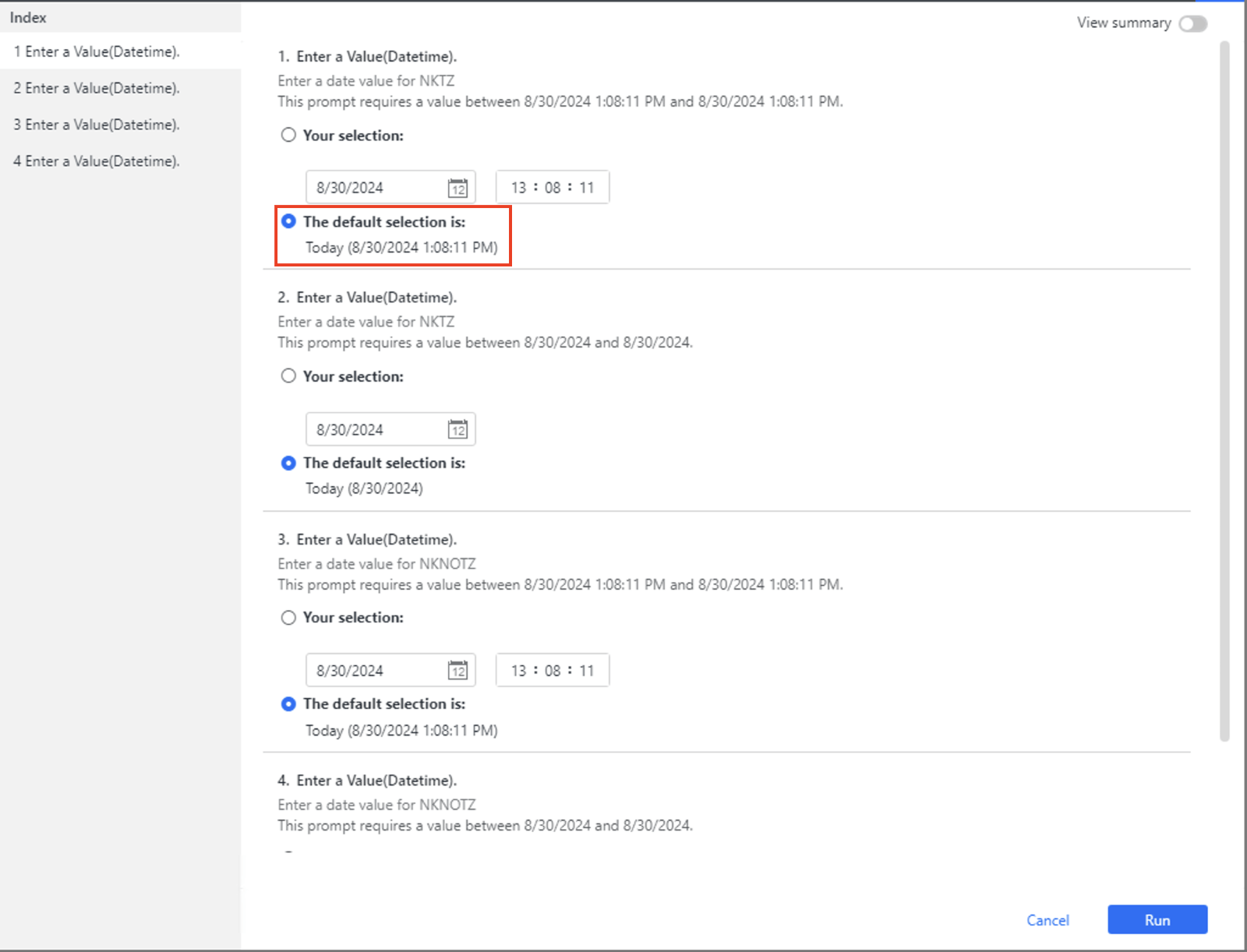
ka0PW0000003F7NYAU_0EMPW00000AG6q7.png

 
Property Value = User specific time zone 
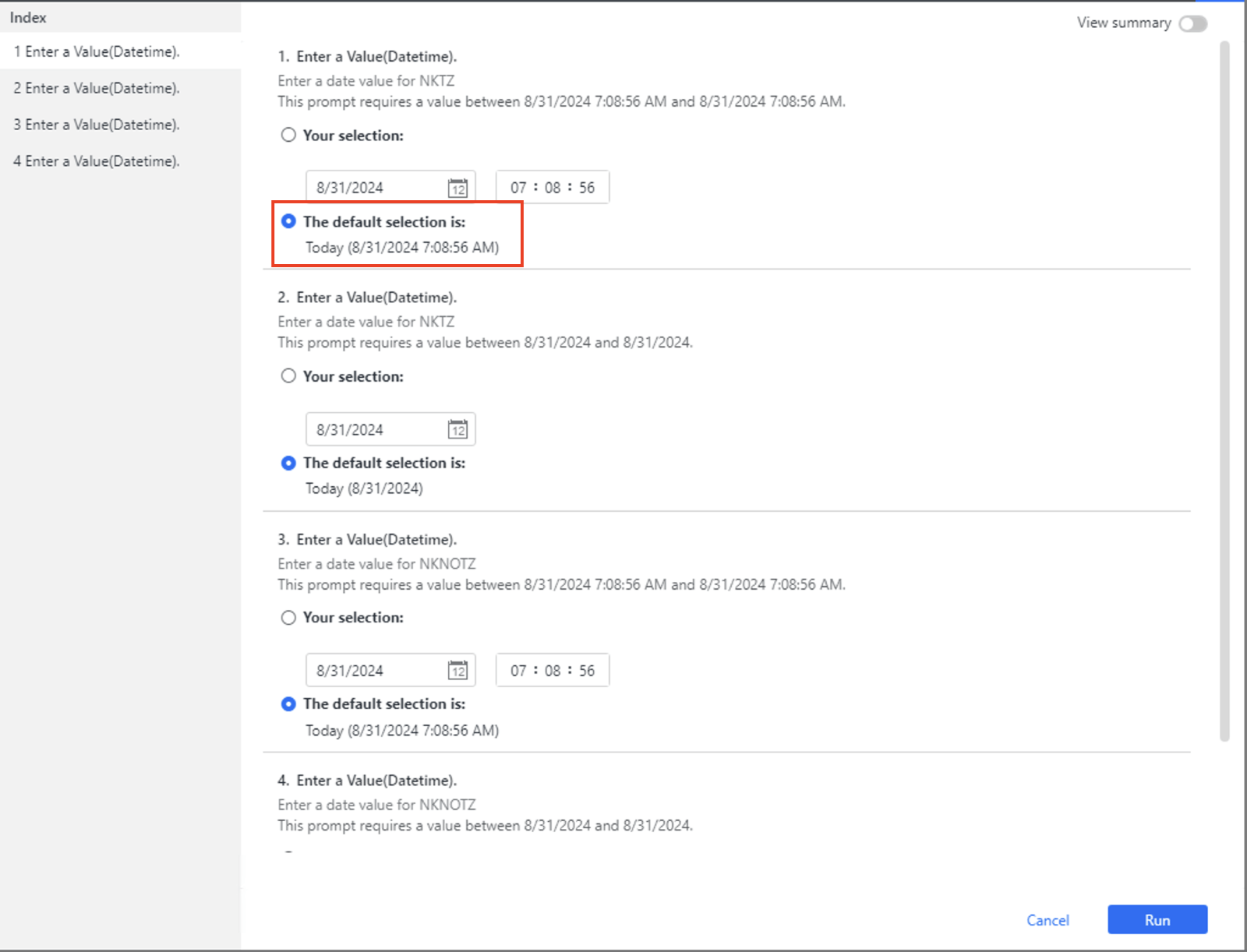
ka0PW0000003F7NYAU_0EMPW00000AG6q8.png

 
Please note that Intelligent Cube/Report/Dashboard without Time Zone Aware Attributes still uses Intelligence Server time zone to resolve Dynamic Date/DateTime because the enhancement is only meant to be done for reporting objects containing Time Zone aware attributes.
Limitations 

  1. The enhancement is only made on Strategy Library Web and Strategy Library Mobile. 
  1. Known display issues for dynamic Date/DateTime
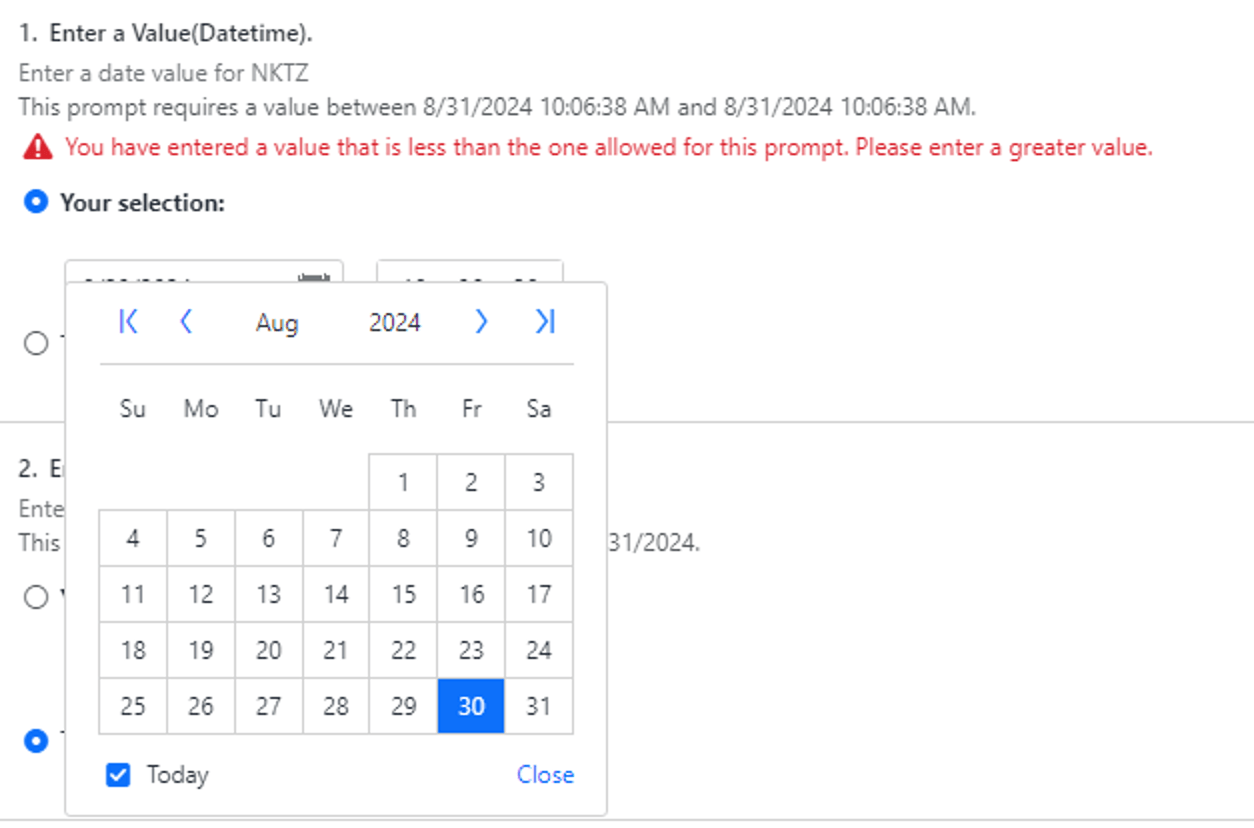
  • The Dynamic Date in Your selection in Prompt is not shown correctly as it still uses Intelligence Server time zone when clicking Today in the Calendar. In this case, user can select the default selection to avoid this validation error.
ka0PW0000003F7NYAU_0EMPW00000AGQf7.jpeg


  • Another example: User preferred Timezone is set to UTC+14, Intelligence Server Date and Timezone is Sep 10, 2024 and UTC respectively.

User runs the dashboard, everything looks good, display of dates are correctly shown as 09/11/2024.
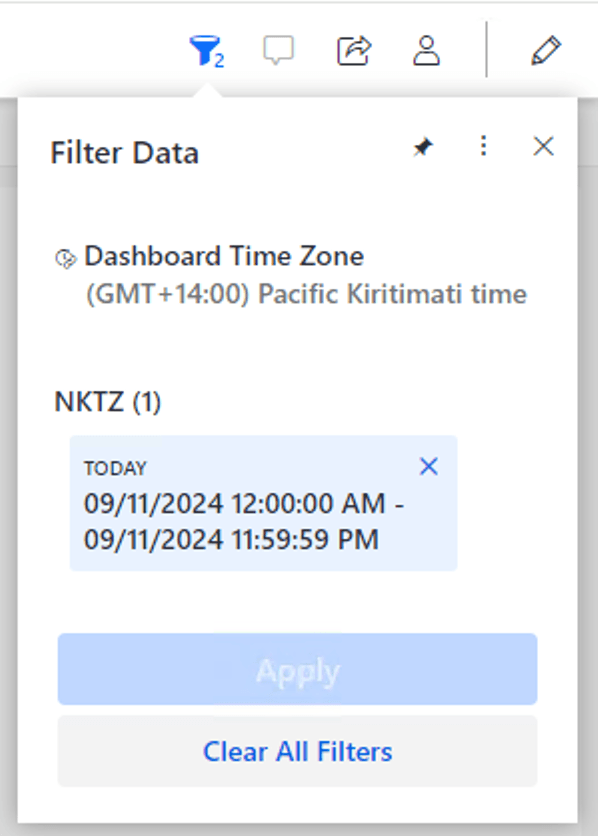
ka0PW0000003F7NYAU_0EMPW00000AebpX.jpeg

Now, change the filter to yesterday. Note that you would expect to see 09/10/2024 but you end up seeing 09/09/2024.
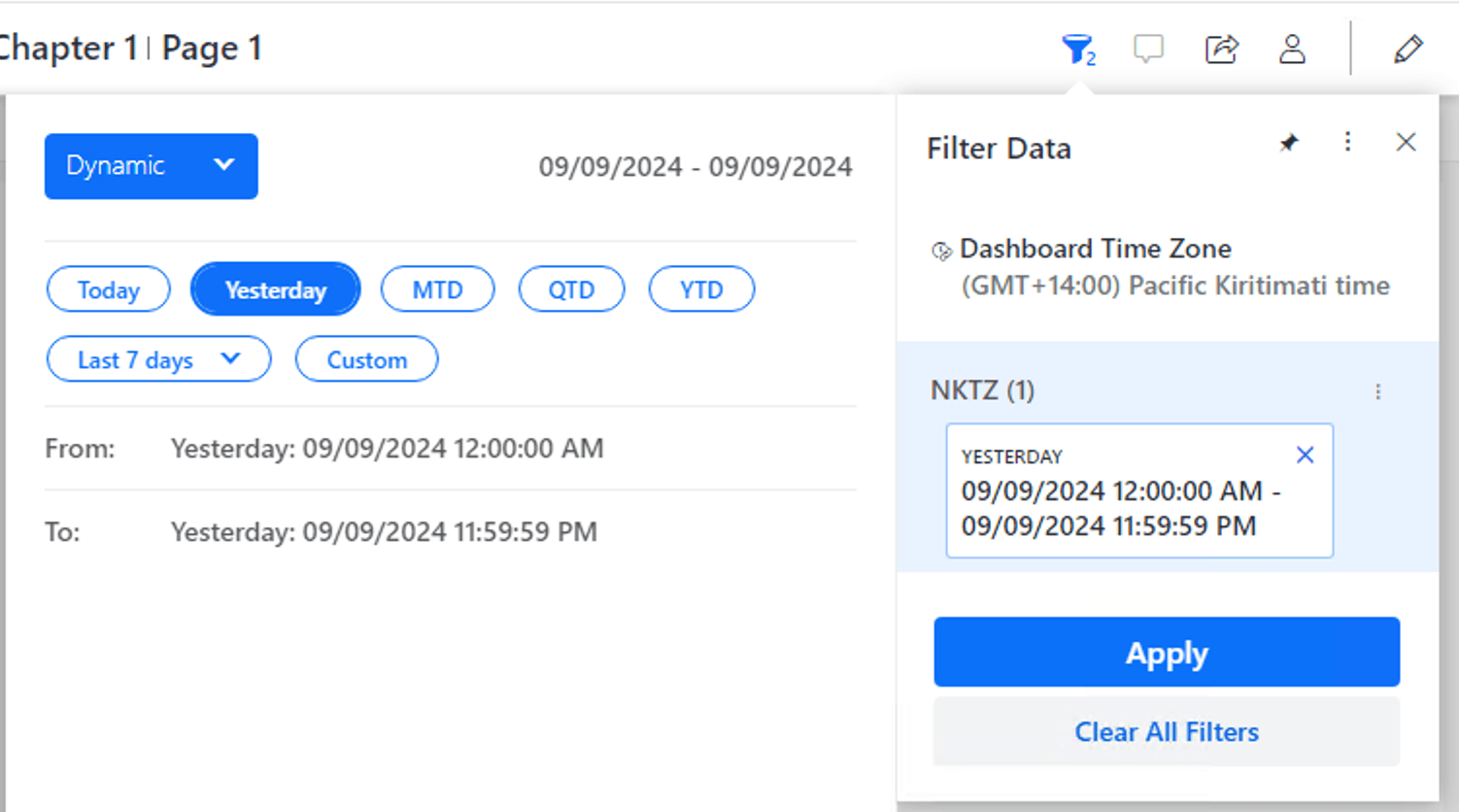
ka0PW0000003F7NYAU_0EMPW00000AeiHV.jpeg

 
This is just a display issue and the dates are still resolved correctly on server. The display problem will not be seen when the user closes and the dashboard again.
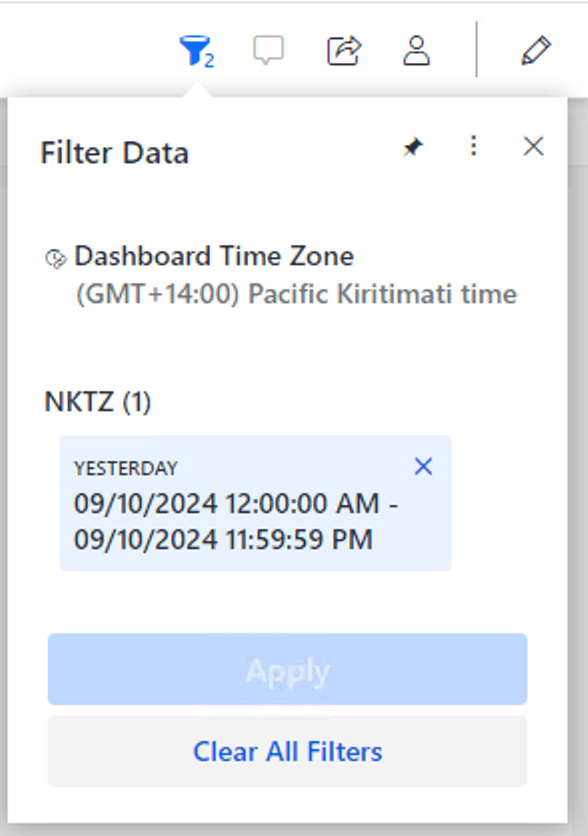
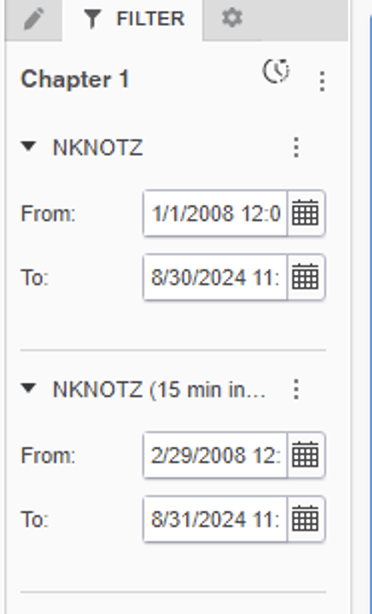
ka0PW0000003F7NYAU_0EMPW00000AeQdy.jpeg


  • Dynamic Date in newly created filter needs to be refreshed (by refreshing the Dashboard) to show correct time zone. 
ka0PW0000003F7NYAU_0EMPW00000AG6qA.png


  1. sdfsdfs

    Here is the table which explains how dynamic date/datetime are resolved for different reporting scenarios.

    Intelligent Cube with Timezone aware attributes 

    Intelligent Cube Timezone. If it is Default then use Project's default time zone 

    Intelligent Cube without Timezone aware attributes 

    Intelligence Server Timezone

    Normal Report with Timezone aware attributes 

    User specific Timezone. If it is Default then use Project's default Timezone

    Normal Report without Timezone aware attributes 

    Intelligence Server Timezone

    Dashboard using Normal Report with Timezone aware attributes 

    Dashboard Timezone. If it is Default then use User specific Timezone. If it is also Default then use Project's default Timezone

    Dashboard using Normal Report without Timezone aware attributes 

    Intelligence Server Timezone

    Dashboard using Multi Timezone Cube with Timezone aware attributes 

    Dashboard Timezone. If it is Default then use User specific Timezone. If it is also Default then use Project's default Timezone

    Dashboard using Multi Timezone Cube without Timezone aware attributes  

    Intelligence Server Timezone

    Dashboard using Fixed Timezone Cube with Timezone aware attributes  

    Dashboard Timezone. If it is Default then use User specific Timezone. If it is also Default then use Project's default Timezone

    Live Dashboard with Timezone aware attributes 

    Dashboard Timezone. If it is Default then use User specific Timezone. If it is also Default then use Project's default Timezone

    Live Dashboard without Time Zone Aware Attributes 

    Intelligence Server Timezone


Comment

0 comments

Details

Knowledge Article

Published:

September 13, 2024

Last Updated:

September 20, 2024