EducationSoftwareStrategy.com
StrategyCommunity

Knowledge Base

Product

Community

Knowledge Base

TopicsBrowse ArticlesDeveloper Zone

Product

Download SoftwareProduct DocumentationSecurity Hub

Education

Tutorial VideosSolution GalleryEducation courses

Community

GuidelinesGrandmastersEvents
x_social-icon_white.svglinkedin_social-icon_white.svg
Strategy logoCommunity

© Strategy Inc. All Rights Reserved.

LegalTerms of UsePrivacy Policy
  1. Home
  2. Topics

KB486956: How to capture a Network Trace (.HAR) while Importing to the MicroStrategy Office Plugin for the client version of Microsoft Excel


Darren Burns

Senior Cloud Support Engineer III • MicroStrategy


This KB article describes how to capture a network trace (.HAR) while Importing a dashboard to the MicroStrategy Office Plugin when using the the client or desktop version of a Microsoft Office product, such as Excel.

Symptom:


When Troubleshooting issues related to the ‘Strategy for Office’ plugin, it is often valuable to review the network traffic between the plugin and the REST API server at the time of importing the Strategy object. 
Desktop Network Traffic tools such as Fiddler might not always be effective due to SSL Certificate conflicts, or security blocks on installing such tools locally. Instead, it is possible to display and capture/export Network Traffic using the native browser debugger from the plugin/local browser. 
To enable the DevTools Debbuger follow these steps.
Solution:

  • For Issues related to authentication:
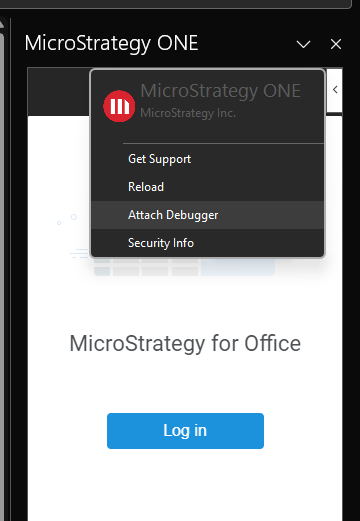
    Click the arrow button at the top-right side of the panel and Select "Attach Debugger".
ka0PW0000003AcLYAU_0EMPW00000AW05Z.png
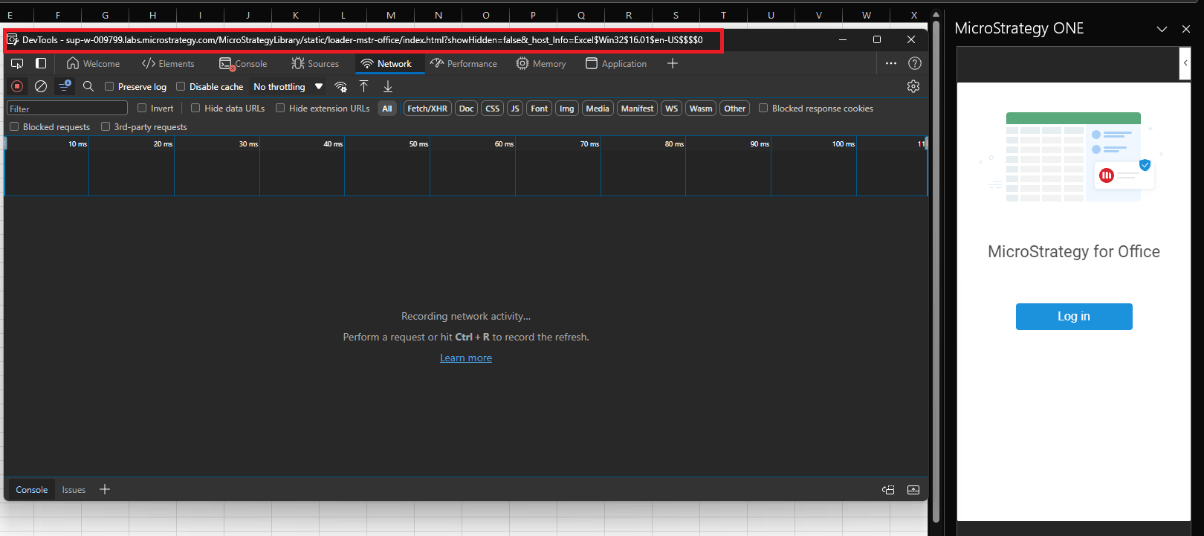
  • This will open the Browser DevTools debugger for this panel to capture the traffic, as shown below:
ka0PW0000003AcLYAU_0EMPW00000AW05a.png
  • For issues related to importing Dashboards or general usage post-authentication:
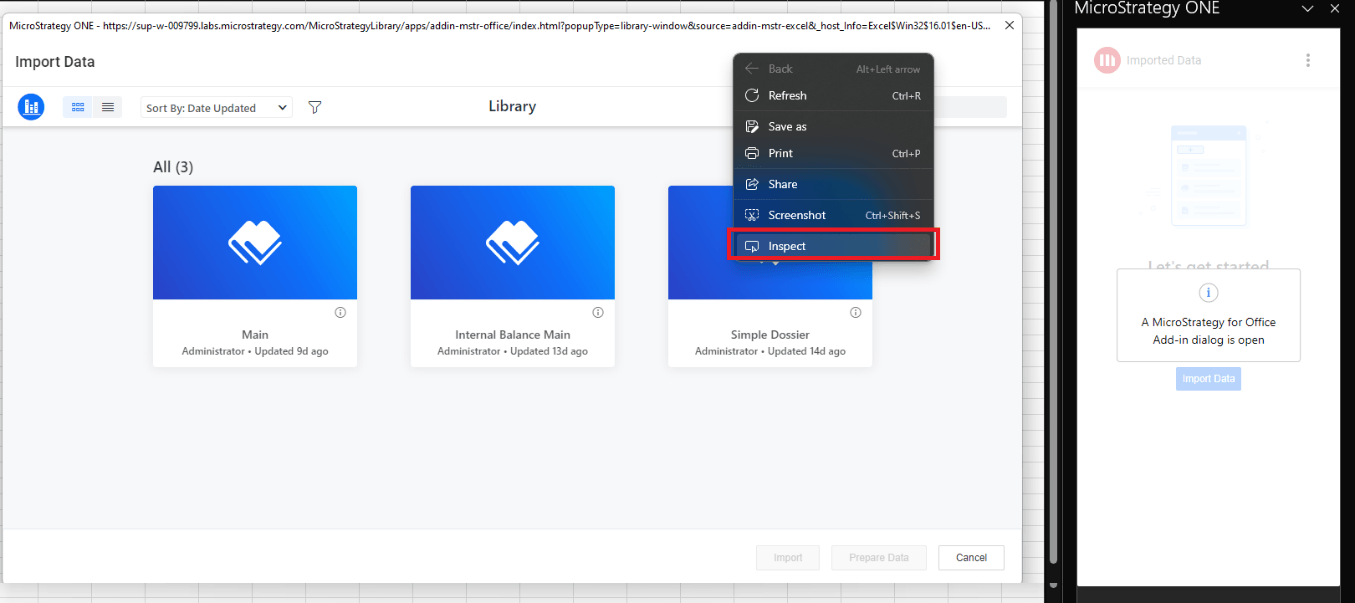
    Right-click the Data Import window and select "Inspect", as shown below:
ka0PW0000003AcLYAU_0EMPW00000AW05b.png
  • This will open the Debugger for the Import Data popup window and subsequent actions can be traced and exported.
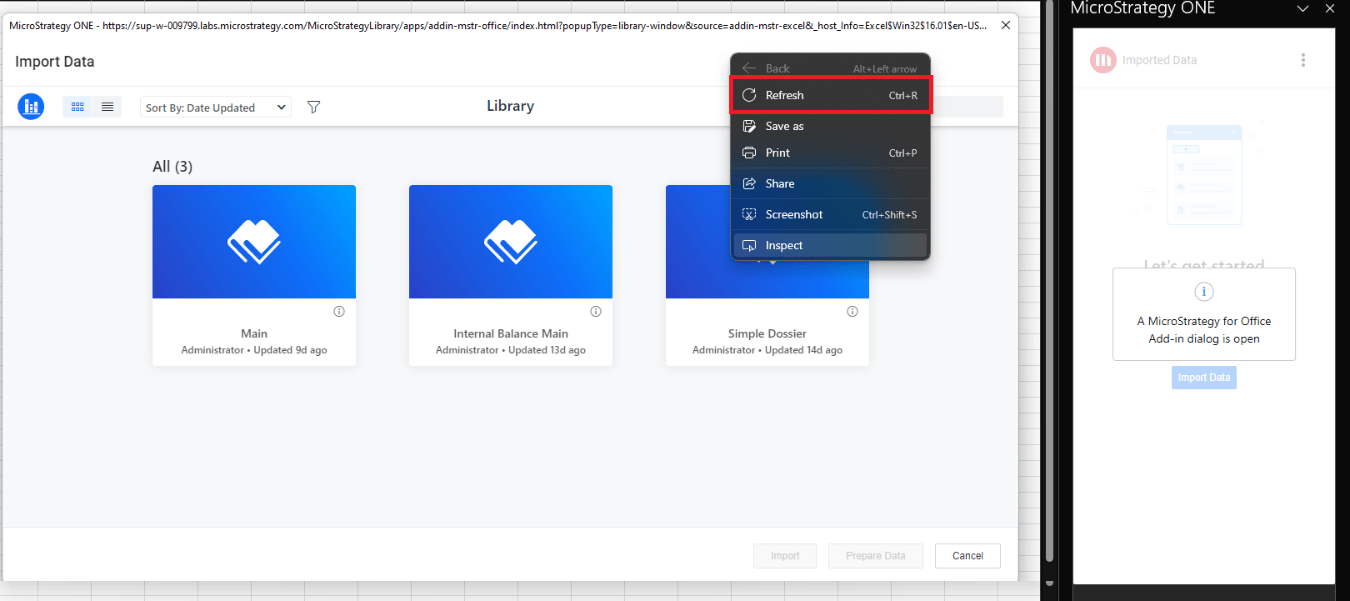
  • For issues related to the initial load of the Data Import popup window itself, first open the debugger as shown in step 2, and then reload the popup window by right-clicking it and selecting "Refresh". 
ka0PW0000003AcLYAU_0EMPW00000AW05c.png
  • This will refresh the contents of the Import Data popup window and the traffic will be captured in the debugger.


  Now perform the actions and capture the necessary network trace to troubleshoot the issue.


Comment

0 comments

Details

Knowledge Article

Published:

September 20, 2024

Last Updated:

September 20, 2024