EducationSoftwareStrategy.com
StrategyCommunity

Knowledge Base

Product

Community

Knowledge Base

TopicsBrowse ArticlesDeveloper Zone

Product

Download SoftwareProduct DocumentationSecurity Hub

Education

Tutorial VideosSolution GalleryEducation courses

Community

GuidelinesGrandmastersEvents
x_social-icon_white.svglinkedin_social-icon_white.svg
Strategy logoCommunity

© Strategy Inc. All Rights Reserved.

LegalTerms of UsePrivacy Policy
  1. Home
  2. Topics

KB487005: How to Create Table Aliases in Microstrategy Workstation


Michiel Dietvorst

Senior Support Engineer • MicroStrategy


This article outlines the method to create table aliases, also known as logical table aliases, in MicroStrategy Workstation.

Introduction

To model an attribute with multiple roles, one must create separate attributes in the logical model for each role. This is achieved by establishing multiple logical table aliases that reference the same physical table, with each alias serving as the lookup table for its respective attribute role. 
Creating table aliases in Strategy Workstation is both quick and effortless, providing a user-friendly way to manage and reference complex tables.
Steps

  1. Launch Strategy Workstation and connect to your environment.
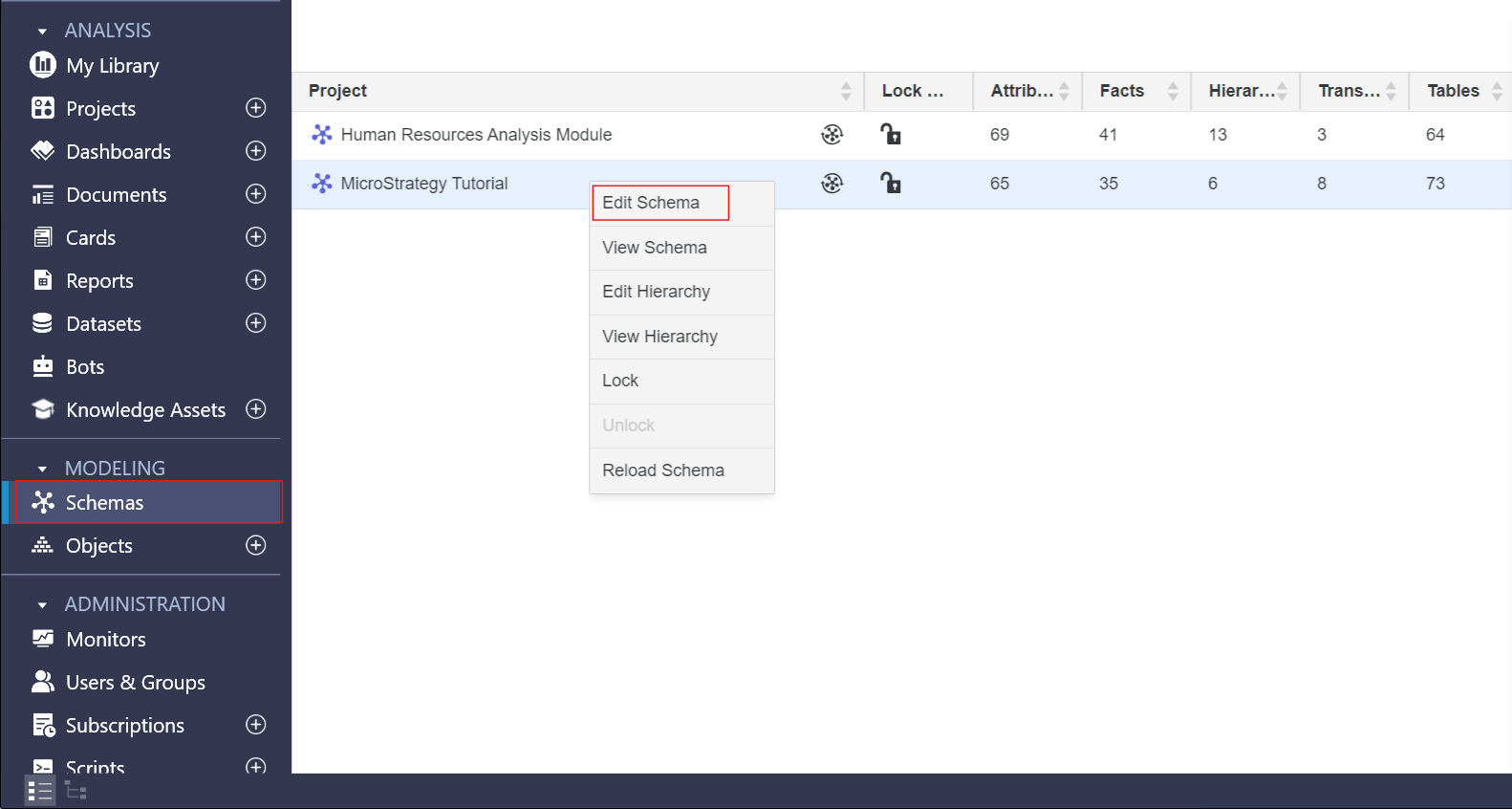
  2. Under the "Modeling" section click "Schemas".
  3. Right-click the project which you wish to create table aliases for and select ""Edit Schema".
ka0PW0000003FIfYAM_0EMPW00000AvJhi.jpeg
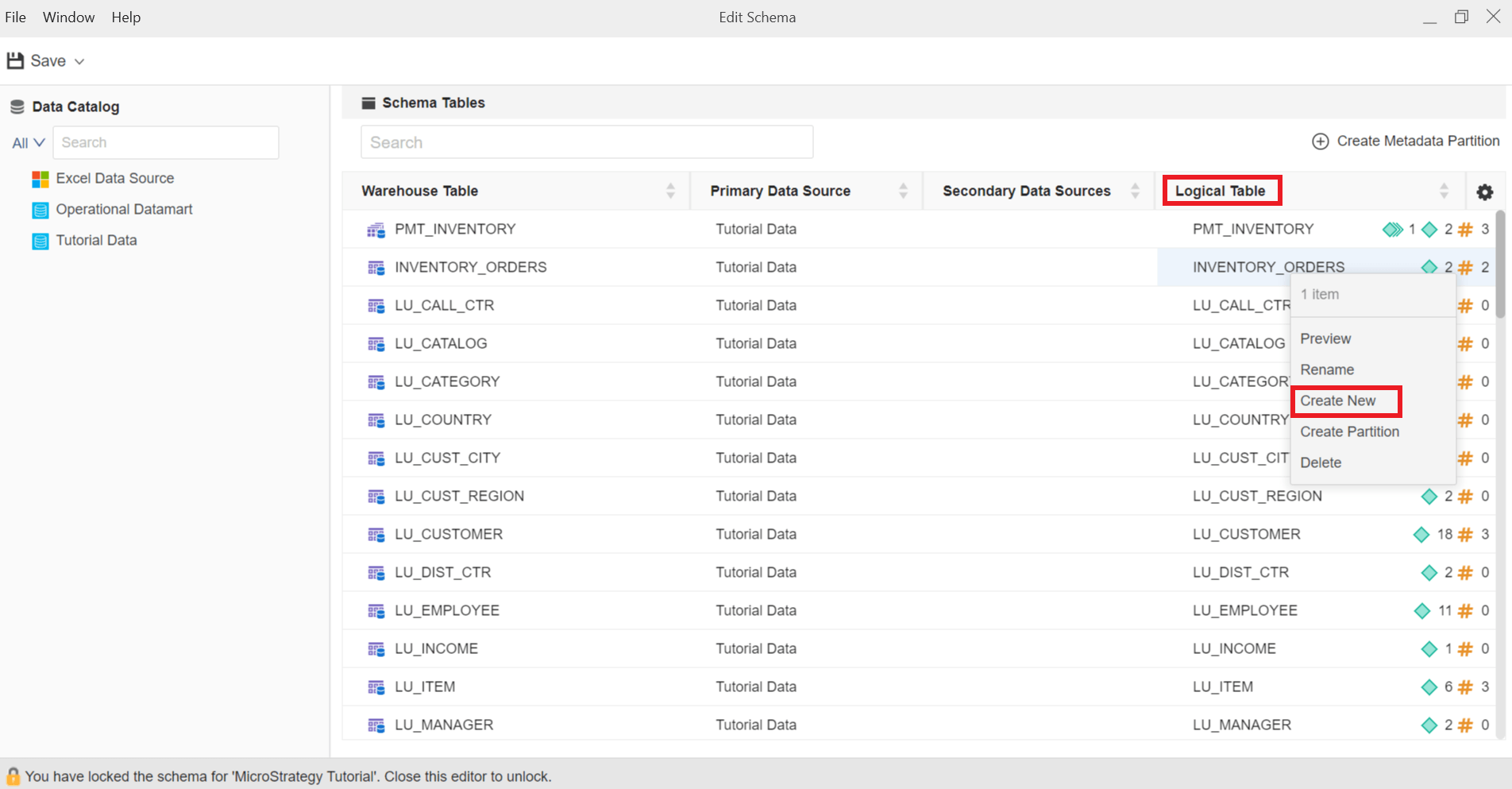
  1. Right-click a table under the "Logical Table" column and select "Create New".
ka0PW0000003FIfYAM_0EMPW00000AvKdn.jpeg
  1. In the box that appears, type in your Table Alias name and click enter to save it.
  2. Save and close the schema to save your changes.


Comment

0 comments

Details

Knowledge Article

Published:

December 15, 2024

Last Updated:

December 15, 2024