EducationSoftwareStrategy.com
StrategyCommunity

Knowledge Base

Product

Community

Knowledge Base

TopicsBrowse ArticlesDeveloper Zone

Product

Download SoftwareProduct DocumentationSecurity Hub

Education

Tutorial VideosSolution GalleryEducation courses

Community

GuidelinesGrandmastersEvents
x_social-icon_white.svglinkedin_social-icon_white.svg
Strategy logoCommunity

© Strategy Inc. All Rights Reserved.

LegalTerms of UsePrivacy Policy
  1. Home
  2. Topics

KB487065:How to troubleshoot error of Library server refused to connect MicroStrategy for Tableau connector


Sheng (Randy) Wu

Senior Cloud Support Engineer III • MicroStrategy


This knowledge base article describes the "refuse to connect" error when importing data from MicroStrategy to Tableau and provides the steps to fix it.

Symptom

When importing data from Strategy to Tableau by following the product manual (https://www2.microstrategy.com/producthelp/Current/FederatedAnalytics/en-us/Content/Connect_Tableau_Public.htm), users may encounter an error message "xxxx.com refused to connect" in step 3 during the login to the Strategy Library environment. The error indicates that Strategy Library refused to connect to Strategy for Tableau connector. The image below shows the error page and message.

ka0PW00000046JlYAI_0EMPW00000FG6AT.jpeg


Cause

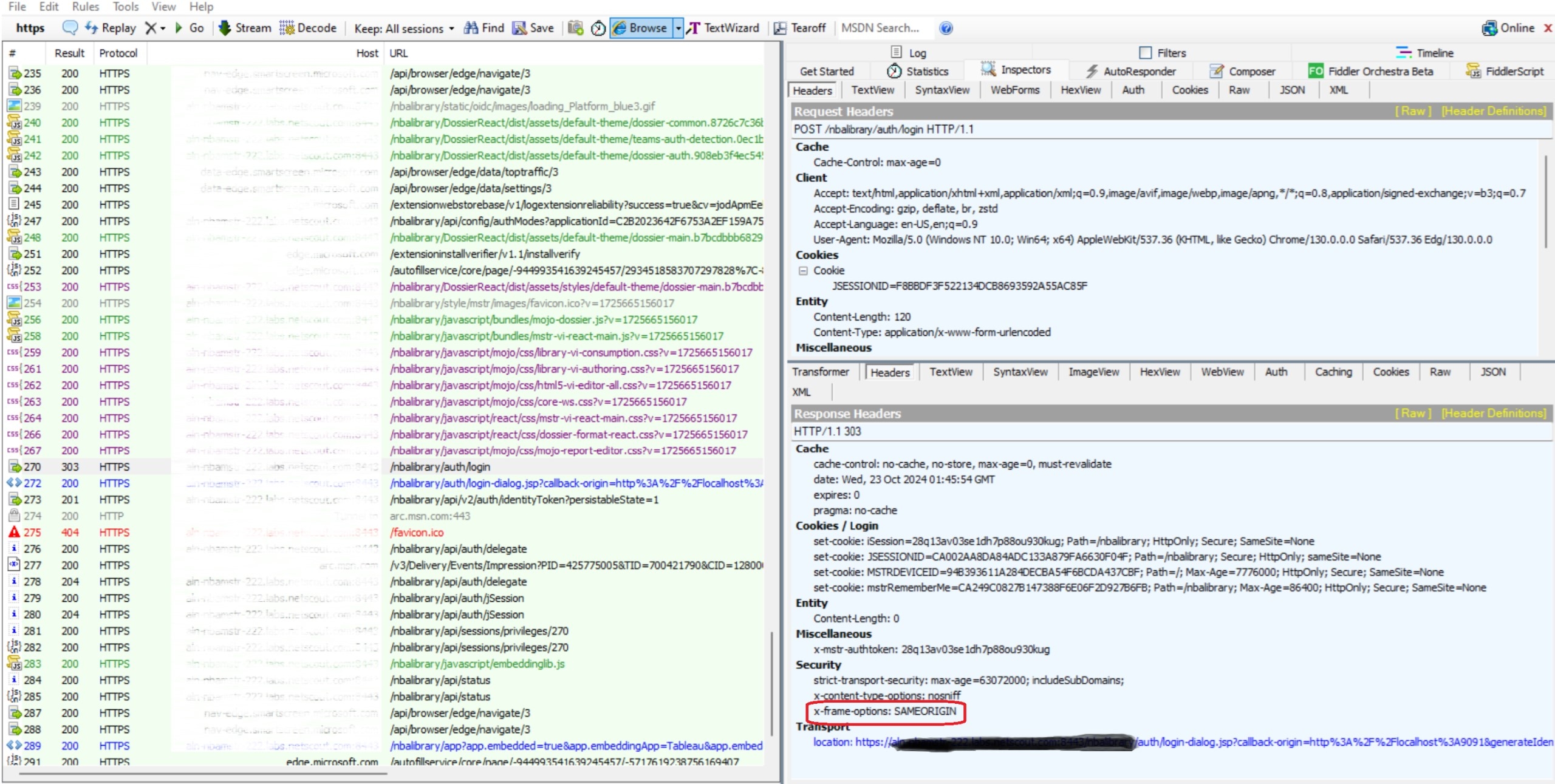
The root cause of the "refuse to connect" error is the security parameter “x-frame-options” set to “SAMEORIGIN” which means it only allows requests from the same origin. In this case, since the Strategy Library server and the Tableau connector (default build-in host is “localhost:9091”) are from different origins, the connection is blocked. 
The screenshot below from Fiddler trace shows where the SAMEORIGIN security header is configured.
ka0PW00000046JlYAI_0EMPW00000FETJF.jpeg


Solution

To resolve this issue, users need to remove the “x-frame-options” security header to allow the the connection between the Strategy Library and Tableau connector.
Since this security setting can be updated and overridden in multiple places, please check the following configurations:

  • Library Admin page: Ensure "Allow Library embedding in other sites" has been set to "All".
  • web.xml file: Navigate to the "...\MicroStrategyLibrary\WEB-INF\" directory and open the "web.xml" file, search for the filter "com.Strategy.web.filter.GlobalHeadersFilter" and double-check if any filter setting "x-frame-options" is set to "SAMEORIGIN". Remove or comment-out this line if it exists.
     
ka0PW00000046JlYAI_0EMPW00000FG6C5.jpeg
  • Load Balancer or Proxy Server: Double-check with the customer's IT/network team to ensure there is no such security header configured in their Load balancer, Proxy server, etc.


Comment

0 comments

Details

Knowledge Article

Published:

December 27, 2024

Last Updated:

December 27, 2024