EducationSoftwareStrategy.com
StrategyCommunity

Knowledge Base

Product

Community

Knowledge Base

TopicsBrowse ArticlesDeveloper Zone

Product

Download SoftwareProduct DocumentationSecurity Hub

Education

Tutorial VideosSolution GalleryEducation courses

Community

GuidelinesGrandmastersEvents
x_social-icon_white.svglinkedin_social-icon_white.svg
Strategy logoCommunity

© Strategy Inc. All Rights Reserved.

LegalTerms of UsePrivacy Policy
  1. Home
  2. Topics

KB487088: License Managerで監査(Audit)を実施する手順


Toshiaki Ishikawa

Senior Cloud Support Engineer II • MicroStrategy


概要
本ドキュメントでは、License Manager(ライセンスマネージャ)で監査(Audit)を実施する手順を記載しています。 
 
用途
コンプライアンスチェック実施時に違反が生じている場合に、監査を実施することでどのライセンスに違反が生じているか出力される監査レポートで確認がいただけます。 
また弊社サポートにライセンスに関するお問い合わせをいただく際も、監査を実施した際に出力される監査レポートをご送付いただく事がございます。 
 
<License Managerの起動> 
・Windowsの場合 
  WindowsのスタートボタンからLicense Managerを起動します。 
・Linuxの場合 
  GUIを利用する場合 
   # ./mstrlicmgr 
  GUIが利用できない場合、オプション -console を付与して実行します。 
   # ./mstrlicmgr -console 
<Auditの実行> 
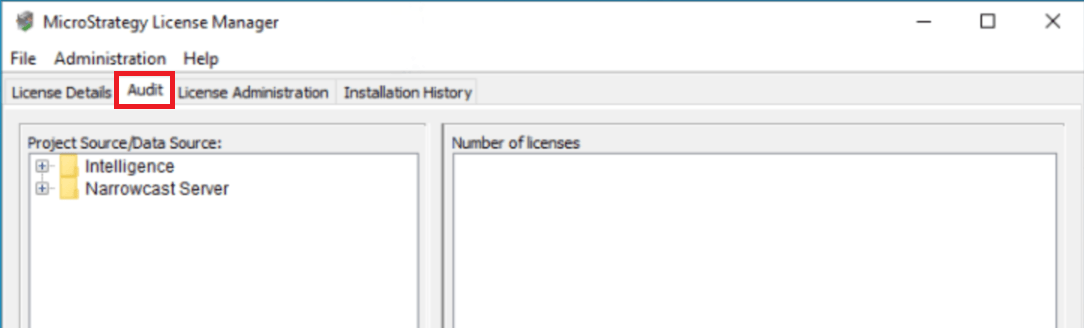
  • 1.License Managerを起動後に、[Audit/監査]タブへ移動します。

ka0PW0000005andYAA_0EMPW00000FhfX7.jpeg
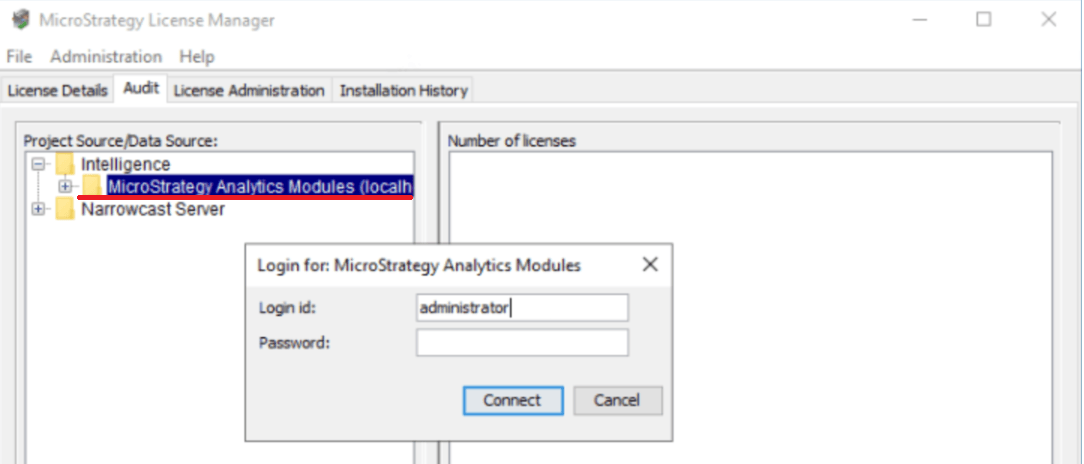
  • 2.プロジェクトソースをクリックして、管理者ユーザーを利用してログインします。

ka0PW0000005andYAA_0EMPW00000FhfYj.jpeg
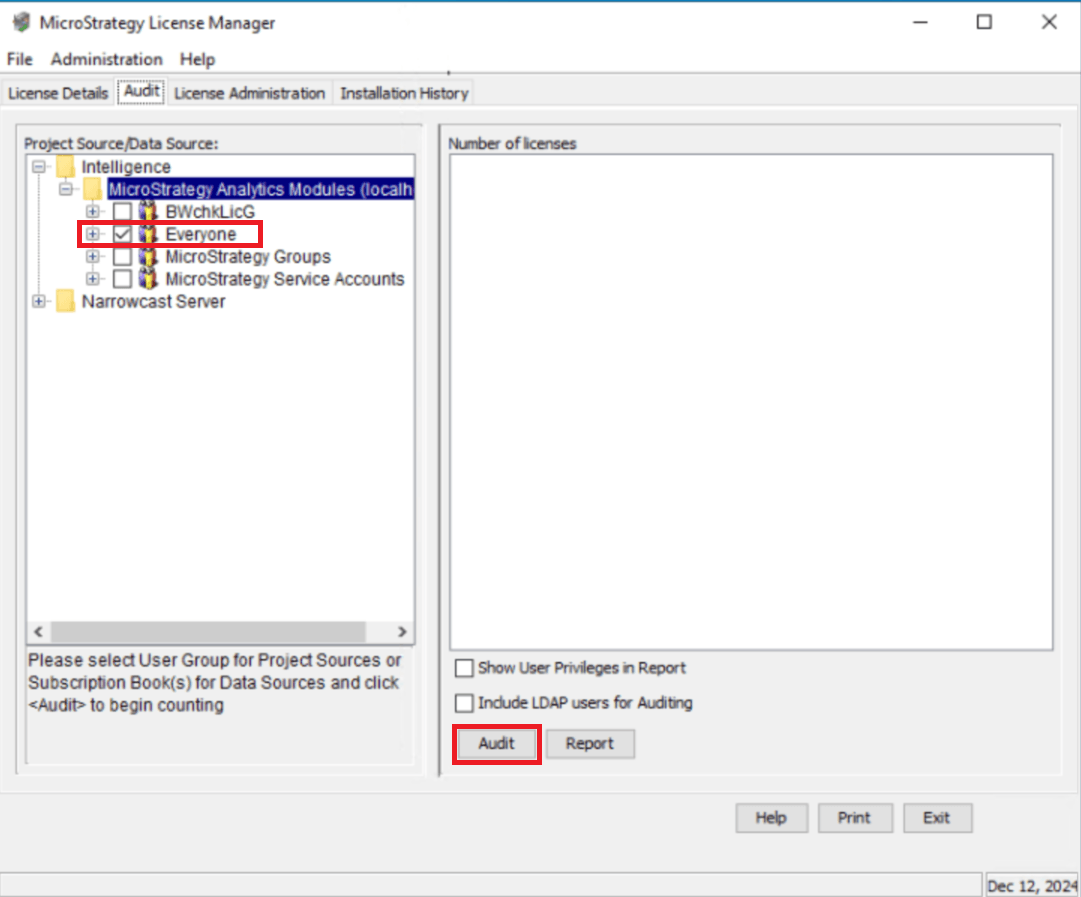
  • 3.Everyone グループを選択し、画面下中央にある[Audit/監査]ボタンを押下します。

ka0PW0000005andYAA_0EMPW00000FhfaL.jpeg


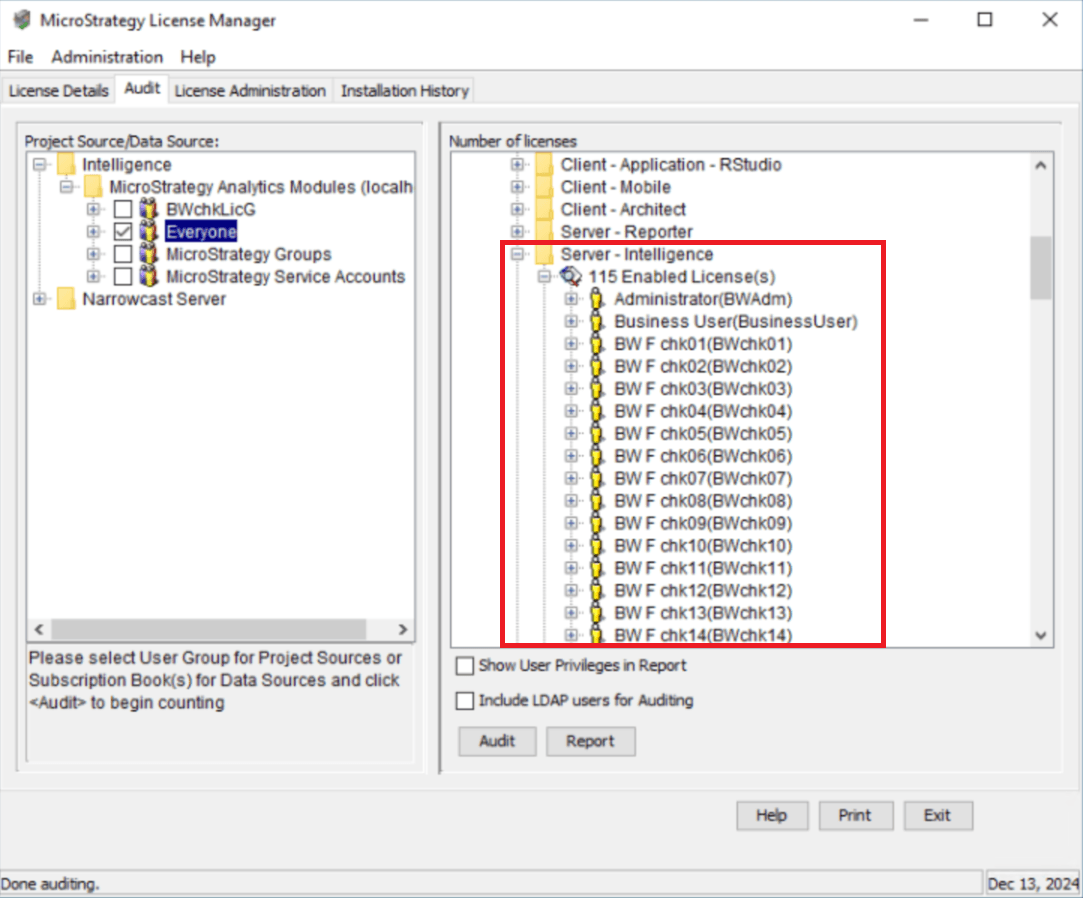
  • 4.結果が画面右の「Number of license/ライセンス数」に表示されます。

  •   ライセンスのフォルダを展開することで、有効ユーザー数、無効化されたユーザー数を

  •   確認できます。

ka0PW0000005andYAA_0EMPW00000FhcKk.jpeg
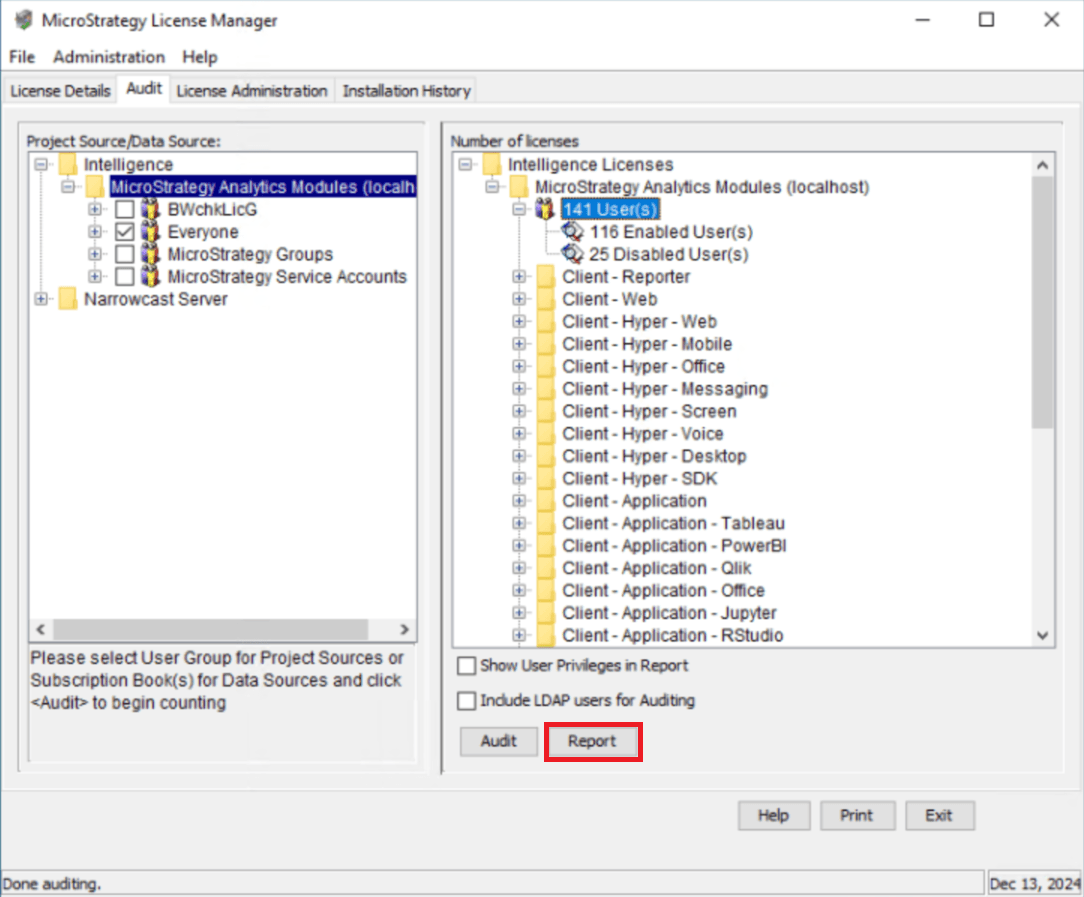
  • 5.詳細を確認するためにレポート(HTML、XML、CSVファイル)を出力することが可能です。

  •   その場合は、[Report/レポート]ボタンを押下します。

ka0PW0000005andYAA_0EMPW00000Fhfbx.jpeg
  • 必要に応じてレポートに各ユーザーの権限を出力するには[Show User Privileges in Report/ユーザ権限をレポートに表示]をonにします。

  • 監査にLDAPユーザーを含めるには[Include LDAP users for Auditing/LDAPユーザーを監査に含む]をonにします。 

 
<サポートに情報を提供する場合> 
[Show User Privileges in Report/ユーザ権限をレポートに表示] および [Include LDAP users for Auditing/LDAPユーザーを監査に含む]をONにし、上記の手順で実施したAudit(監査)の結果レポート(HTMLファイル)を送付ください。 


Comment

0 comments

Details

Knowledge Article

Published:

April 15, 2025

Last Updated:

May 1, 2025