In the Strategy Library, the default behavior for prompted dashboards is to retain an end user’s prompt selections each time the dashboard is opened. Saving prompt selections helps end users as they do not need to re-enter their choices each time they run the dashboard from Library. If users want to change their answers, they can simply click on the “Re-prompt” or “Reset” buttons, which allow the users to reset the prompt selections as needed.
This is detailed in KB441304: https://community.strategy.com/article/Prompts-with-Dossiers?language=en_US
However, there may be times where this functionality causes inconvenience, for example when ad-hoc reporting is used and Library users frequently select different combinations of metrics or attributes and wish to change the selection each time or frequently.
A dashboard can be configured to always open the last saved view which will always prompt users upon subsequent executions:
1. Open the dashboard
2. From File menu, select Dashboard Properties
3. In the General tab, you will see the View in Library options:
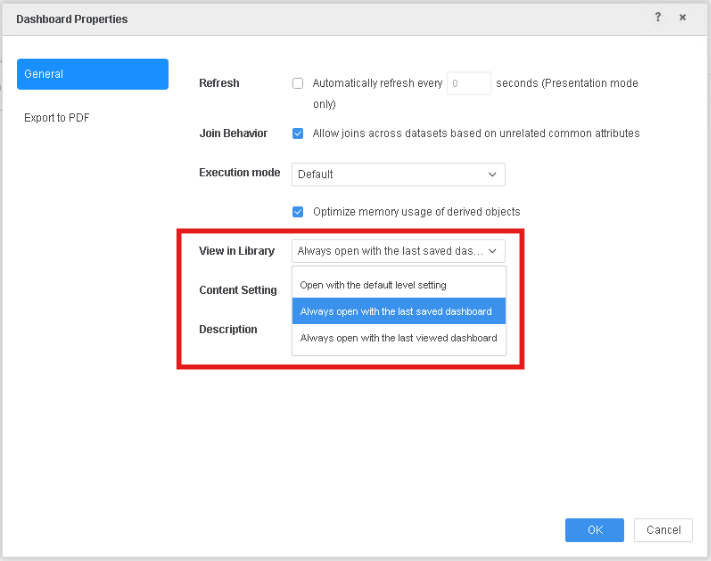
Here, you can select the default open view when the dashboard is opened. The setting modified at the individual dashboard level takes priority over the setting defined on the environment or project level.
Open with the default level setting: Keep the default view set by the administrator at either the environment or project level.
Always open with the last saved dashboard: View the dashboard in Library with the last saved view that the author intended (base view). The dashboard is always reset upon execution.
Always open with the last viewed dashboard: View the dashboard in Library with the last viewed state of the user. For example, if the user views the Finance page last and then closes the dashboard, the Finance page opens upon the next execution.
When the option Always open with the last saved dashboard is selected, the user will always be re-prompted when they execute a dashboard, and previous prompt selections will not be saved.
