EducationSoftwareStrategy.com
StrategyCommunity

Knowledge Base

Product

Community

Knowledge Base

TopicsBrowse ArticlesDeveloper Zone

Product

Download SoftwareProduct DocumentationSecurity Hub

Education

Tutorial VideosSolution GalleryEducation courses

Community

GuidelinesGrandmastersEvents
x_social-icon_white.svglinkedin_social-icon_white.svg
Strategy logoCommunity

© Strategy Inc. All Rights Reserved.

LegalTerms of UsePrivacy Policy
  1. Home
  2. Topics

KB488138: Mapping Claims to System Prompts in Azure OIDC Login


Zhenhua Xie

Software Engineer, Principal • MicroStrategy


See the following configuration process to add ID token claims in the Azure portal so they are available for OIDC system prompt mapping.

Add Predefined Claims from Azure to OIDC Configuration

You can retrieve additional OIDC claims in Azure from two sources; optional OIDC claims and claim customization from AD attributes.
Note: Azure OIDC claim settings may change. Refer to the Microsoft documentation for further information, Configure and manage optional claims in ID tokens, access tokens, and SAML tokens.
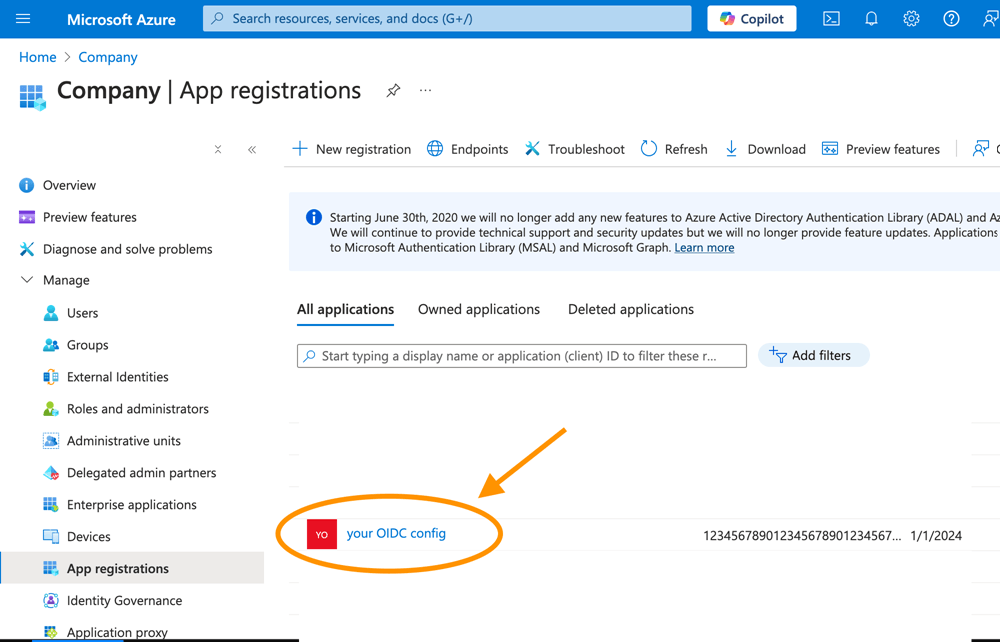
Configuration in Azure OIDC Provider

  • In your Azure portal, click Microsoft Entra ID.
  • In the left navigation, click App registrations under Manage.
  • Open your OIDC configuration.

ka0PW00000058ZdYAI_0EMPW00000KBWvW.jpeg

Add Predefined Optional Claims

Azure OIDC has a set of optional claims that can be added to the OIDC ID token.

ka0PW00000058ZdYAI_0EMPW00000KBXl8.jpeg
  1. In your OIDC configuration left navigation, click Token configuration under Manage.
  2. Click Add optional claim.
  3. In the Add optional claim dialog, choose ID under Token type.
  4. Select the check box next to the claims you want to add. Note: Some attributes require extra permissions from Microsoft Graph.
  5. Click Add. 

Add Custom Claims Mapped from Azure AD

In addition to optional claims, Azure supports adding Azure AD properties as ID token claims.

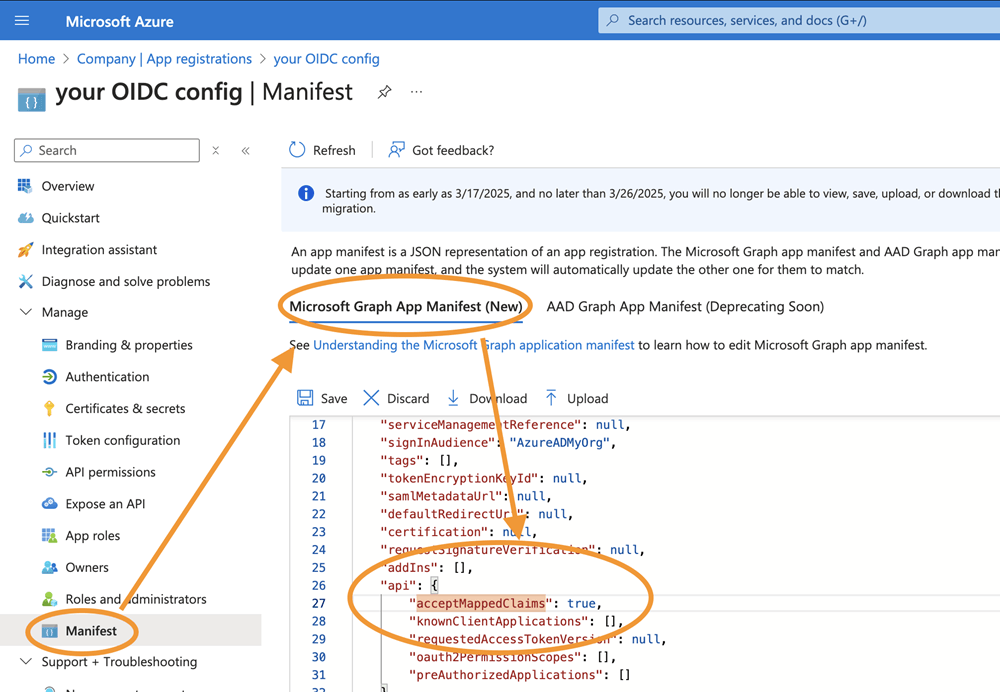
  • In the left navigation, click Manifest under Manage.
  • In the Microsoft Graph App Manifest, update
    acceptMappedClaims
    to
    true.


    The
    acceptMappedClaims
    setting is needed to use custom claims. If the setting is absent, you will get the following login error: "AADSTS50146: This application is required to be configured with an application-specific signing key. It is either not configured with one, or the key has expired or is not yet valid."
ka0PW00000058ZdYAI_0EMPW00000KBgTS.jpeg
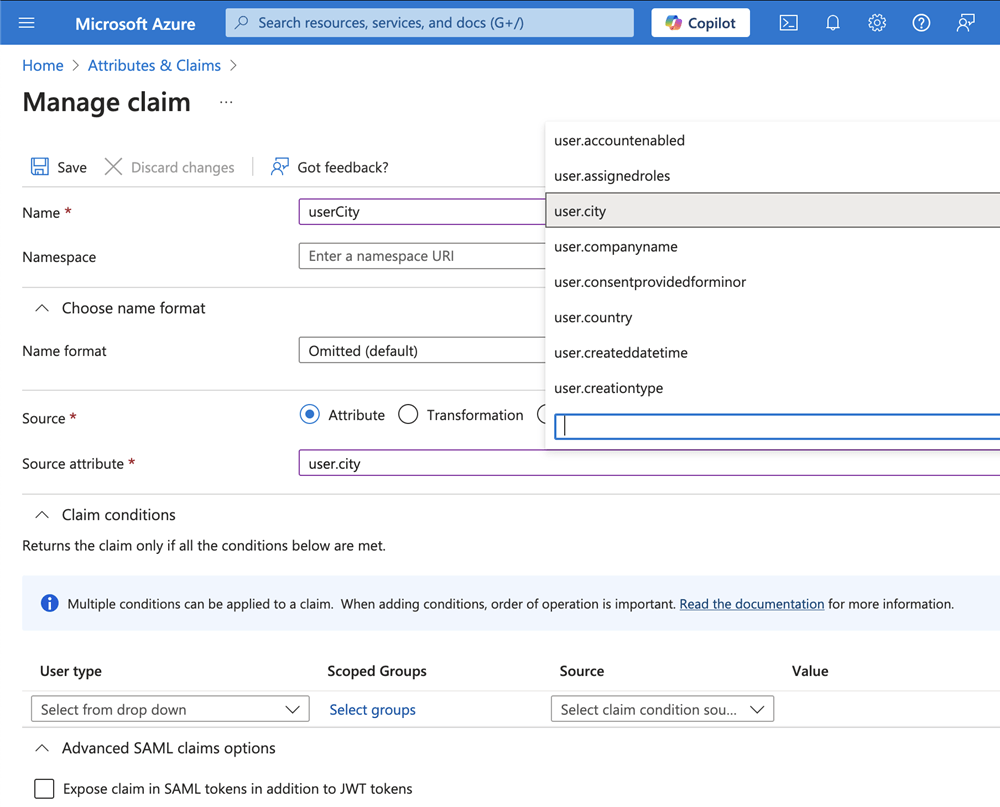
  • In the left navigation, click Overview and click your configuration next to Manage application in local directory.
  • In the left navigation, click Single sign-on.
  • In Attributes & Claims, click Edit.
  • Click Add new claim.
  • Enter the required fields and click Save.

ka0PW00000058ZdYAI_0EMPW00000KBl4v.jpeg

Add OIDC ID Token Claim - System Prompt Mapping

You can add all the claims you created above to the User Attribute Mapping section of your OIDC configuration in Workstation.

  • When configuring OIDC, type your claim values in the OIDC Claim column of the User Attribute Mapping section and choose your desired Type. An available system prompt is automatically assigned to the mapping. For more information, see Enable Single Sign-On with OIDC Authentication.

ka0PW00000058ZdYAI_0EMPW00000KBjb0.jpeg
  • Use the assigned prompt in the expression of your report or security filter.

    When a user logs in with OIDC, ID token claims are mapped to the system prompts.


Comment

0 comments

Details

Knowledge Article

Published:

March 20, 2025

Last Updated:

March 21, 2025