<概要>
Strategy ONE(2024年3月)のバージョン以降、セキュリティ強化のため、IDトークンの秘密キーは、サイズが512ビット以上、RFC7158(3.2. SHA-2関数を使用したHMAC)に準拠し、Base64にエンコードされている値を指定する必要があります。
秘密キーを設定するコンポーネント、ファイル、パラメータは次とおりです。
注)すべてパラメータの値を同一の値とする必要があります。
コンポーネント | 構成ファイル | パラメータ | ヘルプ |
Modeling Service | modelservice.conf | modelservice.identity_token.secret_key | |
Library Web | configOverride.properties | identityToken.secretKey | |
MicroStrategy Web |
|
| |
Collaboration Service | config.json | secretKey |
<影響>
下記の操作をする際にエラーが発生する可能性があります。
Strategy ONE(2024年3月)以前のバージョンをご利用いただいており、Strategy ONE(2024年3月)以降のバージョンにアップグレードされた場合は、再度、値を生成して、設定いただく必要があります。
<対処方法>
当該ナレッジでは、スクリプトを用いて秘密キーを生成する手順を記載しています。(※生成した値を上表のパラメータで指定します。)
<生成手順>
値の生成は、Workstationを利用して下記のPythonスクリプトを実行し行います。
1.下記スクリプトをテキストファイルにコピーし、「generate_token.py」の名称で保存します。
import os

import base64

import platform

def generate_token():

    # Generate 64 bytes of random data (512 bits)

    random_bytes = os.urandom(64)

    # Encode the random bytes using base64

    encoded_token = base64.b64encode(random_bytes)

    # Convert bytes to string

    token = encoded_token.decode('utf-8')

    return token

def main():

    token = generate_token()

    print("Generated Token:", token)

if __name__ == "__main__":

    main()
2. Workstationを起動して、環境へ接続します。

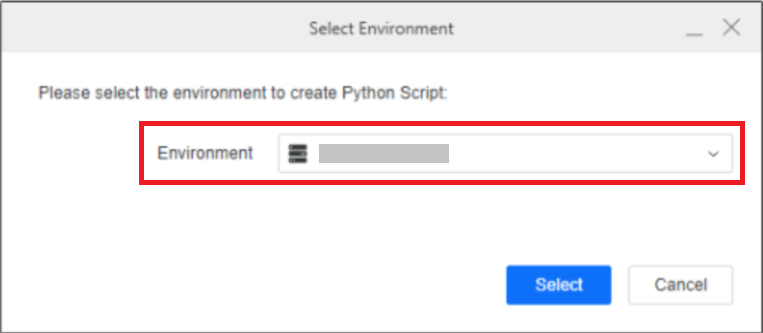
3. Workstationの左のパネルから「スクリプトの横の⊕」をクリックし、環境を選択します。
4. [新規スクリプト]画面中央のファイルを選択から1で保存した「generate_token.py」を選択して、開きます。

5. スクリプトが表示されたら、Run(実行)を押下します。

6. 画面下のコンソールにトークンが表示(※赤枠部分)されます。

7. 生成したトークンの値を各コンポーネントのパラメータに設定します。
設定の詳細は、各コンポーネントのヘルプを参照ください。
設定例:Library

設定例:Modeling Service

