EducationSoftwareStrategy.com
StrategyCommunity

Knowledge Base

Product

Community

Knowledge Base

TopicsBrowse ArticlesDeveloper Zone

Product

Download SoftwareProduct DocumentationSecurity Hub

Education

Tutorial VideosSolution GalleryEducation courses

Community

GuidelinesGrandmastersEvents
x_social-icon_white.svglinkedin_social-icon_white.svg
Strategy logoCommunity

© Strategy Inc. All Rights Reserved.

LegalTerms of UsePrivacy Policy
  1. Home
  2. Topics

KB489384: TLS Support for MicroStrategy Integrity Manager


Liming Zhang

Software Engineer, Senior • MicroStrategy


Use the MicroStrategy Integrity Manager to communicate with the Intelligence Server via TLS (Transport Layer Security) so that all communications with the tool and the Intelligence Server are cryptographically protected. See the following article that outlines the required changes for the Integrity Manager to support TLS on connections to the Intelligence Server.

Support for TLS in the Integrity Manager requires minimal changes to the GUI and script language. There are three user-facing changes:


  1. Configuration: Starting in Strategy One (August 2025), you can configure TLS in the Options menu of the Integrity Manager or Windows Registry and MsiReg.reg in Linux.
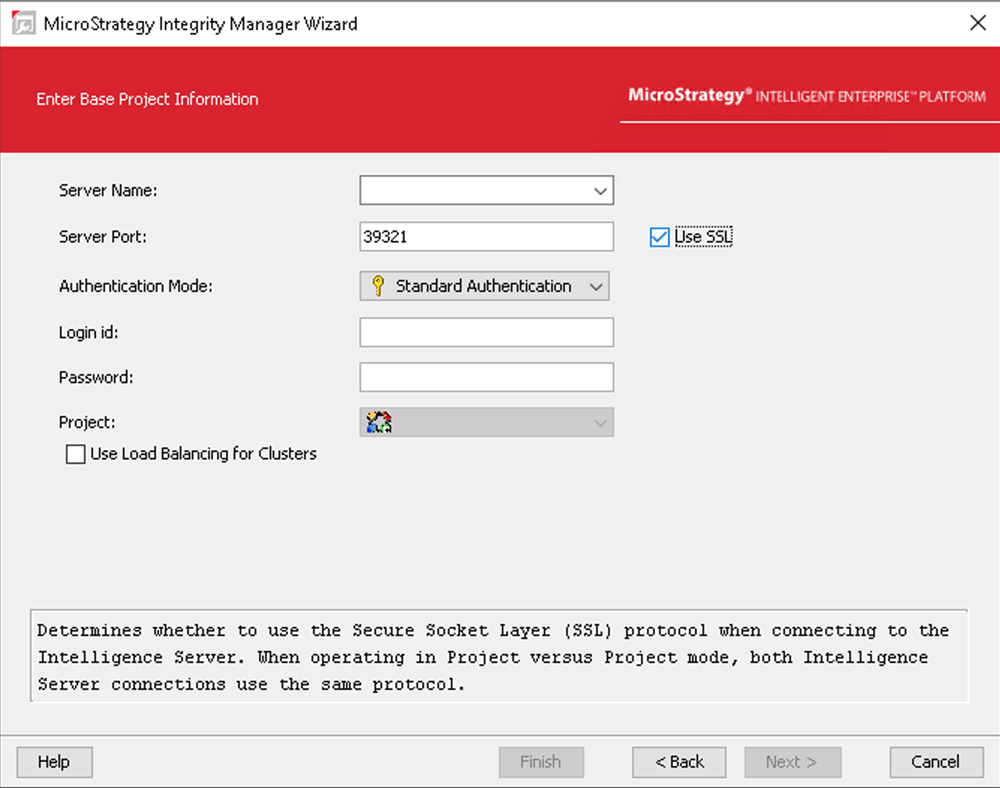
  2. User-interface: A Use SSL check box in the dialog used to create a test to configure TLS connections to the Intelligence server.
  3. MTC File: A Use_SSL parameter in the Connection XML node.

Configuration

To use TLS in the Integrity Manager, you must configure a Java truststore file and the TrustStorePath and TrustStorePassphrase registry keys.


  • Generate the Java trustore file. To generate the Java KeyStore file, import the self-assigned certificate by running the following command in the directory where the certificate is located. A KeyStore file (for example,
    trust.jks
    ) is generated under the same directory.


    $ keytool -importcert -file <certificate_file_path> -destkeystore <key_store_file_path>


  • Configure the TrustStorePath and TrustStorePassphrase registry keys. TrustStorePath configures where the truststore (.jks) file is located and is specified using an absolute path. TrustStorePassphrase is the password that must be entered before accessing the truststore contents. Both of these registry keys must be manually created on all Integrity Manager machines where SSL connectivity is required.

    Registry Keys: 

    • TrustStorePath Key:
      \HKEY_CURRENT_USER\Software\Strategy\Integrity Manager\TLS\TrustStorePath


    • TrustStorePassphrase Key:
      \HKEY_CURRENT_USER\Software\Strategy\Integrity Manager\TLS\TrustStorePassphrase
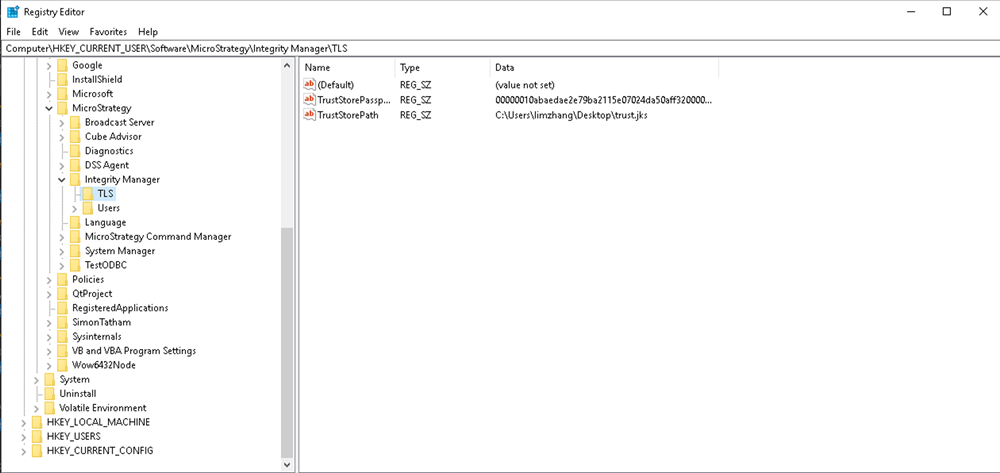

  • After creating the keys, you can edit them manually or through the Integrity Manager interface.

    Note: For manual configuration, the TrustStorePassphrase can be an unencrypted value. For user interface configuration, the value is stored in an encrypted form.

ka0PW0000006qOvYAI_0EMPW00000RnTSk.jpeg
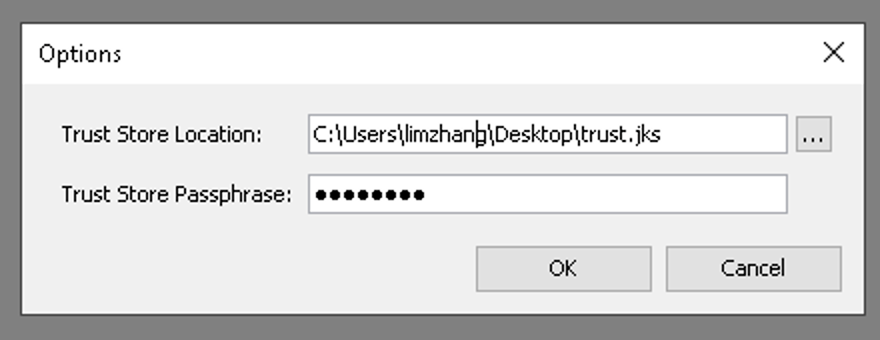
  • To edit the keys in the user interface:
    • Open Integrity Manager.
    • In the top navigation, click Tools and choose Options....

ka0PW0000006qOvYAI_0EMPW00000Ro4Yk.jpeg
    • In Trust Store Location, enter the file path for your Trust Store.

ka0PW0000006qOvYAI_0EMPW00000TSYR3.jpeg
    • In Trust Store Passphrase, type your Trust Store password.
  • To connect to the Intelligence Server using TLS, in the Enter Base Project Information page of the Integrity Manager, select the check box next to Use SSL.

    Note: In the project-versus-project mode, connections to the source Intelligence Server and target Intelligence Server should use the same protocol.

ka0PW0000006qOvYAI_0EMPW00000Ro98c.jpeg

Comment

0 comments

Details

Knowledge Article

Published:

July 24, 2025

Last Updated:

August 22, 2025