EducationSoftwareStrategy.com
StrategyCommunity

Knowledge Base

Product

Community

Knowledge Base

TopicsBrowse ArticlesDeveloper Zone

Product

Download SoftwareProduct DocumentationSecurity Hub

Education

Tutorial VideosSolution GalleryEducation courses

Community

GuidelinesGrandmastersEvents
x_social-icon_white.svglinkedin_social-icon_white.svg
Strategy logoCommunity

© Strategy Inc. All Rights Reserved.

LegalTerms of UsePrivacy Policy
  1. Home
  2. Topics

KB489555: Add Functionality with a Custom Scene Delegate in Strategy Mobile iOS


Mengyuan Guan

Product Owner, Principal • MicroStrategy


Starting with iOS 13, Apple shifted to a scene-based application lifecycle using UIScene and UISceneDelegate. This allows independent management of multiple UI instances, especially for iPad multi-window support. The Strategy iOS Library SDK now supports UISceneDelegate to align with this modern architecture. Its template Xcode project ships with a default scene delegate class (MSIDefaultSceneDelegate), but developers can customize behavior by extending this class and overriding UIWindowSceneDelegate methods to tailor app launch and state transitions.

Starting with iOS 13, Apple introduced the

UIScene 
and
UISceneDelegate 
APIs as part of a significant update to the application lifecycle model. Previously, all state transitions were managed exclusively through
UIApplicationDelegate 
at the app level. With multi-window support on iPad and enhanced lifecycle management on iPhone, Apple moved to a scene-based architecture, where each scene represents a distinct instance of the app's UI and is managed independently.

To align with these modern app architectures, the Strategy SDK now supports

UISceneDelegate
.

The template Xcode project included in the Strategy iOS Library is preconfigured with an internal scene delegate class named

MSIDefaultSceneDelegate
. However, developers can customize behavior by providing their own delegate. This is typically done by extending the internal scene delegate class and overriding relevant methods defined in the
UIWindowSceneDelegate 
protocol to add functionality during app launch and state transitions.

Create a Custom Scene Delegate Class That Extends MSIDefaultSceneDelegate

  • Set up the environment so that you can use the StrategyMobile project as the base for your customizations.
  • Open the template project and use Xcode to open the
    StrategyLibrary.xcodepro
    j file.
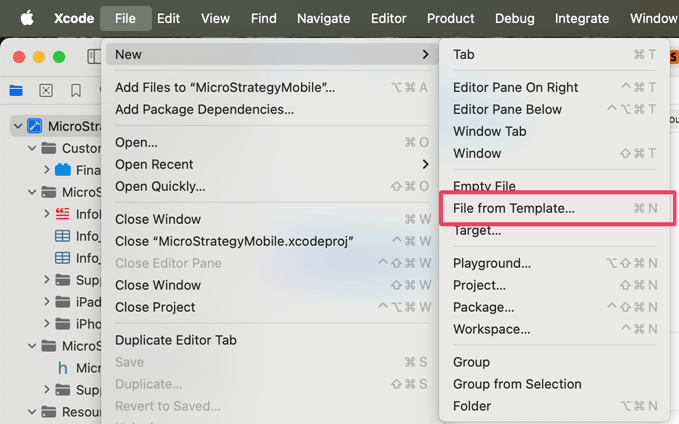
  • Create a new Swift file. From the File menu, point to New, then File from Template, and choose the Swift file type. Provide a meaningful file name, such as
    CustomSceneDelegate.

ka0PY000000KCg9YAG_0EMPY00000QYHdl.jpeg
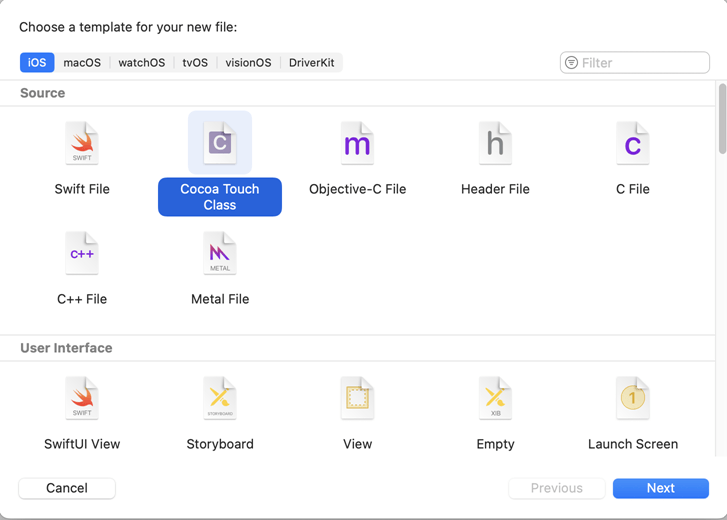
  • Select Cocoa Touch Class. Click Next.
ka0PY000000KCg9YAG_0EMPY00000QY0t4.jpeg
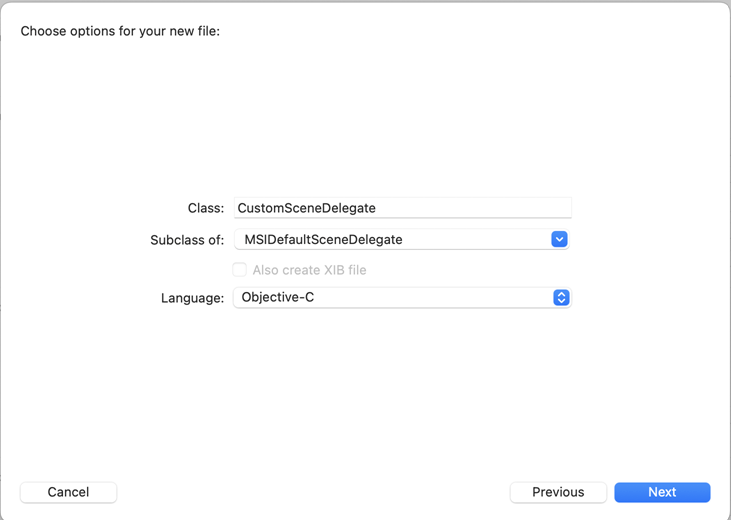
  • Type a name for your app delegate class (for example,
    CustomSceneDelegate
    ). Select MSIDefaultSceneDelegate from the Subclass Of drop-down-list.  Set the Language to Objective-C. Click Next.
ka0PY000000KCg9YAG_0EMPY00000QYK0X.jpeg
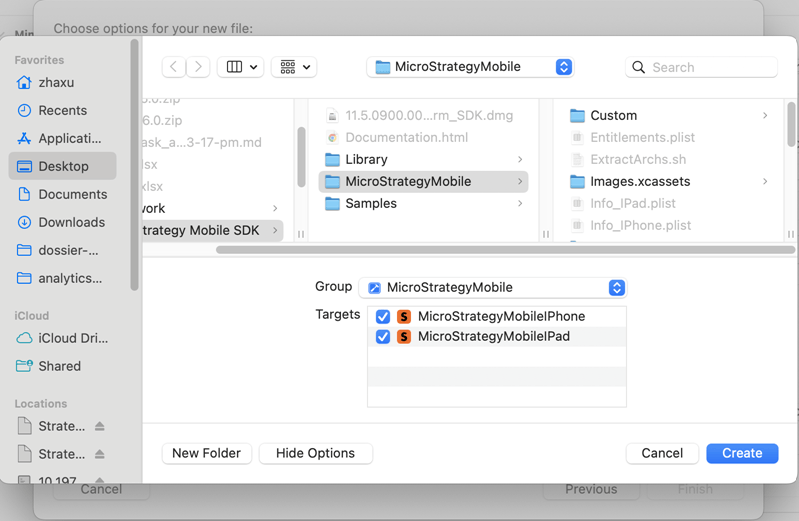
  • In the pop-up window, ensure that Group is set to
    StrategyMobile 
    and that both
    StrategyMobileIPhone 
    and
    StrategyMobileIPad 
    are selected as Targets. Click Create.
ka0PY000000KCg9YAG_0EMPY00000QYL7t.jpeg
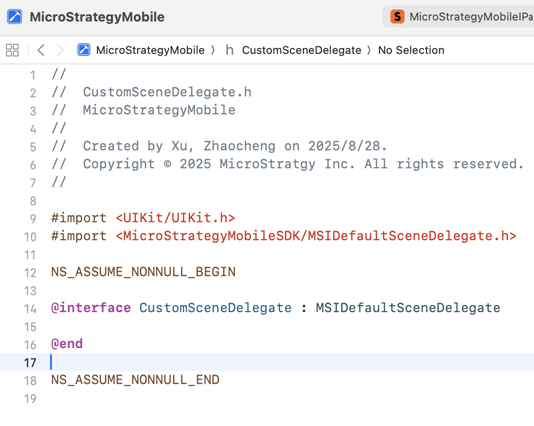
  • The template code for your custom scene delegate class displays. Add the following line of code:
    #import <StrategyMobileSDK/MSIDefaultSceneDelegate.h>

     
ka0PY000000KCg9YAG_0EMPY00000QY1KV.jpeg
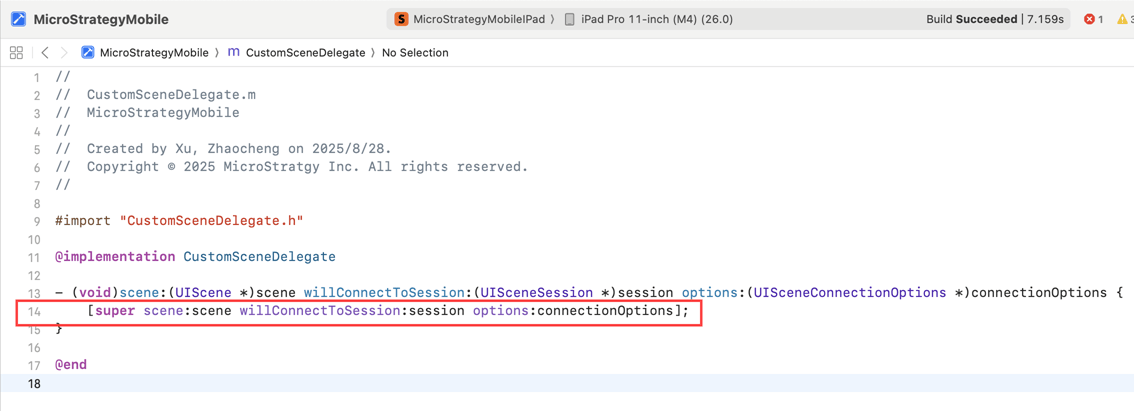
  • Customize your scene delegate callbacks as required, ensuring that you call the super implementation. This is necessary to retain critical functionality provided by the SDK, as illustrated in line 14 of the image below:
ka0PY000000KCg9YAG_0EMPY00000QYNEX.jpeg
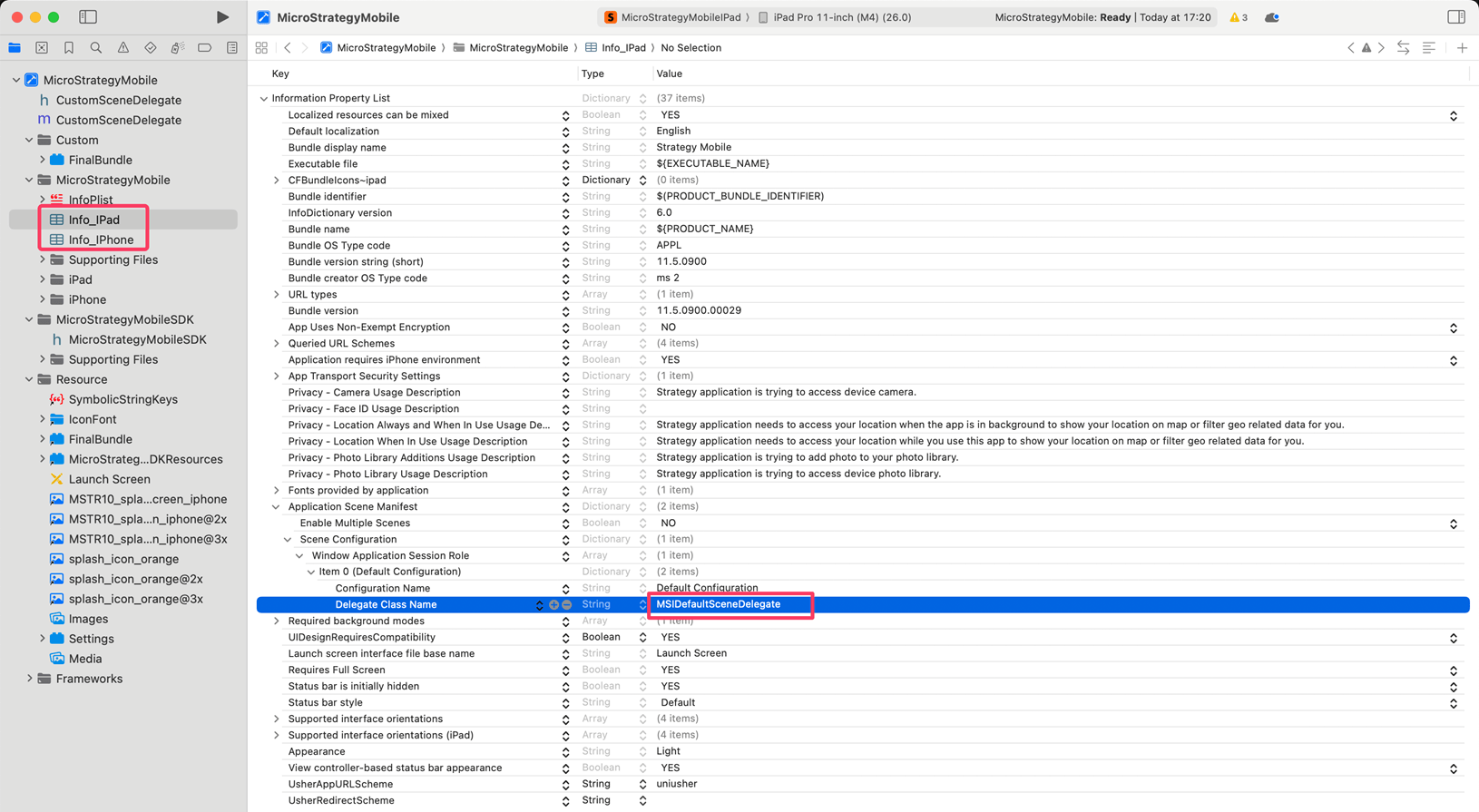
  • Update both
     Info_IPad.plist
    and
     Info_IPhone.plist
    by replacing
    MSIDefaultSceneDelegate 
    with your scene delegate class name (for example,
    CustomSceneDelegate
    ). 
ka0PY000000KCg9YAG_0EMPY00000QYOaP.jpeg
  • Build and run your application.

Comment

0 comments

Details

Knowledge Article

Published:

November 11, 2025

Last Updated:

November 14, 2025