EducationSoftwareStrategy.com
StrategyCommunity

Knowledge Base

Product

Community

Knowledge Base

TopicsBrowse ArticlesDeveloper Zone

Product

Download SoftwareProduct DocumentationSecurity Hub

Education

Tutorial VideosSolution GalleryEducation courses

Community

GuidelinesGrandmastersEvents
x_social-icon_white.svglinkedin_social-icon_white.svg
Strategy logoCommunity

© Strategy Inc. All Rights Reserved.

LegalTerms of UsePrivacy Policy
  1. Home
  2. Topics

KB489581: Set User Language via SAML


Menglu Xia

Product Owner, Principal • MicroStrategy


Starting in Strategy One (December 2025), you can automatically set a user's language by passing a locale value through a SAML attribute during authentication. Strategy Library extracts the language from the SAML assertion and sets it to the user at login.

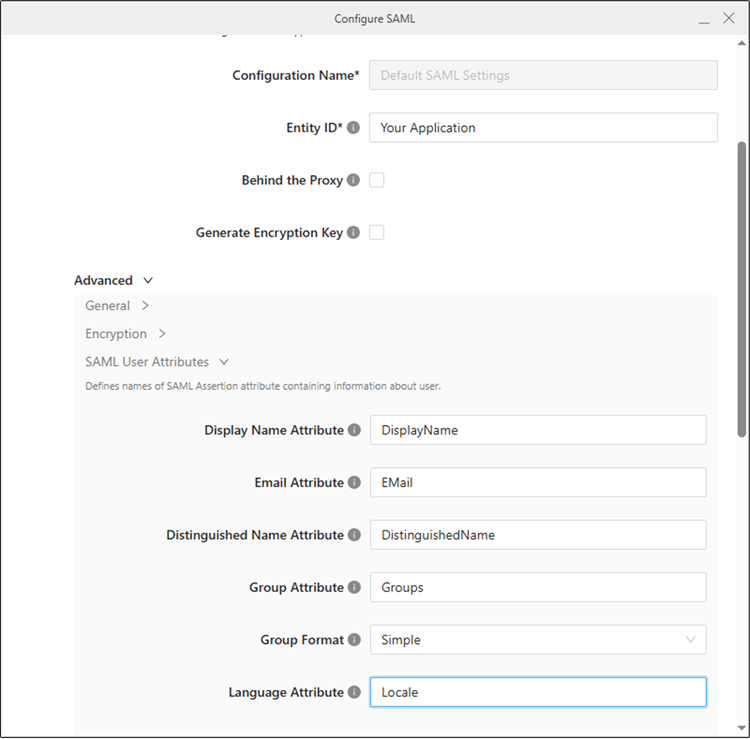
Add SAML Assertion Attribute - Language Attribute

  • In the Configure SAML dialog, expand the Advanced section.
  • Under SAML User Attributes, locate the Language Attribute field.
  • Enter the name of the SAML attribute that contains the user's language. An available language attribute is automatically assigned to the mapping.

    For more information, see Enable Single Sign-On with SAML Authentication.

ka0PY000000Lb9RYAS_0EMPY00000SuGpz.jpeg
  • When a user signs in with SAML, the language from the SAML assertion is extracted and automatically synced to the user.

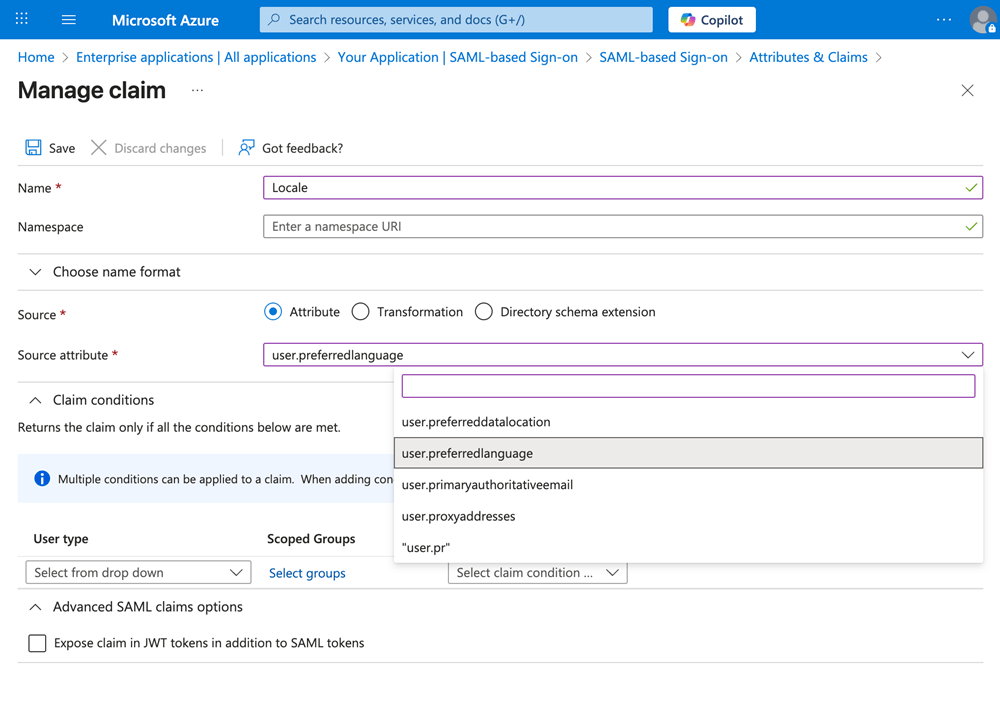
Example: Azure

  • In your Azure SAML application, open the left navigation pane and click Single sign-on under Manage.
  • In Attributes & Claims, click Edit.
  • Click Add new claim.
  • Enter the required fields and click Save.

ka0PY000000Lb9RYAS_0EMPY00000Su4dX.jpeg

Language Format Requirements

The language value provided by the Identity Provider (IDP) must follow the format defined in RFC 7231 Section 5.3.5. 

Example values:

  • en-US
  • en-US, zh-CN

Disable the User Preference Setting in Library

Now that the language is automatically set during SAML login, the user preference setting in Library does not work. It is best practice to hide this setting from the application entry. To hide user language settings:
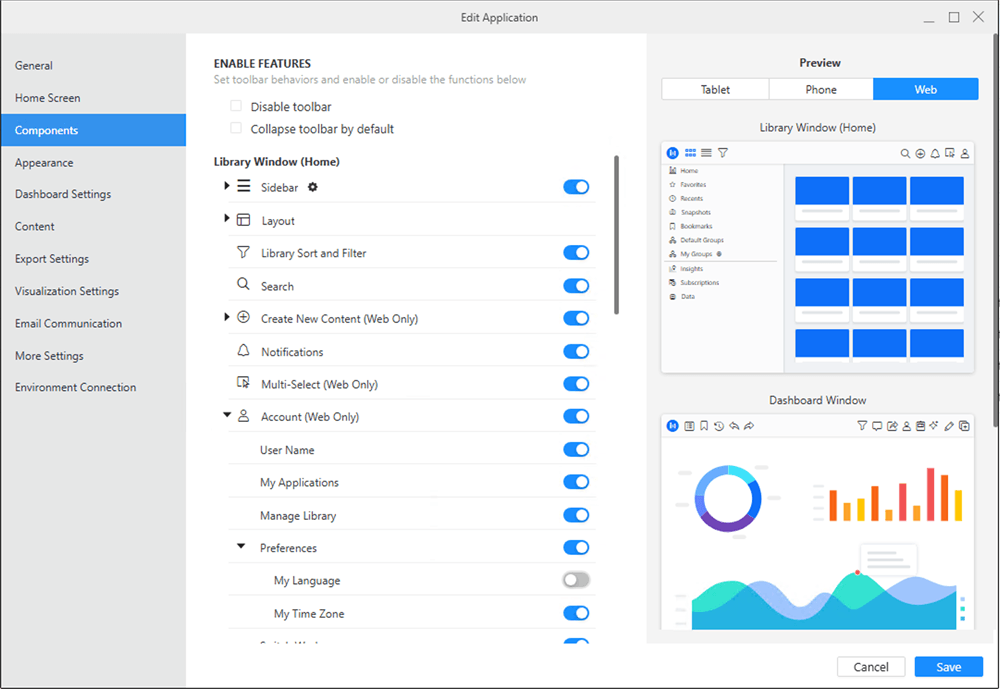
  • In the Navigation pane in Workstation, click Applications.
  • Right-click the application and choose Edit.
  • In the left pane, click Components.
  • In Library Window (Home), expand Account (Web Only) and Preferences.

ka0PY000000Lb9RYAS_0EMPY00000Sudpl.jpeg
  • Toggle off My Language.
  • Click Save.

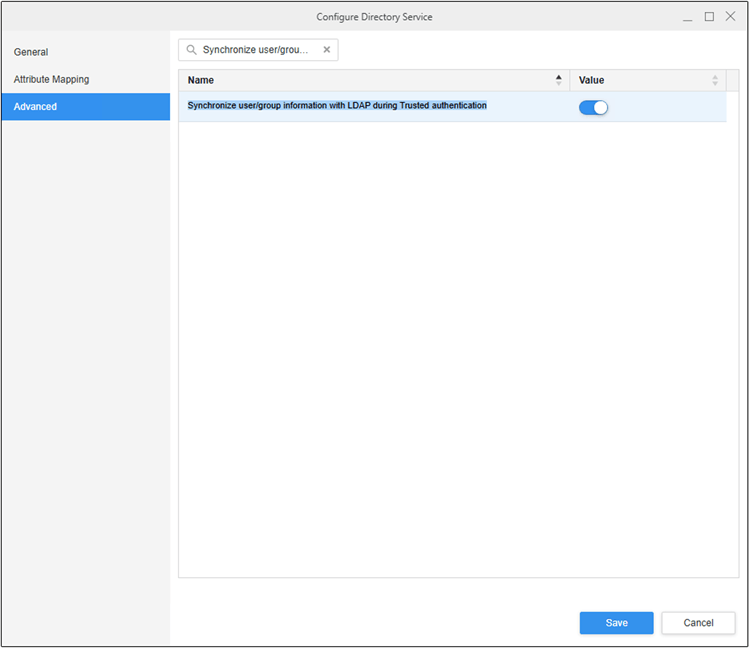
LDAP Priority

If Library has LDAP enabled and the Synchronize user/group information with LDAP during Trusted Authentication option enabled, LDAP take priority. In this case, user information, including language, from the SAML Identity Provider (IDP) will not be synchronized to the user during login.
ka0PY000000Lb9RYAS_0EMPY00000Stipx.jpeg

Comment

0 comments

Details

Knowledge Article

Published:

December 16, 2025

Last Updated:

December 16, 2025