EducationSoftwareStrategy.com
StrategyCommunity

Knowledge Base

Product

Community

Knowledge Base

TopicsBrowse ArticlesDeveloper Zone

Product

Download SoftwareProduct DocumentationSecurity Hub

Education

Tutorial VideosSolution GalleryEducation courses

Community

GuidelinesGrandmastersEvents
x_social-icon_white.svglinkedin_social-icon_white.svg
Strategy logoCommunity

© Strategy Inc. All Rights Reserved.

LegalTerms of UsePrivacy Policy
  1. Home
  2. Topics
  3. KB489614: Token-based Authentication Setup Guide for Strategy Library

KB489614: Token-based Authentication Setup Guide for Strategy Library


Menglu Xia

Product Owner, Principal • MicroStrategy


Starting from Strategy 2025 December release, we support token-based authentication by leveraging Library JWT auth mode. This guide walks you through setting up token-based authentication for Strategy Library and generating login tokens for stateless authentication.

Prerequisites

  • Administrative access to the Strategy Library configuration, including permissions to configure JWT authentication.
  • Access to restart Tomcat services on the Library host.
  • If the browser/clients don't support 3rd-party cookie, then library server need to be deployed as a single node (non-clustered).
  • The Intelligence Server (IServer) may be deployed in any node configuration (single or multi-node).

Part 1: Library Configuration

Step 1: Create a Trust Relationship

Ensure that the trusted relationship between the Library server and IServer has been set up.

Step 2: Allow the GET Method for Token Authentication

By default, the token parameter is passed via the POST method. Set it up as follows if you want to pass the token parameter via the GET method.

Set auth.token.allowGetMethod = true in configOverride.properties to enable token passing via URL parameters.


Step 3: Enable the Library Session Failover

Set features.library-session-failover.enabled = true in configOverride.properties to enable the Library session failover.


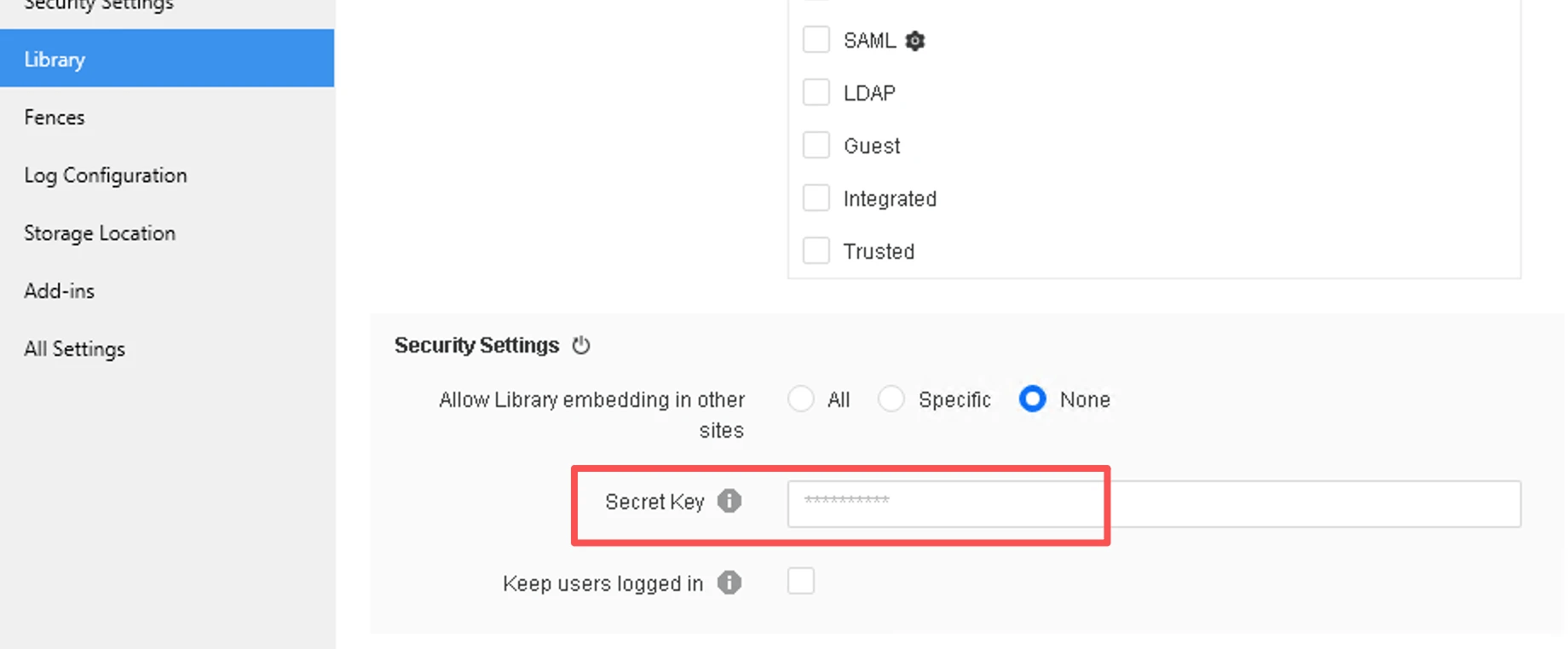
Step 4: Configure Security Key

Ensure that a security key is configured correctly in your Library settings by checking the library server file configOverride.properties. Ensure the parameter identityToken.secretKey is set. If not set, you can configure it in Workstation, right mouse click on the environment and select Properties → Library, as shown below:
ka0PY000000MtAjYAK_0EMPY00000VVCXi.jpg

Step 5: Configure JWT Authentication in Workstation

See Configure JWT Authentication on the Library Server for details.

Step 6: Restart Tomcat

Restart the Tomcat service to apply all configuration changes.

Part 2: Token Generation

The steps to build the token parameter are as follows:

Step 1. Generate a JWT token

The JWT payload is as follows:

{
"sub": "<user_trust_id>",
"iss": "<issuer matches the JWT configuration above>",
"aud": "<audience matches the JWT configuration above>",
"exp": 1756274091,
"... other optional claims"
}

  • The JWT should be signed using the key and algorithm configured in the JWT configuration.
  • The sub claim: the claim name should match the user ID mapping in the JWT configuration.
  • The iss claim: the claim value should match the issuer configured in the JWT configuration.
  • The aud claim: the claim value should match the issuer configured in the JWT configuration.
  • The exp claim: the expiration time of the JWT.

Step 2. Construct the token payload

Once we have the JWT token, we can construct a token payload in the following format:

{
"loginMode": 67108864,
"applicationType": 35,
"password": "<JWT Token>",
"...other optional properties"
}


The payload must be a valid JSON object.

Step 3. Encode the token payload

The token payload should be properly encoded before using it in the URL.

     3.1. Encode the token payload with Base64.

ka0PY000000MtAjYAK_0EMPY00000VPo4b.jpg

3.2. Considering that the base64 value may contain reserved URL characters (e.g., =), it should be further URL-encoded using the URL parameter method.

Step 4. Construct the token login URL

The format of the token-based login URL is as follows:

https://<Library_URL>?token=<encoded_token_above>&sessionMode=stateless&redirect=false

  • <Library_URL>: it should be the library URL of the Library home page or a dashboard
  • token: the encoded token value in the previous step
  • SessionMode: it must be stateless
  • Redirect: it must be false

Part 3: Access the Application

Open the constructed URL in a new browser tab. You should be automatically logged into the Strategy Library application.


Comment

0 comments

Details

Knowledge Article

Published:

January 28, 2026

Last Updated:

January 28, 2026