EducationSoftwareStrategy.com
StrategyCommunity

Knowledge Base

Product

Community

Knowledge Base

TopicsBrowse ArticlesDeveloper Zone

Product

Download SoftwareProduct DocumentationSecurity Hub

Education

Tutorial VideosSolution GalleryEducation courses

Community

GuidelinesGrandmastersEvents
x_social-icon_white.svglinkedin_social-icon_white.svg
Strategy logoCommunity

© Strategy Inc. All Rights Reserved.

LegalTerms of UsePrivacy Policy
  1. Home
  2. Topics

KB4951: How to include a set of optional prompts in a required prompt in MicroStrategy


Stefan Zepeda

Salesforce Solutions Architect • Strategy


When a report returns a significant amount of data, filters or prompts are created to restrict the amount of data returned . Optional prompts allow the report designer to give the users more than one option to personalize the report content. This document explains how to design a set of optional prompts in MicroStrategy that require users to choose at least one prompt before running a report.

When a report returns a significant amount of data, filters or prompts are created to restrict the amount of data returned . Optional prompts allow the report designer to give the users more than one option to personalize the report content. This document explains how to design a set of optional prompts in Strategy that require users to choose at least one prompt before running a report.
 
For example, an 'Item Sales' report without a prompt returns thousands of rows. A set of prompts is included to narrow the search by splitting the results into 'Category', 'Supplier', 'Department', 'Price Bracket', etc. A prompt for each attribute is created so users can personalize the content, but the report does not run without a response to at least one of the prompts.
 
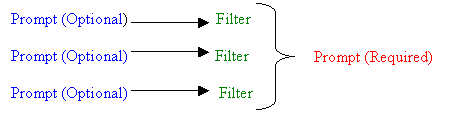
A set of optional prompts is included in a required prompt as follows:
 

ka02R000000kc5JQAQ_0EM440000002GGm.gif

 
According to the diagram above, after the optional prompts are created, a filter is created for each one of the prompts. These filters are included as prompt options in the required prompt. When the report is run, users are asked to select from the list of filters and respond to the prompts included in the selected filters. The steps are as follows:
 
 
Part I. Optional Prompt creation
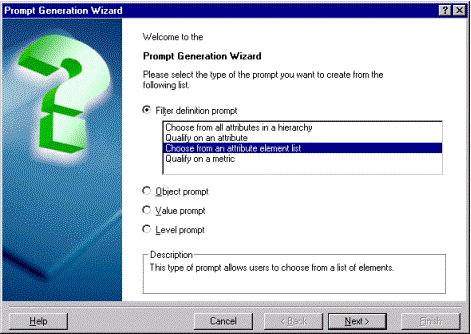
  • Create the Optional Prompts by opening the Prompt wizard and selecting the 'Choose from an attribute element list' option.
     
ka02R000000kc5JQAQ_0EM440000002GGZ.gif
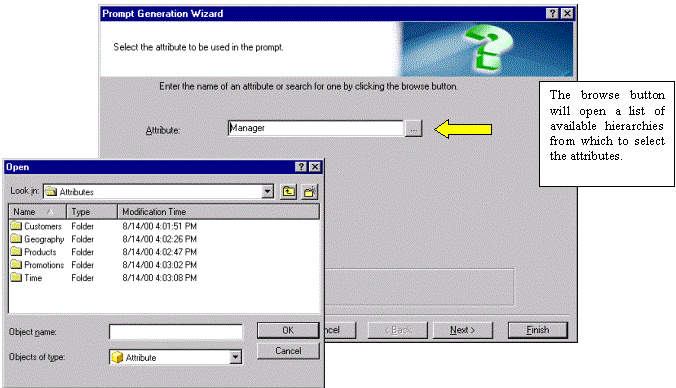
  • Select an attribute.
     
ka02R000000kc5JQAQ_0EM440000002GGi.gif
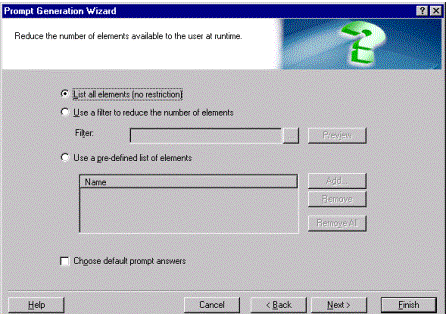
  • Select one option from the list of prompt options including; 'List all elements', 'Use a filter to reduce the number of elements' or 'Use a predefined list of elements'. Click on 'Next'.
     
ka02R000000kc5JQAQ_0EM440000002GGk.gif
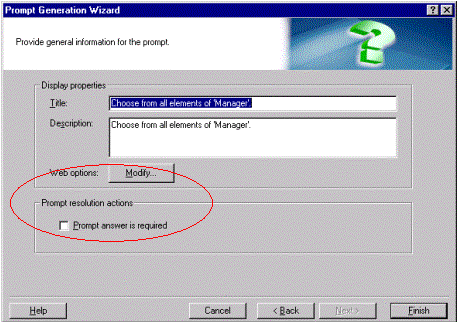
  • Verify that the 'Prompt answer is required' check box in the 'Prompt resolution actions' is unchecked. Click on 'Finish' and repeat the steps above for each of the optional prompts.
     
ka02R000000kc5JQAQ_0EM440000002GGq.gif

 
Part II. Filter creation.

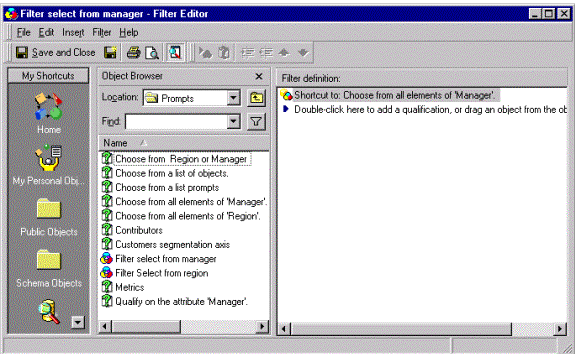
  • Open the 'Filter Editor' in Strategy Developer and open the folder where the prompts created in the steps above are located.
     
ka02R000000kc5JQAQ_0EM440000002GGf.gif
  • Select one of the optional prompts and drag it to the filter definition window on the right side of the Filter Editor.
  • Save and close the filter. The first prompt of the report includes the name of the filters created for each optional prompt. Consequently, these filters should be named descriptively.

 
Part III. Required Prompt.

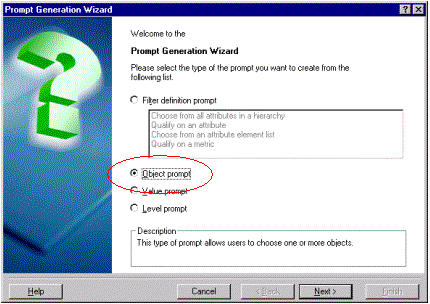
  • Open the Prompt Wizard, select the 'Object Prompt' option and click on 'Next'.
     
ka02R000000kc5JQAQ_0EM440000002GGc.gif
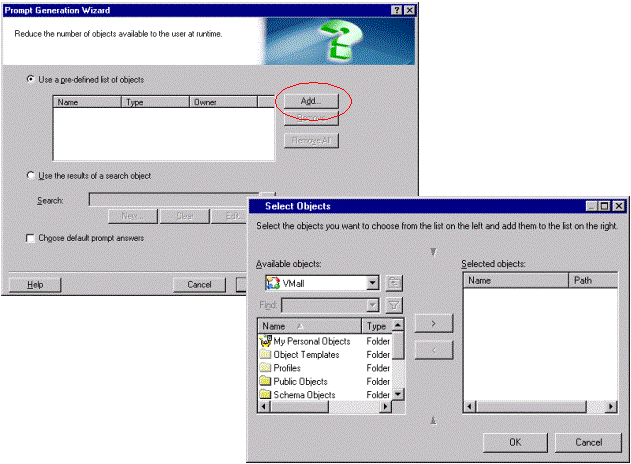
  • Click on the Add button. This opens a window with the folder structure for the project. Find the filters created in the above steps and include them in the Selected Objects window. Click on 'Next' to continue.
     
ka02R000000kc5JQAQ_0EM440000002GGh.gif
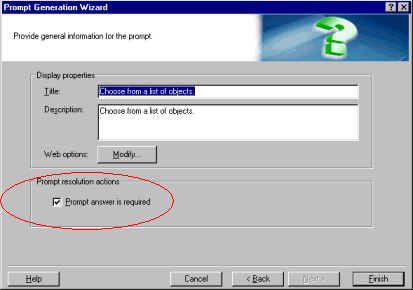
  • Select the 'Prompt answer is required' checkbox in the 'Prompt Generation Wizard'. Click on 'Finish'.
     
ka02R000000kc5JQAQ_0EM440000002GGo.gif
  • Include the prompt in the reports.

 
After running the report, users are prompted to select one or more filters from the list of those available. After the filters are selected, the report loads the prompts in the selected filters and asks the users for a response. Users can omit one of the filter responses but are unable to continue unless one of the prompts is selected.


Comment

0 comments

Details

Knowledge Article

Published:

May 30, 2017

Last Updated:

May 30, 2017