SYMPTOM:
When using the Strategy Product Suite, all actions take considerably longer than expected to run and the Central Processing Unit (CPU) usage runs constantly at 100 percent. The machine is unable to run multiple applications at the same time.
Rebooting the machine does not resolve this issue.
POSSIBLE CAUSE:
During troubleshooting Open Data Base Connectivity (ODBC) tracing was enabled and was not switched off. The trace file can grow to a large size quickly and it is possible that this tracing slows down the machine.
Even if the file is not very large, ODBC tracing is extremely resource intensive and should never be used for anything other than brief, controlled tests.
ACTION:
In the Windows control panel, select the Data Source (ODBC) icon and choose the tracing tab. A dialog interface similar to the one below appears:
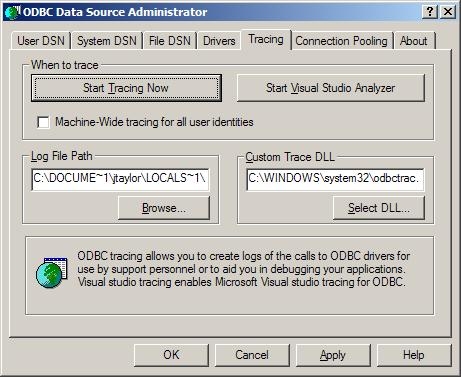
If the trace is enabled and no longer required, chose the option Stop Tracing and delete the generated file from the system.
