EducationSoftwareStrategy.com
StrategyCommunity

Knowledge Base

Product

Community

Knowledge Base

TopicsBrowse ArticlesDeveloper Zone

Product

Download SoftwareProduct DocumentationSecurity Hub

Education

Tutorial VideosSolution GalleryEducation courses

Community

GuidelinesGrandmastersEvents
x_social-icon_white.svglinkedin_social-icon_white.svg
Strategy logoCommunity

© Strategy Inc. All Rights Reserved.

LegalTerms of UsePrivacy Policy
  1. Home
  2. Topics

KB5037: 'Error in save as: This action could not be performed because you do not have write access for this folder.' error message appears when users save reports to the 'Shared Reports' folder in MicroStrategy Web.


Community Admin

• Strategy


This technical note describes a permission issue in MicroStrategy Web 9.x and 10.x where users receive the error message: 'Error in save as: This action could not be performed because you do not have write access for this folder' when saving to the 'Shared Reports' folder. Follow the actions in this technical note to grant the user the proper permissions.

SYMPTOM:
Users receive the error message: 'Error in save as: This action could not be performed because you do not have write access for this folder' in Strategy Web 8.x when saving to the 'Shared Reports' folder. This occurs even though the administrator has granted 'Web save to Shared Reports' and 'Create application objects' privileges to the user through User Manager in Strategy Desktop.
CAUSE:
The users' group does not have permissions to access the Public Objects\Reports folder.
ACTION:
Proper permissions must be granted to the groups in which users belong by following the steps below.
  • Log into the project as the administrator.
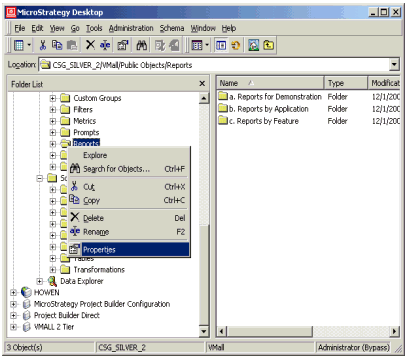
  • Right click on the Public Objects\Reports folder and select 'Properties' as shown below.
ka04W000000OdrsQAC_0EM44000000297f.gif
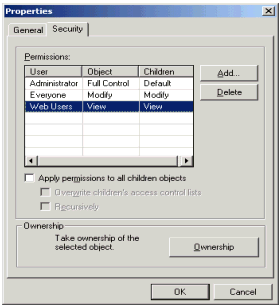
  • Select the Security tab and click 'Add.'
  • Select the user or group to grant permissions to. Select the relevant access permission. 'View' is sufficient in giving users permission to save to 'Shared Reports', but not to modify existing reports.
  • Select 'OK.'
ka04W000000OdrsQAC_0EM44000000297a.gif
  • Confirm that the correct user/group has been granted the correct permissions.
  • Select 'OK.'

Comment

0 comments

Details

Knowledge Article

Published:

June 15, 2017

Last Updated:

June 15, 2017