EducationSoftwareStrategy.com
StrategyCommunity

Knowledge Base

Product

Community

Knowledge Base

TopicsBrowse ArticlesDeveloper Zone

Product

Download SoftwareProduct DocumentationSecurity Hub

Education

Tutorial VideosSolution GalleryEducation courses

Community

GuidelinesGrandmastersEvents
x_social-icon_white.svglinkedin_social-icon_white.svg
Strategy logoCommunity

© Strategy Inc. All Rights Reserved.

LegalTerms of UsePrivacy Policy
  1. Home
  2. Topics

KB5079: How to apply the Report Filter and Embedded Filter condition in the Metric in MicroStrategy SQL Generation Engine?


Community Admin

• Strategy


This article notes how to apply both report and embedded filters to metrics

SYMPTOM:
 
When a filter is embedded into a metric, by default, the metric ignores some qualifications specified in the report filter.
 
EXAMPLE:
 
Consider a report with the following specifications:
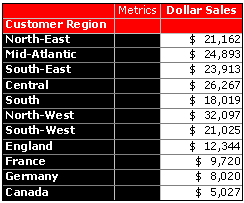
 

  • Attributes: Customer Region
  • Metric: Dollar Sales (no filter embedded)
  • Report Filter: None
ka04W000000OhPjQAK_0EM440000002GGB.gif

Apply a filter to the report so that it contains only certain customer cities. The report now contains the following specifications:
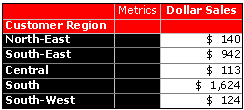
 

  • Attributes: Customer Region
  • Metric: Dollar Sales (no filter embedded)
  • Report Filter: CustomerCities (Arlin, San Pedro, Springfield, Chapple Hill, Scranburg, Pebble Beach)
ka04W000000OhPjQAK_0EM440000002GG7.gif

Note: Only the cities mentioned in the filter are used for calculations.
 
Change the metric, adding a filter to the conditionality to show data for customers with a birth date less than 1/1/51. The report now contains the following specifications:
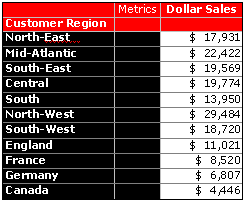
  • Attributes: Customer Region
  • Metric: Dollar Sales (Conditionality = Customer Date of Birth < 1/1/1951)
  • Report Filter: Customer Cities (Arlin, San Pedro, Springfield, Chapple Hill, Scranburg, Pebble Beach)
ka04W000000OhPjQAK_0EM440000002GFz.gif

In this report, the city filters have been ignored.
 
CAUSE:
 
The reason is that the Customer City attribute is related to Customer Date of Birth by way of Customer. Since the report filter qualification is related, the metric conditionality option 'Remove related report filter elements' applies. By default this option is enabled.
 
ACTION:
 
Follow the steps below to disable the 'Remove related report filter elements' option and apply the city filter as part of the metric conditionality:
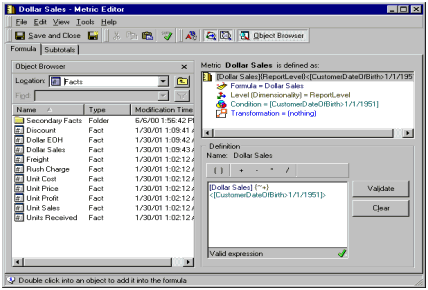
 

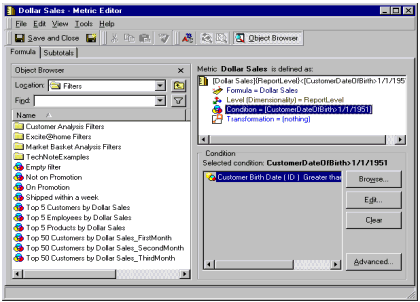
  • Double click on the metric in use (Dollar Sales) as shown below:
ka04W000000OhPjQAK_0EM440000002GG6.gif
  • Click 'Condition' to edit the metric conditionality.
ka04W000000OhPjQAK_0EM440000002GG9.gif
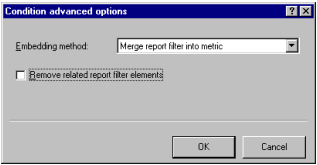
  • Click 'Advanced' and uncheck the 'Remove related report filter elements' box.
ka04W000000OhPjQAK_0EM440000002GG1.gif
  • Click 'OK' and save and close the metric editor.

 
The results of the report look like the following:
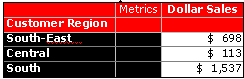
ka04W000000OhPjQAK_0EM440000002GG4.gif

Comment

0 comments

Details

Knowledge Article

Published:

May 22, 2017

Last Updated:

May 22, 2017