EducationSoftwareStrategy.com
StrategyCommunity

Knowledge Base

Product

Community

Knowledge Base

TopicsBrowse ArticlesDeveloper Zone

Product

Download SoftwareProduct DocumentationSecurity Hub

Education

Tutorial VideosSolution GalleryEducation courses

Community

GuidelinesGrandmastersEvents
x_social-icon_white.svglinkedin_social-icon_white.svg
Strategy logoCommunity

© Strategy Inc. All Rights Reserved.

LegalTerms of UsePrivacy Policy
  1. Home
  2. Topics

KB5087: Reports fail after specifying a new warehouse database instance for a project in MicroStrategy Developer 10.x


Stefan Zepeda

Salesforce Solutions Architect • Strategy


This article describes an issue where reports fail after specifying a new Warehouse Database Instance for a project in MicroStrategy Developer 10.x

SYMPTOM:
Reports fail after a new warehouse database instance is specified in the Warehouse Catalog Editor for a project in Strategy Developer 10.x
 
"Error Component Not Found. SQLEngineServer: Error Code= -2147467259" error message.'
 
'Error : PrimaryDBRole \<> (\CASTOR_SERVER_CONFIGURATION\DBRoles\\<>) is being used by Table <>`s PrimaryDBRole, but it is not in Project`s WarehouseDBRoles collection. Recommended action to fix the problem: Add PrimaryDBRole <> (\CASTOR_SERVER_CONFIGURATION\DBRoles\<>) to Project`s WarehouseDBRoles collection.'
 
CAUSE:
Although a new database instance is specified for the project's warehouse, the former warehouse database instance is still regarded as the primary database instance by the tables in the project.
 
ACTION:
 
Note: Please refer to KB4100-007-0013 for a detailed explanation of the procedure to modify the warehouse used by a project.
  • The following error message appears:
  • If ScanMD utility has been run to check the project's schema the following error message appears for tables in the project:
    • Open the project in Strategy Desktop.
    • Launch the Warehouse Catalog editor.
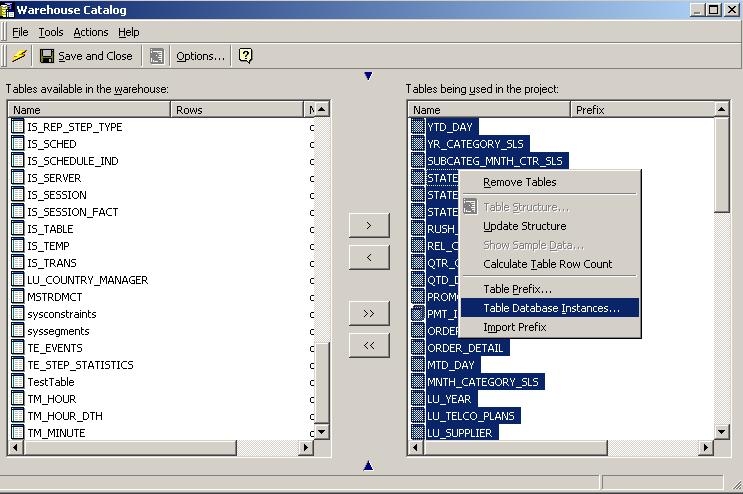
    • Select all the tables used in the project.
    • Right click on the highlighted tables. Select 'Table Database Instance…' as shown below.
       
ka02R000000kc1zQAA_0EM440000002GFy.jpeg
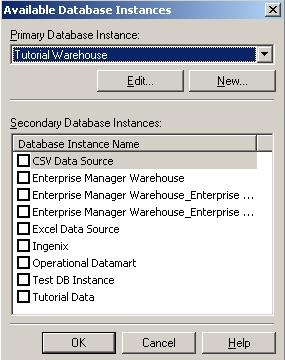
    • In the 'Available Database Instances' window, select the new warehouse database instance from the 'Primary Database Instance' drop down menu.
       
ka02R000000kc1zQAA_0EM440000002GG3.jpeg
    • Click 'OK'.
    • Right click on the highlighted tables. Select 'Table Prefix… '.
    • Read (refreshed) the warehouse catalog.
    • Click 'Save and Close' in the Catalog Editor toolbar.
    • Reports now execute successfully.

Comment

0 comments

Details

Knowledge Article

Published:

June 1, 2017

Last Updated:

June 1, 2017