EducationSoftwareStrategy.com
StrategyCommunity

Knowledge Base

Product

Community

Knowledge Base

TopicsBrowse ArticlesDeveloper Zone

Product

Download SoftwareProduct DocumentationSecurity Hub

Education

Tutorial VideosSolution GalleryEducation courses

Community

GuidelinesGrandmastersEvents
x_social-icon_white.svglinkedin_social-icon_white.svg
Strategy logoCommunity

© Strategy Inc. All Rights Reserved.

LegalTerms of UsePrivacy Policy
  1. Home
  2. Topics

KB5271: What is the MicroStrategy Narrowcast Server Object Repository Export Tool?


Community Admin

• Strategy


This article describes what is the MicroStrategy Narrowcast Server Object Repository Export Tool and how to use it.

Strategy Narrowcast Server is shipped with utilities to export/import objects from the object repository using an .xml file.
 
The Export Tool (MCXMLExp.exe) provides a way to extract the eXtensible Markup Language (XML) definitions of Narrowcast Server objects in a repository to an .xml file. This resulting .xml file can, then, be used in conjunction with the Import tool to add objects to an existing repository (created via the Narrowcaster Configuration Wizard).
 
In addition to a main xml file, one file is created for each file object contained in the repository to store the text or binary data. These text or binary files (named using corresponding GUIDs in the .xml file for the file object) are saved to the same output folder where the .xml file is written.
 
The Export tool does NOT export the System Object or User Account Objects. Also, the OWNER of the objects is REMOVED when exported (since that account is not recreated). All other objects are exported.
 

Connecting to an Object Repository

  • Ensure that the Windows account running the export tool has a Narrowcast account in the object repository to which it is connecting.
  • Run MCXMLExp.exe. This will cause the Connect to Repository window to appear.
  • In the Connect to Repository window enter in the connection information to the Object Repository from which a set of objects are to be exported.

ka04W000000OhPqQAK_0EM440000002Bxi.jpeg
  • The utility is located in C:\Program Files (x86)\MicroStrategy\Narrowcast Server\Delivery Engine\Utilities.
     
  • Click on Connect Repository.  Once the XML Object Exporter window has shown up, you have succesfully connected to the object repository.


Common Usage Scenarios

There are two scenarios that the Export Tool Supports:

  1. Exporting a subset of objects - This is the more common scenario.  Typically used for exporting XSL files from Narrowcast Server.  
  2. Exporting the entire object repository


Exporting a Subset of Objects

This is the most common usage scenario.  Many times there exists the need to extract the definition of a set of readable objects (i.e. XSL files) which can then be modified and reloaded into the Object Repository.
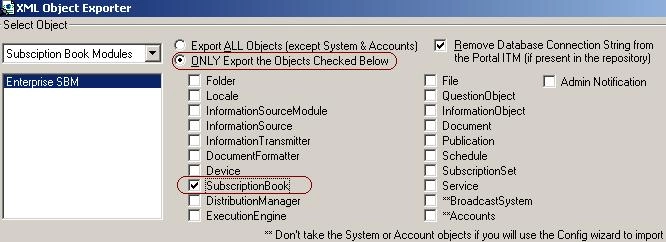
  • Succesfully connect to an object repository.  The XML Object Exporter window should be seen.
  • In the XML Object Exporter window, select ONLY Export the objects checked below and select the object's type from the listbox.  

    In this example, only the SubscriptionBook object definition is being exported.
ka04W000000OhPqQAK_0EM440000002Bxj.jpeg
  •  
    NOTE:  For exporting Narrowcast XSL files, select the File type
     
  • Click on the Export Objects button.
  • Supply a File Name and Folder Path to store the resulting output (xml) objects.  Note that the output files will be named according to Object Identifier.
  • When the export is complete, a message box will appear.


Exporting the Entire Repository

The export tool can export the entire repository.  This process can be very time consuming, and there are very limited real world applications for this scenario:

  1. Succesfully connect to an object repository.  The XML Object Exporter window should be seen.
  2. Select the option "Export ALL Objects..." then click on the Export Objects button.
  3. Supply a File Name and Folder Path to store the resulting output (xml) objects.  Note that the output files will be named according to Object Identifier.
  4. When the export is complete, a message box will appear.

 
NOTES:

  • A Subscription Book Repository (addresses / users / preferences) cannot be exported. The Export Tool only deals with the Object Repository. When selection the SubscriptionBook object type, the connection information of the Subscription Book repository that is held in the Object Repository will be exported, but not the actual Subscription Book Repository.
  • Objects stored in the .xml file are in a specific order. An object that has dependencies must be exported after its dependencies so that the Import Tool works properly. An object cannot be created if its dependencies do not exist in the repository.
  • There is a base 64 encoding in the definitions of objects. This will be seen as unreadable text in some of the object definitions.


Common Problems

A logfile (exporter.log) will be written with further useful information for details. The log file will be in the same folder as MCXMLExp.exe.  Below is a listing of some common errors and their causes. The error is written to the exporter.log.

  • Error: *** Error in ConnectToRepository: 1402 This NT Login does not have an Account associated with it.
    Cause: Make sure you have a Narrowcast account in the repository to which you're trying to connect.
  • Error: *** Error in ConnectToRepository: 291 Unable to execute a SQL statement:
    Cause: Was the proper Database type (Oracle, SQL Server, DB2) selected?
  • Error: *** Error in ConnectToRepository: 295 Unable to establish a connection to the repository.
    Cause: Was the correct DSN information supplied?  DSN name, login, and password?


Comment

0 comments

Details

Knowledge Article

Published:

May 22, 2017

Last Updated:

May 22, 2017