EducationSoftwareStrategy.com
StrategyCommunity

Knowledge Base

Product

Community

Knowledge Base

TopicsBrowse ArticlesDeveloper Zone

Product

Download SoftwareProduct DocumentationSecurity Hub

Education

Tutorial VideosSolution GalleryEducation courses

Community

GuidelinesGrandmastersEvents
x_social-icon_white.svglinkedin_social-icon_white.svg
Strategy logoCommunity

© Strategy Inc. All Rights Reserved.

LegalTerms of UsePrivacy Policy
  1. Home
  2. Topics

KB5395: How to create and use Datamarts in MicroStrategy Intelligence Server.


Community Admin

• Strategy


This article describes how to create and user Datamarts in MicroStrategy.

Contents:

  • What is a datamart?
  • How to create a datamart database instance
  • How to add a datamart to a report
  • What are the advanced settings for datamart reports?
  • Troubleshooting datamart reports
  • Datamart FAQ

 
What is a datamart?
A datamart is a mini data warehouse, or a subset of data derived from a primary data warehouse. Datamarts are typically stored in the same database server as the warehouse. Each datamart table is associated with one report via the Strategy Developer interface. Datamarts can be used to achieve various business needs such as:

  • Creating tables in a database for running "What-If" scenarios
  • Building tables for third party tools
  • Building a smaller, portable database for Online Analytical Processing (OLAP) analysis

 
How to create a datamart database instance
A datamart can either be stored in the warehouse or in an alternate database server. Users using the warehouse may skip to the 'How to add a datamart to a report' section of this document as the warehouse is optimized for a datamart by default and does not need to be configured separately.
Perform the following steps to create a datamart database instance.
  • Create a valid Open Database Connectivity (ODBC) Data Source Name (DSN) pointing to the datamart location.
  • Create a database instance that references the intended datamart location by performing the following steps.
    • Go to the 'Database Instance Manager'. Click in the right pane.
    • Choose 'Database Instance Wizard'.
    • Click 'Next' after the introduction. In the next slide, 'Database Instance Definition', choose a name and database type for the datamart location. Click 'Next'.
    • Choose a datamart DSN and enter login information.
    • Click Finish.
  • Validate the database instance for datamart use by performing the following steps.
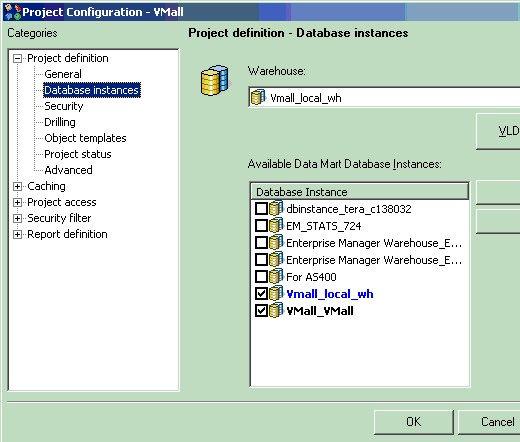
    • Right-click on the project name and choose 'Project Configuration'.
    • In the 'Database Instances' tab, under 'Available Datamart Database Instances', check the box next to the newly created database instance as shown below.
ka04W000000OdZnQAK_0EM440000002GFX.gif
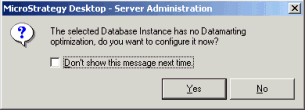
    • Choose 'Yes' to the message shown below.
ka04W000000OdZnQAK_0EM440000002GFV.gif
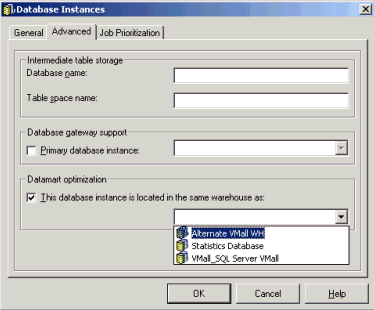
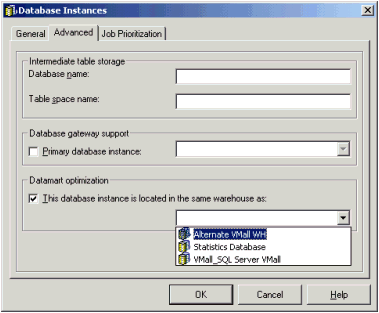
    • Users are presented with the 'Advanced' tab of the database instance editor. If the datamart is in the SAME database server as the warehouse (or a warehouse instance), then indicate this by checking the box under the section 'Database optimization' as shown below. If the database is in a DIFFERENT location as the warehouse, then leave this box unchecked. (Please refer to the 'Datamart FAQ' section of this document for more information regarding optimization.)
ka04W000000OdZnQAK_0EM440000002GFF.gif

 
How to add a datamart to a report
Perform the following steps to add a datamart to a report.
  • Open a report in edit mode.
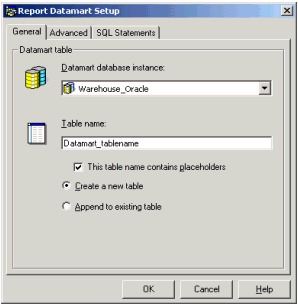
  • In the tool bar, choose 'Data' > 'Datamart' > 'Configure Datamart' (or, use the datamart icon with the grid and repositories). The window appears as shown below.
ka04W000000OdZnQAK_0EM440000002GFL.gif
  • In the 'General' tab, choose the appropriate location in the 'Datamart database instance' drop down menu.
  • Under 'Table name', choose an appropriate table name. This table name must be compliant with the naming convention supported by the database server.
  • Choose to either:
    • Create a new table: This option replaces the existing table each time the report is run. (Effectively, the Structured Query Language (SQL) statements drop and create the table each time the report is run)
    • Append to an existing table: This adds to the resulting data from the report's previous run.
  • Click 'OK' in the datamart editor.
  • Choose 'Save and Close' to save and close the report.
  • Run the report. Users receive a confirmation message that indicates the datamart was successfully created. If users do not receive this message, please refer to the 'Troubleshooting datamart reports' section of this document for troubleshooting tips.

 
What are the advanced settings for datamart reports?
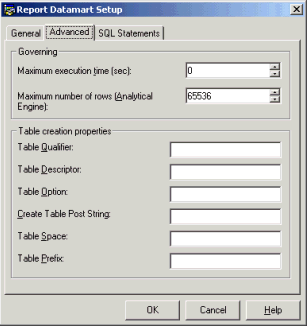
Open the 'Advanced' tab of the datamart report editor to find the following settings to customize the datamart generation. The 'Advanced' tab of the datamart report editor is shown below.
ka04W000000OdZnQAK_0EM440000002GFH.gif

 
The following are descriptions of each of the settings used in customizing datamart generation.

  1. Governing settings:
    1. Maximum Execution Time: Sets a time limit on report execution (seconds)
    2. Maximum Number of Rows (Analytical Engine): Setting that applies to a datamart report that calls the Analytical Engine.
  2. Table Creation Properties
    1. Table Qualifier: Keywords placed right before 'table'.
    2. Table Description: String to be placed after the word TABLE in the CREATE TABLE statement.
    3. Table Option: String to be placed after the word table name in the CREATE TABLE statement.
    4. Create Table Post String: String appended after the CREATE TABLE statement.
    5. Table Space: Database space where table resides.
    6. Table Prefix: String to be appended to table name.
  3. SQL Statements: Various SQL statements can be run before datamart creation, after datamart creation, and before inserting results data. These SQL statements should follow database server syntax.

 
Troubleshooting datamart reports
When running datamart reports, users may experience errors due to incorrect configuration. The following suggests first steps to take in troubleshooting datamart errors.
 
Error: No data was inserted into the database, but no errors appeared in the interface
Possible resolution(s): No data was returned in the report results. Verify that the SQL returns data. Test this using the ODBC Test Tool by running the report's SQL without the datamart association.
 
Error: User not able to create table or insert data into the datamart table
Possible resolution(s): The user does not have permission to either create a table or insert data into this table. Verify that the database login used in the database instance has the correct permissions to insert data and create tables. (If using SQL Server, verify that the database setting 'Select into / Bulk copy' under 'Properties' > 'Options' is selected.)
 
Error: '..Inserted value too large for column'
Possible resolution(s): When a datamart table is created, a column length is assigned depending on the data type of the inserted column. For example, data types of integers generate a column length of fewer characters than text data types. Perform the following steps to troubleshoot this issue.
 

  1. View the SQL of the report (this can be done without actually running the report.). Compare the column length expected against the column length listed in the datamart table creation statement. If the column length generated is not long enough to handle the custom concatenation length, go to Step 2.
     
    Example: An end user creates a form for the Report Display that is a custom concatenation expression for the attribute 'Customer': ApplySimple(#0++#1++#2, , , ).
     
    The user notices the SQL statement creates a column length of 10. This is not enough characters to accommodate the concatenation.
     

The SQL should now reflect the change and add the column alias into the SQL.
 
Example: The user goes to the attribute editor for 'Customer' and creates a column alias with any name (e.g., 'Custom_column') After updating the schema, this alias appears in the SQL for the datamart table creation.
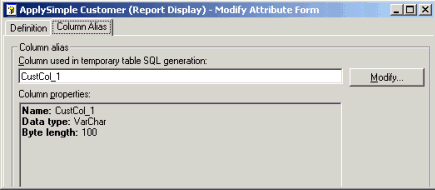
ka04W000000OdZnQAK_0EM440000002GFS.gif

 
Example SQL:
drop table ApplySimple_datamart
create table ApplySimple_datamart (
  Customer_Id   INTEGER,
  CustCol_1   VARCHAR(100),
  DOLLARSALES   FLOAT)
insert into ApplySimple_datamart
select   a11.Customer_Id Customer_Id,
    max(a13.Cust_Last_Name++a13.Cust_First_Name++a13.Email) CustCol_1,
   sum(a11.Order_Amt) DOLLARSALES
from   RUSH_ORDER a11
   join LU_DATE a12
     on (a11.Order_Date = a12.Date_Id)
   join LU_CUSTOMER a13
    on (a11.Customer_Id = a13.Customer_Id)
where    a12.Year_Id = 1998
group by    a11.Customer_Id
 
Datamart FAQ
What does it mean to optimize a database for datamarts?
View the sample SQL for a simple Monthly Sales report whose datamart is located in the following:

 
Once Strategy Administrator - Command Manager finishes its verification process, it will appropriately execute the instructions on Strategy Intelligence Server. If any of these instructions fails, Strategy Administrator - Command Manager terminates and outputs an error message with an error code of 8.

Execution Error (Strategy Narrowcast Server)

9

The execution cycle of Strategy Narrowcast Server is pretty similar to that of Strategy Intelligence Server. Whenever an error occurs during execution process, Strategy Administrator - Command Manager will terminate and return an error code of 9.

File Operation Error

10

Since Strategy Administrator - Command Manager  always outputs to log file(s), first step is to check if the file is writable. If log file(s) does/do not exist, Strategy Administrator - Command Manager will create new log files. If an error occurs uring file initialization, writing, and termination, Strategy Administrator - Command Manager will return an error category of 10.
Table nameNumber or rowsNumber of columnsSize once loaded in memory (MB)largetable104,305,36911831lookuptable1252.007 MB ~ = 7.7 KB  Cache tableEnable compressionBroadcast joinOptimized partitionOffheap memory enabled QueryYesNoYesNoYesNoYesNoYesNoFilteringcreate table filter_output as select * from largetable where release_year = 2011;6.9747.67447.67443.2510.876.976.9712.4411.7036.97Aggregationselect genre, stddev(score) from largetable group by genre;3.91921.36521.36518.3763.443.9193.9193.9073.6523.919Joincreate table join_out as select a.title, b.score from largetable a inner join lookuptable b on a.genre = b.genre;56.8878.34778.34785.91918.4256.8856.88180.9770.97756.88Are tables cached? YesNoNoNoYesYesYesYesYesYesspark.sql.inMemoryColumnarStorage.batchSize truetruetruefalsetruetruetruetruetruetruespark.sql.inMemoryColumnarStorage.compressed 1000010000100000100001000010000100001000010000spark.sql.autoBroadcastJoinThreshold 111152428800011111spark.executor.memory 8g8g8g8g8g8g8g8g6g8gspark.memory.offHeap.size falsefalsefalsefalsefalsefalsefalsefalsetruefalsespark.memory.offHeap.enabled 000000002g0spark.default.parallelism 1313131313131311313spark.sql.shuffle.partitions 1313131313131311313Total memory (execution & storage) 34.4 GB34.4 GB34.4 GB34.4 GB34.4 GB34.4 GB34.4 GB34.4 GB25.8 GB(in JVM heap) + 12 GB (native OS memory)34.4 GBTable nameTable sizeSpark execution
(not cached)Spark execution
(cached)Size in
HDFSSize in
RDD (once
cached)HDFS
partitionsRDD
partitionsFormatA5 million17.57.785.9 MB436 MB22ORCA_part2005 million51.21.3 GB431 MB201200TEXTA_part200_orc5 million4.51.596.1 MB432 MB201200ORCB400 million88247.9 GB33.6 GB192905ORCB_part200400 million6721.699.6 GB37.4 GB201905TEXTB_part200_orc400 million59.416.66.6 GB37.4 GB201200ORCshibboleth2.xml - site<Site id="1" name="sp.example.org"/>
with
<Site id="1" name="FULLY_QUALIFIED_SERVICE_PROVIDER_HOST_NAME"/>shibboleth2.xml - host

<
Host
 
name
=
"sp.example.org"
>

  
<
Path
 
name
=
"secure"
 
authType
=
"shibboleth"
 
requireSession
=
"true"
/>

</
Host
>

with

<
Host
 
name
=
"FULLY_QUALIFIED_SERVICE_PROVIDER_HOST_NAME"
>

  
<
Path
 
name
=
"MicroStrategy"
 
authType
=
"shibboleth"
 
requireSession
=
"true"
/>

  
<
Path
 
name
=
"MicroStrategyMobile"
 
authType
=
"shibboleth"
 
requireSession
=
"true"
/>

</
Host
shibboleth2.xml - entityID
<
SSO
 
entityID
=
"https://idp.example.org/idp/shibboleth"

     
discoveryProtocol
=
"SAMLDS"
 
discoveryURL
=
"https://ds.example.org/DS/WAYF"
>

       
SAML2 SAML1

</
SSO
>

with the following (note that discoveryProtocol and discoveryURL is only required with Shibboleth Identity Provider),

<
SSO
 
entityID
=
"YOUR_SSO_SAML_ENTITY_ID"
>

  
SAML2 SAML1

</
SSO
>
shibboleth2.xml - IdP metadata
<
MetadataProvider

  
type
=
"XML"

  
url
=
"https://adfs.example.org/federationmetadata/2007-06/federationmetadata.xml"
/> 
shibboleth2.xml - IdP metadata
<
MetadataProvider

  
type
=
"XML"

  
file
=
"partner-metadata.xml"
/> 
attribute-map.xml user mapping - AD FS
<
Attribute

  
name
=
"http://schemas.microsoft.com/ws/2008/06/identity/claims/windowsaccountname"

  
id
=
"SBUSER"
/>
​attribute-map.xml user mapping
<
Attribute

  
name
=
"urn:oid:0.9.2342.19200300.100.1.1"

  
id
=
"SBUSER"

  
nameFormat
=
"urn:oasis:names:tc:SAML:2.0:attrname-format:basic"
/>
attribute-map.xml user mapping<Attribute  name="urn:oasis:names:tc:SAML:1.1:nameid-format:unspecified"  id="SBUSER"/>Datamart Location : WarehouseDatamart Location : Alternate Location

 
Once Strategy Administrator - Command Manager finishes its verification process, it will appropriately execute the instructions on Strategy Intelligence Server. If any of these instructions fails, Strategy Administrator - Command Manager terminates and outputs an error message with an error code of 8.

Execution Error (Strategy Narrowcast Server)

9

The execution cycle of Strategy Narrowcast Server is pretty similar to that of Strategy Intelligence Server. Whenever an error occurs during execution process, Strategy Administrator - Command Manager will terminate and return an error code of 9.

File Operation Error

10

Since Strategy Administrator - Command Manager  always outputs to log file(s), first step is to check if the file is writable. If log file(s) does/do not exist, Strategy Administrator - Command Manager will create new log files. If an error occurs uring file initialization, writing, and termination, Strategy Administrator - Command Manager will return an error category of 10.
Table nameNumber or rowsNumber of columnsSize once loaded in memory (MB)largetable104,305,36911831lookuptable1252.007 MB ~ = 7.7 KB  Cache tableEnable compressionBroadcast joinOptimized partitionOffheap memory enabled QueryYesNoYesNoYesNoYesNoYesNoFilteringcreate table filter_output as select * from largetable where release_year = 2011;6.9747.67447.67443.2510.876.976.9712.4411.7036.97Aggregationselect genre, stddev(score) from largetable group by genre;3.91921.36521.36518.3763.443.9193.9193.9073.6523.919Joincreate table join_out as select a.title, b.score from largetable a inner join lookuptable b on a.genre = b.genre;56.8878.34778.34785.91918.4256.8856.88180.9770.97756.88Are tables cached? YesNoNoNoYesYesYesYesYesYesspark.sql.inMemoryColumnarStorage.batchSize truetruetruefalsetruetruetruetruetruetruespark.sql.inMemoryColumnarStorage.compressed 1000010000100000100001000010000100001000010000spark.sql.autoBroadcastJoinThreshold 111152428800011111spark.executor.memory 8g8g8g8g8g8g8g8g6g8gspark.memory.offHeap.size falsefalsefalsefalsefalsefalsefalsefalsetruefalsespark.memory.offHeap.enabled 000000002g0spark.default.parallelism 1313131313131311313spark.sql.shuffle.partitions 1313131313131311313Total memory (execution & storage) 34.4 GB34.4 GB34.4 GB34.4 GB34.4 GB34.4 GB34.4 GB34.4 GB25.8 GB(in JVM heap) + 12 GB (native OS memory)34.4 GBTable nameTable sizeSpark execution
(not cached)Spark execution
(cached)Size in
HDFSSize in
RDD (once
cached)HDFS
partitionsRDD
partitionsFormatA5 million17.57.785.9 MB436 MB22ORCA_part2005 million51.21.3 GB431 MB201200TEXTA_part200_orc5 million4.51.596.1 MB432 MB201200ORCB400 million88247.9 GB33.6 GB192905ORCB_part200400 million6721.699.6 GB37.4 GB201905TEXTB_part200_orc400 million59.416.66.6 GB37.4 GB201200ORCshibboleth2.xml - site<Site id="1" name="sp.example.org"/>
with
<Site id="1" name="FULLY_QUALIFIED_SERVICE_PROVIDER_HOST_NAME"/>shibboleth2.xml - host

<
Host
 
name
=
"sp.example.org"
>

  
<
Path
 
name
=
"secure"
 
authType
=
"shibboleth"
 
requireSession
=
"true"
/>

</
Host
>

with

<
Host
 
name
=
"FULLY_QUALIFIED_SERVICE_PROVIDER_HOST_NAME"
>

  
<
Path
 
name
=
"MicroStrategy"
 
authType
=
"shibboleth"
 
requireSession
=
"true"
/>

  
<
Path
 
name
=
"MicroStrategyMobile"
 
authType
=
"shibboleth"
 
requireSession
=
"true"
/>

</
Host
shibboleth2.xml - entityID
<
SSO
 
entityID
=
"https://idp.example.org/idp/shibboleth"

     
discoveryProtocol
=
"SAMLDS"
 
discoveryURL
=
"https://ds.example.org/DS/WAYF"
>

       
SAML2 SAML1

</
SSO
>

with the following (note that discoveryProtocol and discoveryURL is only required with Shibboleth Identity Provider),

<
SSO
 
entityID
=
"YOUR_SSO_SAML_ENTITY_ID"
>

  
SAML2 SAML1

</
SSO
>
shibboleth2.xml - IdP metadata
<
MetadataProvider

  
type
=
"XML"

  
url
=
"https://adfs.example.org/federationmetadata/2007-06/federationmetadata.xml"
/> 
shibboleth2.xml - IdP metadata
<
MetadataProvider

  
type
=
"XML"

  
file
=
"partner-metadata.xml"
/> 
attribute-map.xml user mapping - AD FS
<
Attribute

  
name
=
"http://schemas.microsoft.com/ws/2008/06/identity/claims/windowsaccountname"

  
id
=
"SBUSER"
/>
​attribute-map.xml user mapping
<
Attribute

  
name
=
"urn:oid:0.9.2342.19200300.100.1.1"

  
id
=
"SBUSER"

  
nameFormat
=
"urn:oasis:names:tc:SAML:2.0:attrname-format:basic"
/>
attribute-map.xml user mapping<Attribute  name="urn:oasis:names:tc:SAML:1.1:nameid-format:unspecified"  id="SBUSER"/>Datamart Location : WarehouseDatamart Location : Alternate Location

drop table Datamart_Test

create table Datamart_Test (
   Month_Id   INTEGER,
   Month_Desc   VARCHAR(100),
   DOLLARSALES FLOAT)

insert into Datamart_Test
select  a11.Month_Id Month_Id,
    max(a12.Month_Desc) Month_Desc,
    sum(a11.Tot_Dollar_Sales) DOLLARSALES
from   MNTH_CATEGORY_SLS a11
    join LU_MONTH a12
    on (a11.Month_Id = a12.Month_Id)

select a11.Month_Id Month_Id,
   max(a12.Month_Desc) Month_Desc,
   sum(a11.Tot_Dollar_Sales) DOLLARSALES
from MNTH_CATEGORY_SLS a11
   join LU_MONTH a12
   on (a11.Month_Id = a12.Month_Id)
group by a11.Month_Id

drop table AF_Datamart

create table AF_Datamart (
   Month_Id   INTEGER,
   Month_Desc   VARCHAR(100),
   DOLLARSALES FLOAT)

insert into AF_Datamart values (199701, 'Jan 97', 8817)

 
Notice that in the alternate location, extra insert statements appear in the SQL.
The report is first run against the warehouse. The results, which reside in Strategy Intelligence Server, are pulled from Intelligence Server and inserted row by row into the datamart table. In contrast, when the datamart resides in the same location as the warehouse, the results can be directly inserted into the datamart table as shown below.
ka04W000000OdZnQAK_0EM440000002GFJ.gif

 
When choosing to optimize a database for datamarting, users are prompted to designate whether the datamart tables reside in the same database server as an existing warehouse instance. If the datamart tables do reside in the same database server, then it will directly insert into the datamart tables as mentioned above.
Users will encounter errors if the datamart instance is NOT in the same database server as the warehouse and 'This database instance is located in the same warehouse as' checkbox is checked. The engine will attempt to insert results directly into the datamart table, but the SQL will not be correct.
NOTE: Datamart optimization is a start-time parameter. Users must restart the Strategy Intelligence Server for the change to take effect.
 
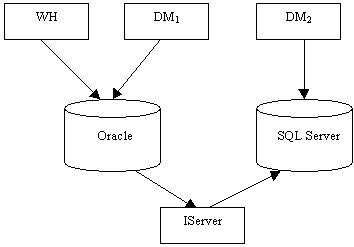
Considering the following example:
ka04W000000OdZnQAK_0EM440000002GFO.gif

 
Three database instances exist in this example:

  1. Warehouse instance
  2. Datamart instance pointing to the warehouse
  3. Datamart instance pointing to an alternate database server

 
The checkbox for optimization will be checked and pointing to the warehouse instance for DM1. When a user runs a datamart report pointed to this datamart instance, the results will be automatically inserted into the datamart table.
The checkbox will not be marked for DM2 because it points to a different database server than the warehouse. When a user runs a report associated with this datamart instance, the results will be pulled from the Warehouse and inserted row by row into the alternate datamart database server by Strategy Intelligence Server.

  • Add a column alias that is large enough to accommodate the inserted column string by performing the following steps:
    1. Open the specific attribute in the attribute editor.
    2. Click on the attribute form.
    3. Click 'Modify'.
    4. Click the 'Column_alias' tab.
    5. Click 'Modify'.
    6. Click 'New'.
    7. Give any column name.
    8. In the datatype list box, pick VARCHAR, in the BYTE_LENGTH box pick `100` (or larger than what the user expects the concatenated string length to be. In the example below, Custom_Col1 is used.)
    9. Update the schema.

Comment

0 comments

Details

Knowledge Article

Published:

April 11, 2017

Last Updated:

April 11, 2017