EducationSoftwareStrategy.com
StrategyCommunity

Knowledge Base

Product

Community

Knowledge Base

TopicsBrowse ArticlesDeveloper Zone

Product

Download SoftwareProduct DocumentationSecurity Hub

Education

Tutorial VideosSolution GalleryEducation courses

Community

GuidelinesGrandmastersEvents
x_social-icon_white.svglinkedin_social-icon_white.svg
Strategy logoCommunity

© Strategy Inc. All Rights Reserved.

LegalTerms of UsePrivacy Policy
  1. Home
  2. Topics

KB5490: How to create a prompt-in-prompt in MicroStrategy Developer 9.x and newer


Stefan Zepeda

Salesforce Solutions Architect • Strategy


How to create a prompt-in-prompt in MicroStrategy Developer 9.x and newer

Prompt-in-prompt is a new feature in Strategy Developer 9.x in which the answer to one prompt is used to define another prompt. This feature is only implemented for element list prompts.
 
Follow the steps below to create a prompt-in-prompt.
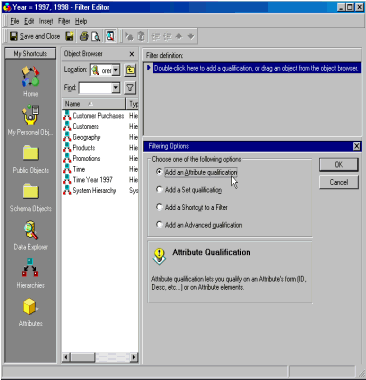
  • Create a filter with an element list or qualification prompt on an attribute. In this example, the Year attribute is used.
     
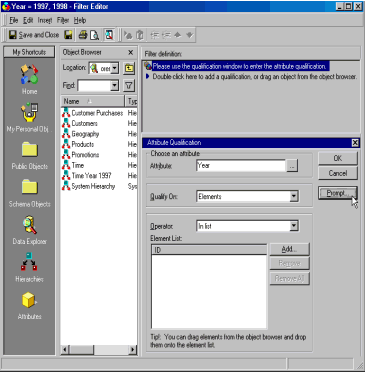
    • In the filter editor, select 'Add an attribute qualification' as shown below.
ka02R000000kbmfQAA_0EM440000002GEX.gif
    • Enter 'Year' as the attribute and click 'Prompt' as shown below.
ka02R000000kbmfQAA_0EM440000002GEw.gif
    • The prompt wizard will be launched. Accept all the defaults and save the prompt and the filter. In this example, the filter is named 'Year = 1997, 1998'.
       
      This prompt is called the inner prompt. It must be answered before its dependent prompt, called the incomplete prompt, is loaded.


NOTE: The inner prompt always loads before the incomplete prompt. When the Prompt Ordering dialog under the Data menu is used to order the prompt filters, the incomplete prompt is displayed in the lower list where prompt ordering is disabled as shown below. This is to prevent users from re-ordering the incomplete prompt to load before the inner prompt, an action that will break prompt resolution.
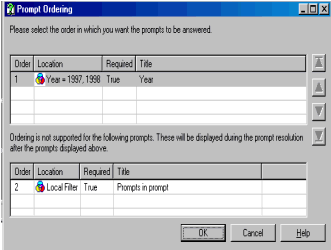
ka02R000000kbmfQAA_0EM440000002GEY.gif

 
For more details on the Prompt Ordering dialog, refer to the following Strategy Knowledge Base technical note:
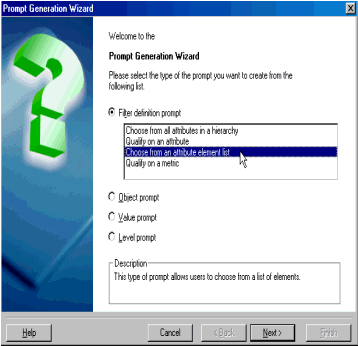
 

  • The second step involves the creation of the incomplete prompt. The incomplete prompt is dependent on the answers of the inner prompt.
     
    • Launch the prompt editor and choose to create an element list prompt. In this example, the attribute Month is used as shown below.
ka02R000000kbmfQAA_0EM440000002GEo.gif
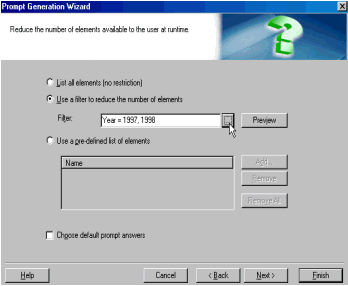
    • Select the second option 'Use a filter to reduce the number of elements' and click on the '...' button to browse for the filter created in Step 1, 'Year = 1997, 1998'.
ka02R000000kbmfQAA_0EM440000002GEq.gif
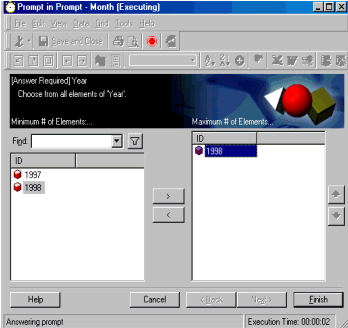
  • Include this prompt in a report by dragging and dropping the prompt into the filter window. Save and close. When the report is run, the inner prompt 'Year = 1997, 1998' is loaded as shown below.
ka02R000000kbmfQAA_0EM440000002GEr.gif
  •  
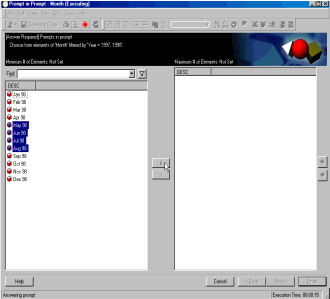
    After the inner prompt is answered, the incomplete prompt is loaded with elements filtered by the answer provided to the inner prompt. In this example, 1998 was selected in the inner prompt. As a result, only the 12 months in 1998 are displayed as shown below.
ka02R000000kbmfQAA_0EM440000002GEp.gif


KB5487 (KB4000-071-0373): How to implement the prompt resolution order feature in Strategy Desktop 8.x


Comment

0 comments

Details

Knowledge Article

Published:

June 8, 2017

Last Updated:

June 8, 2017