EducationSoftwareStrategy.com
StrategyCommunity

Knowledge Base

Product

Community

Knowledge Base

TopicsBrowse ArticlesDeveloper Zone

Product

Download SoftwareProduct DocumentationSecurity Hub

Education

Tutorial VideosSolution GalleryEducation courses

Community

GuidelinesGrandmastersEvents
x_social-icon_white.svglinkedin_social-icon_white.svg
Strategy logoCommunity

© Strategy Inc. All Rights Reserved.

LegalTerms of UsePrivacy Policy
  1. Home
  2. Topics

KB5915: How to apply a Security Object to an Information Source and to a specific user in MicroStrategy Narrowcast Server 9.x


Community Admin

• Strategy


The security object controls the information that a user can access by limiting the data returned from the Information Source. The security object is created by defining an Information Source to use an attribute element prompt created in Strategy Desktop 9.x, that prompts users to choose from an attribute element list. Each end user can have a distinct security object according to answer selected in the Attribute prompt.
 
To create an Information Source with a security object follow the steps below:
  • Log into the System and expand the 'Administration' folder
  • Expand 'Information Source Modules'
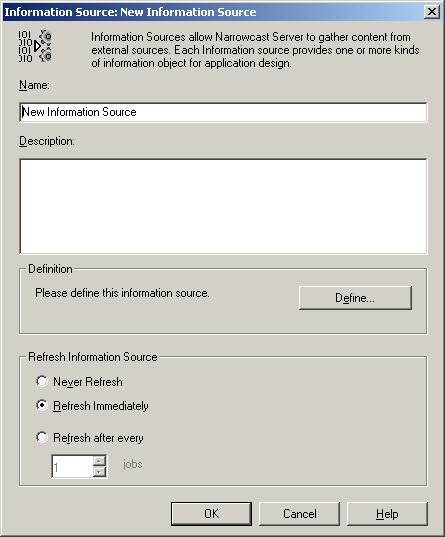
  • Right-click on 'Strategy' and choose 'New Information Source'


ka04W000000OeTHQA0_0EM440000002Bwv.jpeg
  • Click on the 'Define' button. Choose 'Next' on the following slide
  • Click on the ellipses button to choose a Strategy Server name or type the name into the dialog box directly (e.g., MSTR_ISERVER2 if this is the Server Name of Strategy Intelligence Server)
  • Log into the Server using an administrative ID and password. Click on 'Next'.
  • Choose an existing project. This is the project that contains the report users that will be transmitted. Click on 'Next'
  • Select Language and click on 'Next'.
  • Enter the Authentication Object that users will use, by default, to log into the Strategy project. (Reports will be run using this username and password by default. Then, at the user level in the subscription book, this Authentication Object may be overwritten to reflect the actual login of the particular user.)
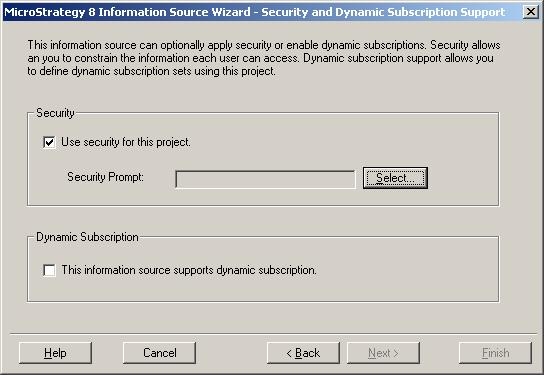
  • Select the checkbox to 'Select to use a Security Object…'
  • Choose the Select button. The administrator should see objects in the corresponding Strategy project.
  • Choose the attribute element prompt that will act as the Security Object. This Security Object will be applied to all reports that contain prompts in the same hierarchy.


ka04W000000OeTHQA0_0EM440000002Bws.jpeg
  • For example, if the prompt 'Choose State' is the security object, then a report with a prompt 'Choose City' will only bring back only the cities corresponding to the parent state.


    If, however, the report prompt is 'Choose Customer', the security object will not be applied since the attribute 'Customer' it is not in the same dimension as 'State'.

    The security object may be applied, however, to any report by simply adding the security object prompt to the information object. Add the prompt to the report using the editor. The security object must be the first prompt in the report definition.


  • Click on 'Next'.
  • Click on 'Define Default Security' button and choose a default answer. This answer will be used for users who do not have a security object specified at the user level.
  • Click on 'Next' and on 'Finish' to save the new Information Source.

To specify a Security Object at the user level follow the steps below:

  1. Create a report in Strategy Desktop 8.x that will be used for the Question Object and Information Object. This report should contain an attribute prompt whose elements reside in the same hierarchy as the attribute in the Security Object. Refer to the following Strategy Technical Note for more information on creating a report for a Question Object:
  2. KB5027 (KB6200-007-0018): Using question objects for personalized report execution in Strategy Narrowcast Server 9.x
  • Create a Question Object and Information Object in Strategy Narrowcast Server Administrative Console that points to the report created above.
  • Specify a Preference Object for users that answer the Question Object. This can be done either in the Subscription Portal by signing up for the service, or directly in the Delivery Engine Subscription Book. Notice that the Question Object has values that are filtered by the default Security Object. Refer to the following Strategy Technical Note for more information on selecting preferences for Question Objects:
  • KB5027 (KB6200-007-0018): Using question objects for personalized report execution in Strategy Narrowcast Server 9.x
  • The Security Object is specified in the Delivery Engine interface. Open the Subscription Book and double-click on a user.
  • Go to the 'Authentication and Security' tab and find the project name in the second window entitled 'Security'. Notice that beside the project name, a 'No' appears in the column 'Defined'.
  • Click on 'Define' to create a Security Object for this user.
  • The administrator should be prompted for the values (in this example, the elements of the 'State' attribute should appear.
  • Save these changes.
  • Repeat Step 3 and notice that the options have changed to reflect the user level security.

Comment

0 comments

Details

Knowledge Article

Published:

June 9, 2017

Last Updated:

June 9, 2017