EducationSoftwareStrategy.com
StrategyCommunity

Knowledge Base

Product

Community

Knowledge Base

TopicsBrowse ArticlesDeveloper Zone

Product

Download SoftwareProduct DocumentationSecurity Hub

Education

Tutorial VideosSolution GalleryEducation courses

Community

GuidelinesGrandmastersEvents
x_social-icon_white.svglinkedin_social-icon_white.svg
Strategy logoCommunity

© Strategy Inc. All Rights Reserved.

LegalTerms of UsePrivacy Policy
  1. Home
  2. Topics

KB6089: How to create a Hierarchy Prompt in MicroStrategy Devloper 9.x - 10.x


Stefan Zepeda

Salesforce Solutions Architect • Strategy


Hierarchy prompts are useful because they provide enough flexibility to create any type of filter. With Hierarchy prompts users can create a filter to filter any attributes in this hierarchy.

 
Hierarchy prompts are useful because they provide enough flexibility to create any type of filter. For Example, with a hierarchy prompt, users can create a filter such as:
((Attribute 1 = A)
 
and
(Attribute 2 in (B, C, D)))
 
In which, Attribute 1 and Attribute 2 can change every time the report is run.
 
To create a Hierarchy Prompt, users must follow the steps below:

  • Create a Prompt: Choose from all attributes in a hierarchy.
ka02R000000kc3ZQAQ_0EM440000002GD9.gif
  • Choose the hierarchy from which to choose the attributes.
ka02R000000kc3ZQAQ_0EM440000002GDB.gif
  • Put this prompt in a Filter.
ka02R000000kc3ZQAQ_0EM440000002GD7.gif
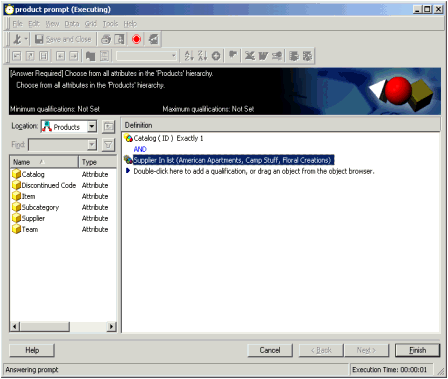
  • Put that filter on the report. The results seen is that when the report appears, users will be able to select and drill into the attributes of that hierarchy (listed on the left) and select (drag and drop) the attributes and the values users want for each.
ka02R000000kc3ZQAQ_0EM440000002GDD.gif

Comment

0 comments

Details

Knowledge Article

Published:

May 31, 2017

Last Updated:

May 31, 2017