EducationSoftwareStrategy.com
StrategyCommunity

Knowledge Base

Product

Community

Knowledge Base

TopicsBrowse ArticlesDeveloper Zone

Product

Download SoftwareProduct DocumentationSecurity Hub

Education

Tutorial VideosSolution GalleryEducation courses

Community

GuidelinesGrandmastersEvents
x_social-icon_white.svglinkedin_social-icon_white.svg
Strategy logoCommunity

© Strategy Inc. All Rights Reserved.

LegalTerms of UsePrivacy Policy
  1. Home
  2. Topics

KB6276: How to change the attribute form displayed for an attribute in the Report Editor in MicroStrategy Developer 9.x - 10.x.


Stefan Zepeda

Salesforce Solutions Architect • Strategy


How to change the attribute form displayed for an attribute in the Report Editor in MicroStrategy Developer 9.x - 10.x

In Strategy 9.x and 10.x, the user can change the attribute forms that are displayed in a report. This is accessible using the right-click menu on the attribute header. The maximum number of forms can be displayed in a sub band menu are 10 forms. Beyond that, there is an option for more that allows user to load the Attribute Display dialog from the right-click menu as well.
 
Perform the following steps to modify the attribute form display using the menu in the attribute header:
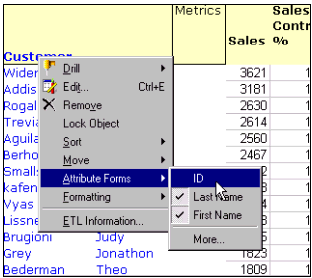
  1. Execute a report in Grid mode.
  2. Once in the report editor, select an attribute and right-click on the attribute header.
  3. Select the Attribute Forms option.
  4. A window with all of the attribute forms available for that attribute appears.
  5. Check one of the available forms for the attribute. The new form should immediately be included in the attribute's column.
ka02R000000kZiaQAE_0EM440000002GCO.gif

 
Repeat the above steps, this time un-checking, one-by-one, all of the attribute forms available for an attribute. Attribute forms should be removed until there is only one form for the attribute. If users try to remove the last form, an error message will appear indicating that since that is the only form for that attribute, it cannot be removed.
 
NOTE: The option of going to 'Data' > 'Attribute Display', which opened the Attribute Display dialog box, can still be used to modify the attribute forms displayed.


Comment

0 comments

Details

Knowledge Article

Published:

June 8, 2017

Last Updated:

June 8, 2017