Strategy Administrator - Command Manager 9.x and newer has a built in command line interface. This command line interface is used to run command manager scripts without having to load the graphical interface and to be able to schedule scripts to run automatically.
The syntax for creating and modifying scripts using the command line is as follows:
cmdmgr -n Project_Source_Name -u Username -f Inputfile
If the project source name, the input file, or the output file contains a space, users must enclose the name in double quotes. The syntax would, then, read as shown below:
cmdmgr -n "Project Source Name" -u Username -f "Input File" .
NOTE: Parameters enclosed in brackets '' are optional.
The description of each parameter is as follows:
Logging can be accomplished through one of the following options:
NOTE: *If neither of the other two options is selected, the tool automatically creates and uses this file.
EXAMPLE:
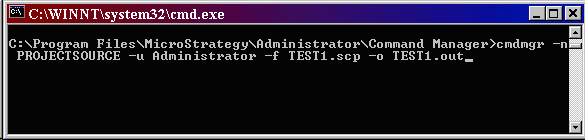
The following script is run:
cmdmgr -n PROJECTSOURCE -u Administrator -f TEST1.scp -o TEST1.out
The following log file is created:
------------------------------------------------------- Strategy Incorporated
Activity Log for the Strategy Command Manager
Copyright (r) 2005
-------------------------------------------------------
10/1/2005 9:46:58 AM Executing task(s)...
10/1/2005 9:47:04 AM Machine = MACHINENAME ImageServer
10/1/2005 9:47:04 AM IP Address = 192.168.1.1 ImageProperty
10/1/2005 9:47:04 AM Response Time = 0 ms ImageClock
10/1/2005 9:47:04 AM Server State = Running ImageServerUp
10/1/2005 9:47:04 AM Server Version = 7.5.300.142 ImageProperty
10/1/2005 01 9:47:04 AM
10/1/2005 9:47:04 AM Task(s) has run successfully...
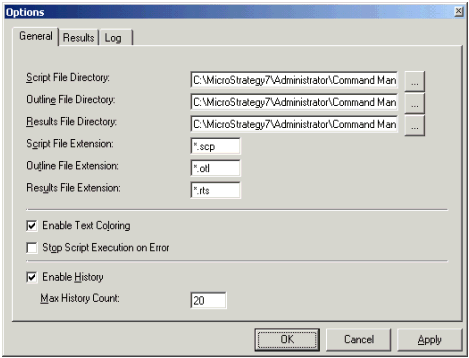
NOTE: There is a setting 'Stop Script Execution on Error' on the GUI interface that controls whether a script will continue to execute on error. This setting should be set accordingly to control the execution of a script after error. Users can find this setting under Tools > Options in the Strategy Administrator - Command Manager interface.