SYMPTOM:
This document first explains a particular situation in which an outer join between lookup tables is needed. Then, this document addresses how to workaround this particular issue.
Having the following hierarchy:
Country > Distribution Center > Calling Center >
Where Country is defined as having a one-to-many relationship with Distribution Center. This is, for every Country; there may be one-to-many Distribution Centers.
In the Data Warehouse, there are the following entries:
LU_Country
Country_Id | Country_Name |
1 | USA |
2 | Spain |
3 | England |
4 | France |
5 | Germany |
6 | Canada |
LU_Dist_Ctr
Dist_Ctr_Id | Dist_Ctr_Name | Country_Id |
1 | London | 3 |
1 | Paris | 4 |
1 | Berlin | 5 |
2 | Seattle | 1 |
3 | Washington, DC | 1 |
4 | San Diego | 1 |
5 | Miami | 1 |
6 | Boston | 1 |
8 | New York | 1 |
9 | Salt Lake City | 1 |
10 | Atlanta | 1 |
11 | San Francisco | 1 |
12 | New Orleans | 1 |
13 | Memphis | 1 |
14 | Fargo | 1 |
15 | Charleston | 1 |
16 | Milwaukee | 1 |
From analyzing these two tables, the following two countries, Canada and Spain, do not have Distribution Centers.
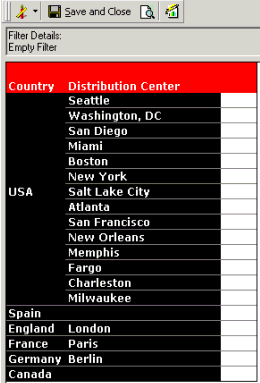
If a report with Country and Distribution Center on it is executed, users will receive the following results:
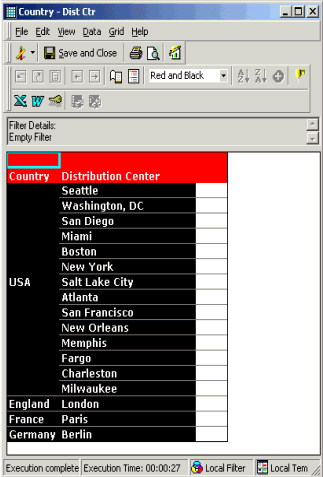
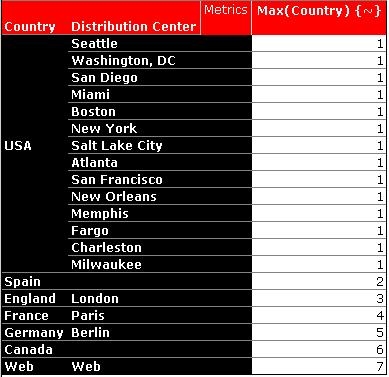
Users may want a report that displays all of the Countries and if they do not have a Distribution Center, then it should return a Null value. To achieve this result, an outer join between the two Lookup tables would be needed.
CAUSE:
In MicroStrategy, outer joins are not supported between attributes. These are only needed when the data model contains a ragged/unbalanced hierarchy which is not a supported data model in MicroStrategy.
WORKAROUND:
Since outer joins between two attributes are not supported, users can use four different techniques to workaround this issue.
Workaround 1:
This method consists of creating a fact based on the attribute's column name.
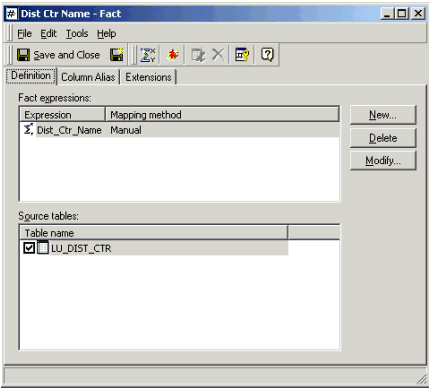
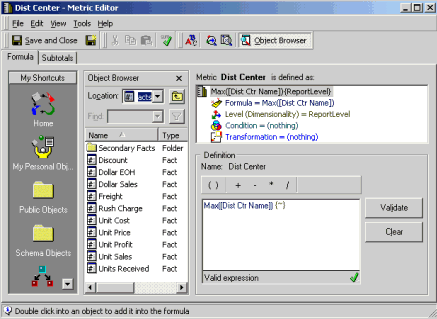
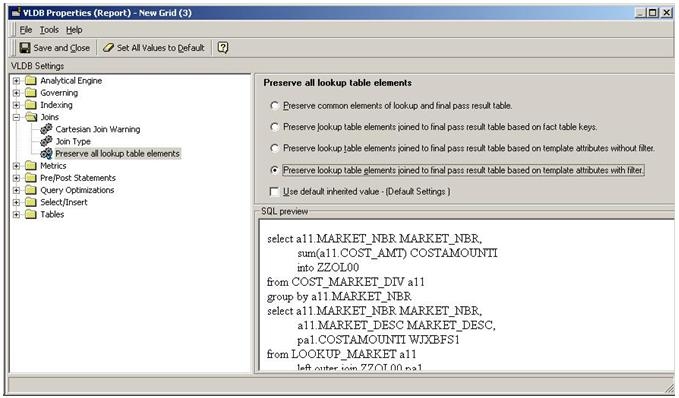
Run the report. The result set should now look as show below
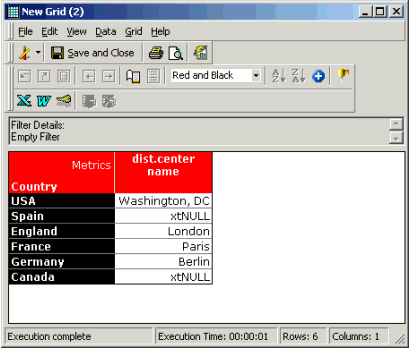
The Null values now appear with their respected parent attribute. In the screenshot above, each Country has its respected Distribution Center. However, if there is no Distribution Center, then a Null value is present.
Workaround 2:
Dist_Ctr_Id | Dist_Ctr_Name | Country_Id |
1 | London | 3 |
1 | Paris | 4 |
1 | Berlin | 5 |
2 | Seattle | 1 |
3 | Washington, DC | 1 |
4 | San Diego | 1 |
5 | Miami | 1 |
6 | Boston | 1 |
8 | New York | 1 |
9 | Salt Lake City | 1 |
10 | Atlanta | 1 |
11 | San Francisco | 1 |
12 | New Orleans | 1 |
13 | Memphis | 1 |
14 | Fargo | 1 |
15 | Charleston | 1 |
16 | Milwaukee | 1 |
Note: Note in this table that the Null values are added for the description column only. The Null rows must have legitimate, real values for the Dist_Ctr_ID column. Attribute ID columns should never contain null values.
Dist_Ctr_Id | Dist_Ctr_Name | Country_Id |
1 | London | 3 |
1 | Paris | 4 |
1 | Berlin | 5 |
2 | Seattle | 1 |
3 | Washington, DC | 1 |
4 | San Diego | 1 |
5 | Miami | 1 |
6 | Boston | 1 |
8 | New York | 1 |
9 | Salt Lake City | 1 |
10 | Atlanta | 1 |
11 | San Francisco | 1 |
12 | New Orleans | 1 |
13 | Memphis | 1 |
14 | Fargo | 1 |
15 | Charleston | 1 |
16 | Milwaukee | 1 |
17 |
| 2 |
18 |
| 6 |
Follow the steps outlined in KB10818- How to use Logical Views introduced in MicroStrategy to specify an outer join between two attribute lookup tables when only attributes are on a report?
Workaround 4:
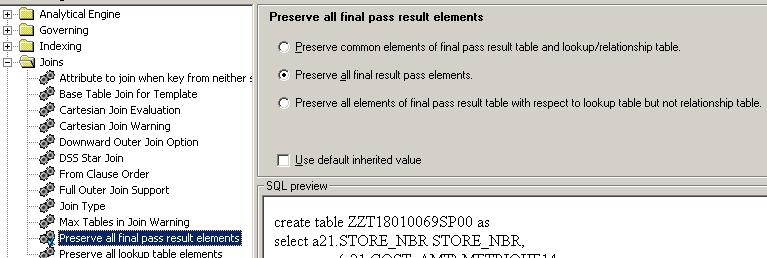
When this report is run, the following results are displayed: