EducationSoftwareStrategy.com
StrategyCommunity

Knowledge Base

Product

Community

Knowledge Base

TopicsBrowse ArticlesDeveloper Zone

Product

Download SoftwareProduct DocumentationSecurity Hub

Education

Tutorial VideosSolution GalleryEducation courses

Community

GuidelinesGrandmastersEvents
x_social-icon_white.svglinkedin_social-icon_white.svg
Strategy logoCommunity

© Strategy Inc. All Rights Reserved.

LegalTerms of UsePrivacy Policy
  1. Home
  2. Topics
  3. KB6684: How to create an HTML tag form for an attribute that can be used as a hyperlink in MicroStrategy Web

KB6684: How to create an HTML tag form for an attribute that can be used as a hyperlink in MicroStrategy Web


Stefan Zepeda

Salesforce Solutions Architect • Strategy


MicroStrategy Web supports basic HTML tags on warehouse elements, including the <a> tag for HTML hyperlinks. Database administrators can store HTML tag elements directly in the data warehouse, but MicroStrategy also has the ability to add HTML tagging to non HTML elements by using the ApplySimple database function.
MicroStrategy Web supports basic HTML tags on warehouse elements, including the <a> tag for HTML hyperlinks. Database administrators can store HTML tag elements directly in the data warehouse, but MicroStrategy also has the ability to add HTML tagging to non HTML elements by using the ApplySimple database function. For example, consider a lookup table in a warehouse that contains the following columns: 

Country_Id

Country_Name

1

USA

2

France

3

England

4

Spain

 Using the ApplySimple database function, users can create a MicroStrategy attribute that contains hyperlinked versions of these elements. The elements of this attribute may look something like this: 

ID

Desc

URL

1

USA

https://www.microstrategy.com/en

2

France

https://www.microstrategy.com/fr

3

England

https://www.microstrategy.com/en

4

Spain

https://www.microstrategy.com/es
 In order to accomplish this, follow the steps below:
  1. Open the attribute mapped to the lookup table and create a new form or modify the form that will ultimately display the hyperlink. In the example above, this form would be called URL.
  2. Use the ApplySimple database function in the Form expression, like shown below:
ka04W00000148rUQAQ_0EM44000000296Y.gif

  1. The ApplySimple syntax may vary between databases, but as an example consider the following syntax:ApplySimple("
    '<A HREF=https://www.microstrategy.com/' + #0 + '>' + #0 + '</A>'", [COUNTRY_NAME])


    On execution, this will syntax will resolve into <A HREF=http://www.microstrategy.com/element>element</A> which is the HTML syntax for a hyperlink with display text element.
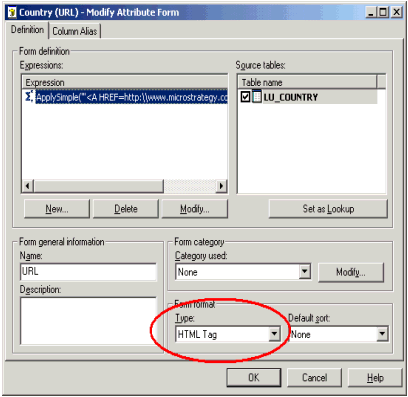
  2. Select 'OK', then in the next window, set the Form Format Type to 'HTML Tag':

ka04W00000148rUQAQ_0EM44000000296l.gif

  1. Save and close the attribute.
  2. Update the project schema.
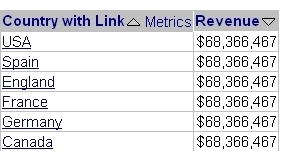
  3. Now when the report is run the following appears:
ka04W00000148rUQAQ_0EM44000000296Z.jpeg

When users click on USA, for instance, they will be directed to http://www.microstrategy.com/USA.


Comment

0 comments

Details

Knowledge Article

Published:

July 25, 2023

Last Updated:

January 31, 2024