The System Message Viewer contained in the Strategy Narrowcast Server dialog box is a display window for observing error messages, execution events and other system messages generated by Strategy Narrowcast Server 9.x. Users can control what types of information are shown, and how many messages are stored in memory for viewing.
The System Message Viewer dialog box is the tool that monitors the system messages, including errors, statistics and debug and trace information, generated by the Delivery Engine during service execution. It connects to the Strategy Logging Server and retrieves there all messages that match any of the selected message types. These matching messages are, then, retained in memory in a message log.
The content of the message log is displayed in the System Message Viewer. When the content of the message log exceeds the user-specified number of lines, the least recent lines are overwritten by new messages.
This new tool can be used in a variety of ways:
By controlling the types of messages that are shown, users can configure the System Message Viewer for each of these purposes.
NOTE: It is not recommended to use debug or trace message logging on a production system unless necessary, as the additional logging reduces the performance of the system.
To access the System Message Viewer, from the Tools menu, select View System Messages.
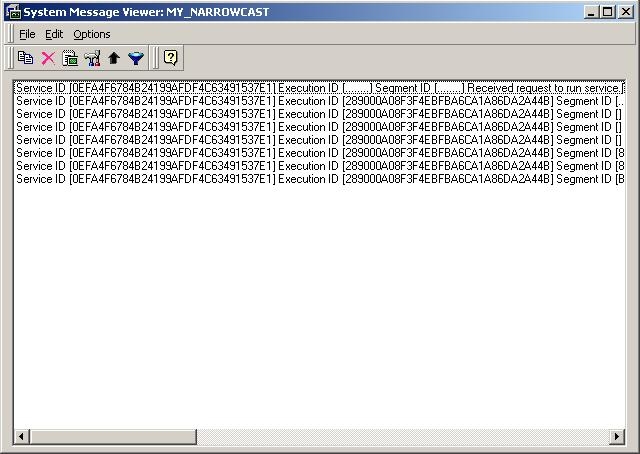
The System Message Viewer dialog box includes a menu bar, a toolbar and an area for displaying messages.
The Options menu bar item and the toolbar offers several choices:
The toolbar also includes buttons for the following:

In the Select Message Types dialog box, users can specify the types and levels of system messages they wish to see by setting the desired logging levels. Message types include errors, statistics, information, trace and debug.
Selecting the box for a given message type causes new messages of that type to be shown in the System Message Viewer display.
For messages to be visible in this dialog box, the log levels must be specified on all client machines. Unless messages are logged by the clients, they do not appear in this interface.
NOTE: Selecting this box does not cause messages that were previously generated but were not visible to become visible.
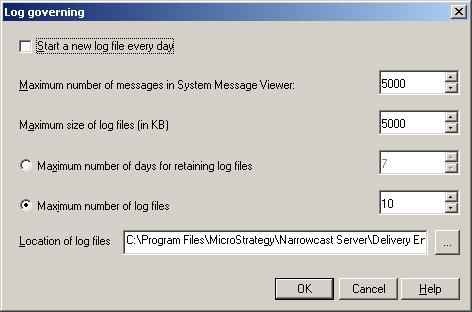
In the Set Governing Settings dialog box, users can specify how many lines of messages the System Message Viewer stores in memory for display. This is useful for controlling the amount of memory consumed by the System Message Viewer.

In the Log Formats dialog box, users can specify the format for dates and timestamps logged in the DELogs, as well as the timezone used to log messages by the Delivery Engine. The default timezone is Greenwich Mean Time (GMT).
NOTE: In Strategy Narrowcast Server 8.1.1 and newer, the timezone selector was moved to the System Governing Settings.
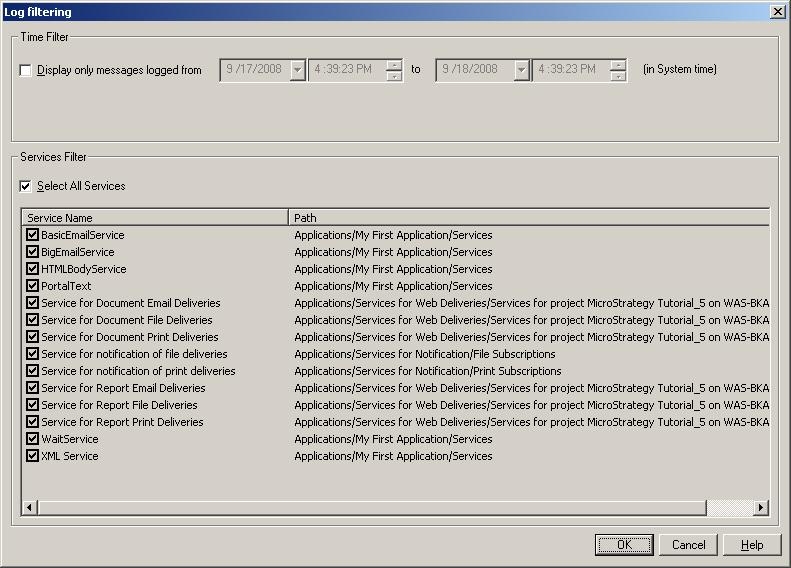
In the Log Filter dialog box, users can specify to view only messages logged within a certain time range, or to only view messages related to a specific service or set of services.
