SYMPTOM:
In Strategy Web 9.x, when users try to add a new server name or to modify an existing one using the Strategy Web Administrator page, the changes do not take effect.
CAUSE:
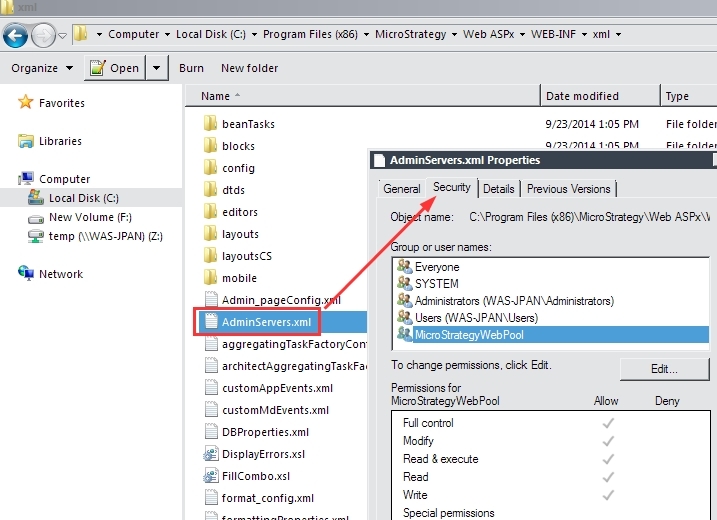
One reason why this issue may occur is because the file AdminServers.xml that holds the information for the Adminstrator page does not have the correct file-level permissions associated with it. Strategy Web is a web application that relies on the underyling application server to make modifications to the physical files on the server machine to record changes such as adding a new Intelligence Server to the Administrator page. Without the necessary file-level permissions on these files, Strategy Web will not be able to save modifications.
ACTION:
To resolve this issue, make sure the application server (e.g. IIS, Tomcat) has the necessary permissions to read, write, and modify the AdminServers.xml file on the operating system. On a 64-bit Windows machine, this file is located here by default: C:\Program Files (x86)\MicroStrategy\Web ASPx\WEB-INF\xml. For steps on how to modify file-level permissions, contact your operating system vendor. In Microsoft Windows operating systems, these settings can be modified in the Security tab of the file, accessed by right-mouse-clicking the file > Properties > Security, like shown below: