EducationSoftwareStrategy.com
StrategyCommunity

Knowledge Base

Product

Community

Knowledge Base

TopicsBrowse ArticlesDeveloper Zone

Product

Download SoftwareProduct DocumentationSecurity Hub

Education

Tutorial VideosSolution GalleryEducation courses

Community

GuidelinesGrandmastersEvents
x_social-icon_white.svglinkedin_social-icon_white.svg
Strategy logoCommunity

© Strategy Inc. All Rights Reserved.

LegalTerms of UsePrivacy Policy
  1. Home
  2. Topics

KB7136: How to control the alignment of row headers in MicroStrategy Developer (formerly Desktop)


Stefan Zepeda

Salesforce Solutions Architect • Strategy


How to control the alignment of row headers in MicroStrategy Developer (formerly Desktop)

 
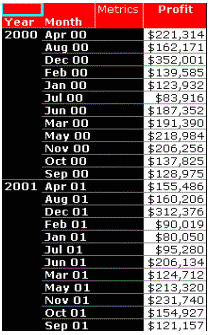
The following screenshot from Strategy Developer (formerly Desktop), shows a report with duplicate row headers. Notice the repeating row entries for the 'Year', column:

ka02R000000kY8lQAE_0EM440000002GAf.gif

 
To merge the duplicate row header cells (change the display from a list into one combined single entry), follow the steps below:
  • Go to the 'Grid' menu.
  • Select the 'Merge Header Cells' menu option.
ka02R000000kY8lQAE_0EM440000002GAd.gif

 
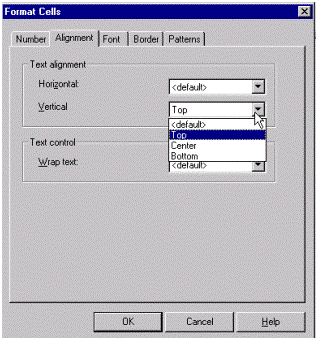
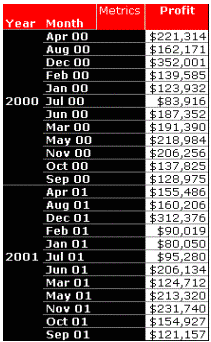
To control the alignment of the attribute value, follow the steps below:

  • Right-click on the attribute whose alignment to change
  • Formattng > Attributename Values > Alignment tab > Vertical text alignment = top
ka02R000000kY8lQAE_0EM440000002GAZ.gif
ka02R000000kY8lQAE_0EM440000002GAM.gif
ka02R000000kY8lQAE_0EM440000002GAO.gif

Comment

0 comments

Details

Knowledge Article

Published:

June 10, 2017

Last Updated:

June 10, 2017