This functionality is only available through Strategy OLAP services.
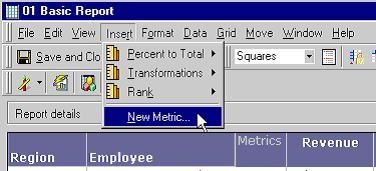
Strategy Developer provides users with the ability to create shortcut metrics such as transformation, percent to total and rank metrics on the fly. This document details the steps to create such metrics and the usage of options provided along with each of the metrics. To insert these metrics into a report, highlight a metric and from the top menu options, select Insert and choose the desired calculation, as shown in the following screen shot:
Transformation Metrics:
Users have the ability to create the three following types of transformation metrics based on the transformation role chosen:
While creating a transformation metrics, Variance or Variance Percentage, a transformation metric of type normal is added to the 'Report Objects' window (provided that a normal transformation metric has not been added to the report earlier). Both difference and ratio metrics are, thus, accompanied by a normal transformation metric. It is not possible to add transformation metrics on the report having a linked template. It is not possible to edit a 'normal transformation metric'.
Rank Metrics:
Users have the ability to create rank metrics on the fly by clicking on the metric adding a rank metric. Users are provided with the facility to break this rank metric by an attribute present on the report.
Percent to Total Metrics:
Users have the ability to create percent to total metrics by clicking on the metric and adding its percent to total. Users have the ability to create percent to total metrics based on data in rows, columns, the grand total or they can break the percent to total metric by an attribute present on the report.
Currently, users does have the ability to add transformation, rank or percent to total of metrics in the 'Report Objects' but not on the view.
