EducationSoftwareStrategy.com
StrategyCommunity

Knowledge Base

Product

Community

Knowledge Base

TopicsBrowse ArticlesDeveloper Zone

Product

Download SoftwareProduct DocumentationSecurity Hub

Education

Tutorial VideosSolution GalleryEducation courses

Community

GuidelinesGrandmastersEvents
x_social-icon_white.svglinkedin_social-icon_white.svg
Strategy logoCommunity

© Strategy Inc. All Rights Reserved.

LegalTerms of UsePrivacy Policy
  1. Home
  2. Topics

KB7345: How to enable or disable the ’Automatically log into last open project’ in MicroStrategy Developer


Stefan Zepeda

Salesforce Solutions Architect • Strategy


This Technical Note describes how to enable or disable the ’Automatically log into last open project’ in MicroStrategy Developer

 
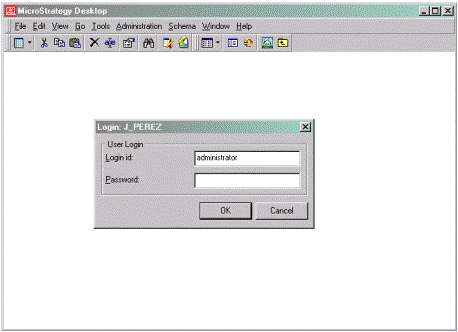
When opening Strategy Developer by default, a login window appears prompting users to log into the last open project.
ka02R000000kcgSQAQ_0EM440000002G9t.gif

 
To disable or re-enable this feature, execute the following steps:
  • Open Strategy Developer and click on 'Cancel' when the login window appears.
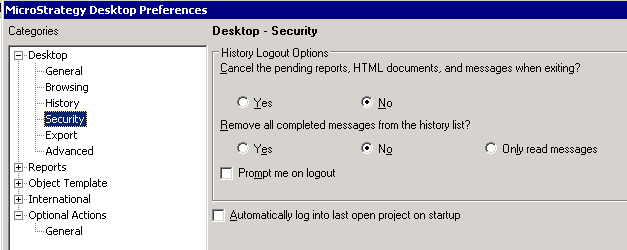
  • Go to Tools > Developer Preferences. 
  • Check or uncheck the box for 'Automatically log into last open project'.

ka02R000000kcgSQAQ_0EM440000002G9u.png
  • Click on the 'OK' button to close the Developer Preferences.


NOTE: This is a Developer Preference, so it must be changed in every Developer where this change wants to be applied.


Comment

0 comments

Details

Knowledge Article

Published:

April 4, 2017

Last Updated:

April 4, 2017