EducationSoftwareStrategy.com
StrategyCommunity

Knowledge Base

Product

Community

Knowledge Base

TopicsBrowse ArticlesDeveloper Zone

Product

Download SoftwareProduct DocumentationSecurity Hub

Education

Tutorial VideosSolution GalleryEducation courses

Community

GuidelinesGrandmastersEvents
x_social-icon_white.svglinkedin_social-icon_white.svg
Strategy logoCommunity

© Strategy Inc. All Rights Reserved.

LegalTerms of UsePrivacy Policy
  1. Home
  2. Topics

KB7853: How does the ’Project Documentation Wizard’ work in MicroStrategy Developer?


Stefan Zepeda

Salesforce Solutions Architect • Strategy


The 'Project Documentation Wizard' allows Administrators to create project documentation by translating the metadata's information of the available application objects, schema objects and configuration objects.

The 'Project Documentation Wizard' allows Administrators to create project documentation by translating the metadata's information of the available application objects, schema objects and configuration objects.
 
To use this feature, the 'Developer' > 'Use Project Documentation' privilege must be granted as set in the user editor.
 
The steps below outline the use of this feature:
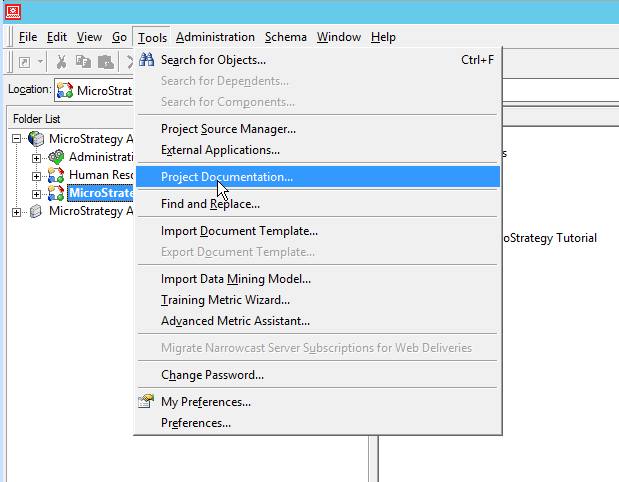
  • Upon logging into the project via Strategy Developer, click on the top menu options under Tools > 'Project Documentation…'
ka0PW0000002xX3YAI_0EM440000002bxU.png
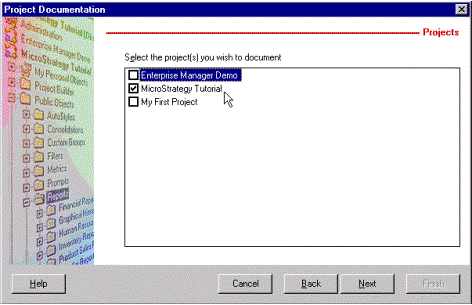
  • The Project Documentation Wizard is launched and a 'Welcome' screen shows. Upon clicking on 'Next', the select the project(s) displays.
ka0PW0000002xX3YAI_0EM440000002G8s.gif
  • Select the Folders, Application Objects, Schema Objects and/or Configuration Objects for documentation on the project. Click on 'Next'.
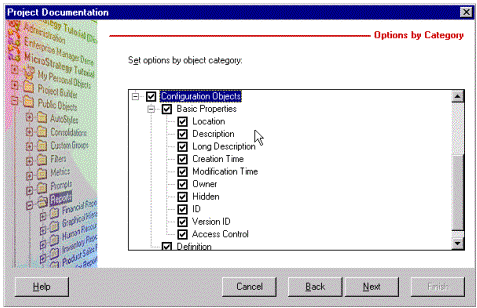
  • Choose whether to view all information for the selected objects or only a subset of the information. Also choose to break down which properties to document by expanding the 'Basic Properties' list. These properties describe an object's: Location, Description, Long Description, Creation Time, Modification Time, Owner, Hidden Flag, ID, Version ID and Access Control List. Upon choosing the appropriate boxes, click on 'Next'.
ka0PW0000002xX3YAI_0EM440000002G8r.gif
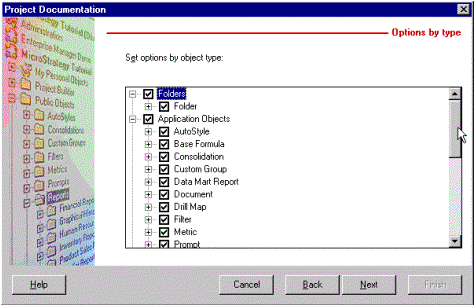
  • In the following screen, choose on which specific object types to obtain documentation. For example, choose to obtain the IDs of all filters, templates and reports. Click on 'Next'.
ka0PW0000002xX3YAI_0EM440000002G8d.gif
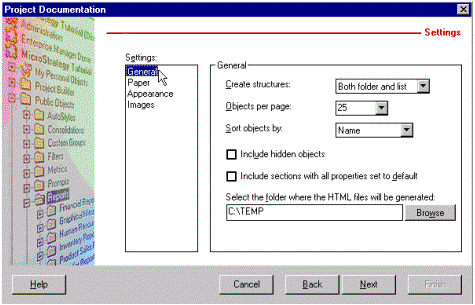
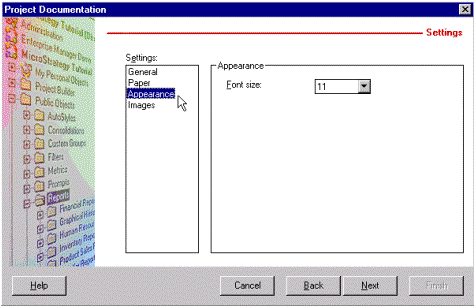
  • Configure the settings for documentation to define how many objects to space per page and where to save the project's Hyper text Markup Language (HTML) files:
ka0PW0000002xX3YAI_0EM440000002G8u.gif
ka0PW0000002xX3YAI_0EM440000002G95.gif
  • The summary screen is presented and upon clicking on 'Finish', the project's documentation files are compiled into an HTML file. This process may take a long time and the hourglass may not appear to indicate that the job is running.
     
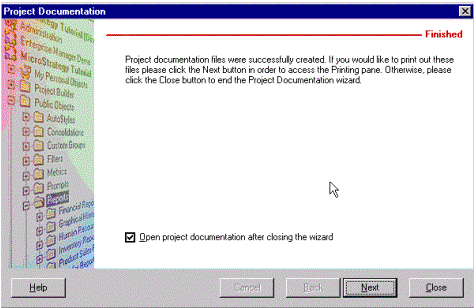
  • However, after completion of the project documentation, users are given the choice to print out the documentation files (by clicking on 'Next') or to close the wizard and to view the project documentation in HTML format. By default, the HTML file is saved to the C:\Temp folder.
ka0PW0000002xX3YAI_0EM440000002G8z.gif
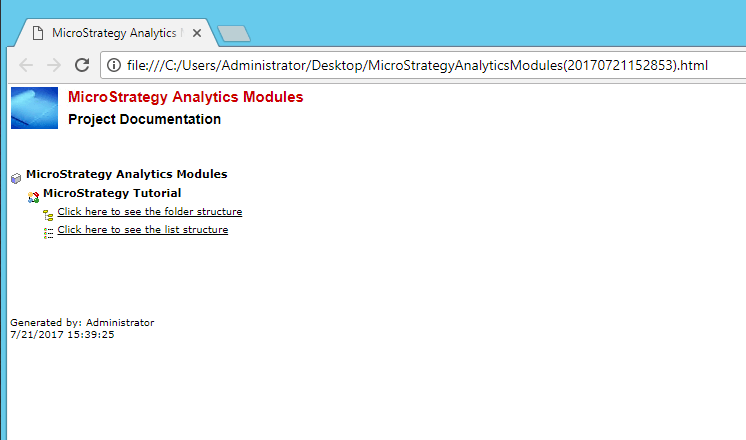
  • Upon opening the project documentation HTML file, click on the links to navigate through the file via a web browser.
ka0PW0000002xX3YAI_0EM440000002by3.png

Comment

0 comments

Details

Knowledge Article

Published:

June 12, 2017

Last Updated:

August 12, 2024