EducationSoftwareStrategy.com
StrategyCommunity

Knowledge Base

Product

Community

Knowledge Base

TopicsBrowse ArticlesDeveloper Zone

Product

Download SoftwareProduct DocumentationSecurity Hub

Education

Tutorial VideosSolution GalleryEducation courses

Community

GuidelinesGrandmastersEvents
x_social-icon_white.svglinkedin_social-icon_white.svg
Strategy logoCommunity

© Strategy Inc. All Rights Reserved.

LegalTerms of UsePrivacy Policy
  1. Home
  2. Topics

KB8258: How to deny users access to the Security Filter Editor in MicroStrategy Developer 9.x


Stefan Zepeda

Salesforce Solutions Architect • Strategy


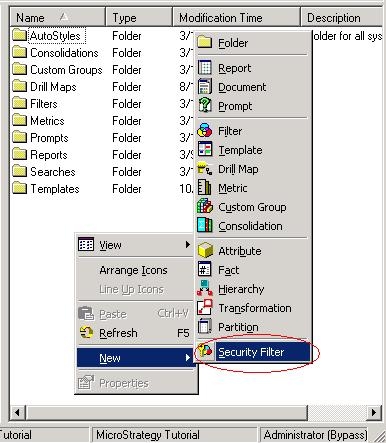
Strategy Developer 9.x provides a method for administrators to deny users access to the Security Filter Editor. The Security Filter Editor is accessible by a user when they either:
 

  • click on the icon immediately below “File” on the toolbar.
     
    OR
     
  • right-click on the right panel of the Strategy Developer interface and select 'New', as shown below:
ka02R000000kYADQA2_0EM440000002G0w.jpeg

 
The following procedure will illustrate how to remove access to the Security Filter Editor. For this example, the user “Brian Kelt”, found in the user group “Everyone” in the Strategy Tutorial project, will be denied access:
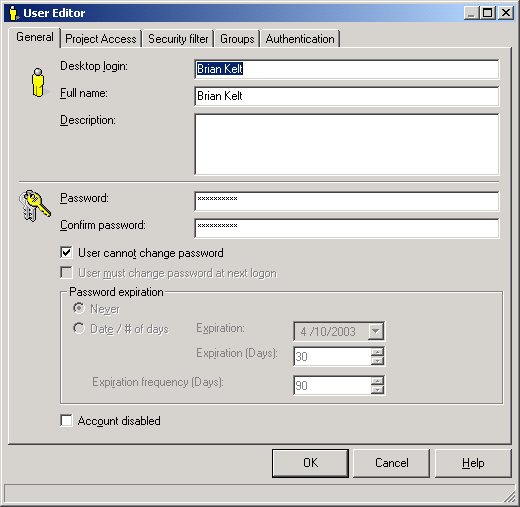
 

  • Open the User Editor to edit the user’s project access privileges:
ka02R000000kYADQA2_0EM440000002G0v.gif
  • Click on the Project Access tab and then expand the “8. Administration” section.
  • Unselect the privilege “Use security filter manager”, as shown below:
ka02R000000kYADQA2_0EM440000002G0y.gif
  • Click 'OK' to save changes.

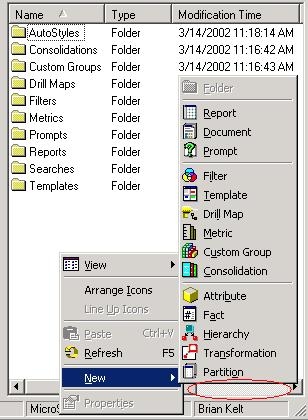
To verify the result, log into Strategy Developer as “Brian Kelt” and note that the Security Filter option has been removed:
 

ka02R000000kYADQA2_0EM440000002G0x.jpeg


Comment

0 comments

Details

Knowledge Article

Published:

June 9, 2017

Last Updated:

June 9, 2017