EducationSoftwareStrategy.com
StrategyCommunity

Knowledge Base

Product

Community

Knowledge Base

TopicsBrowse ArticlesDeveloper Zone

Product

Download SoftwareProduct DocumentationSecurity Hub

Education

Tutorial VideosSolution GalleryEducation courses

Community

GuidelinesGrandmastersEvents
x_social-icon_white.svglinkedin_social-icon_white.svg
Strategy logoCommunity

© Strategy Inc. All Rights Reserved.

LegalTerms of UsePrivacy Policy
  1. Home
  2. Topics

KB8301: Unable to add additional entries to History List even though the number of History List messages setting has not been reached in MicroStrategy Intelligence Server 9.x and 10.x


Community Admin

• Strategy


Unable to add additional entries to History List even though the number of History List messages setting has not been reached in MicroStrategy Intelligence Server 9.x and 10.x

SYMPTOM:
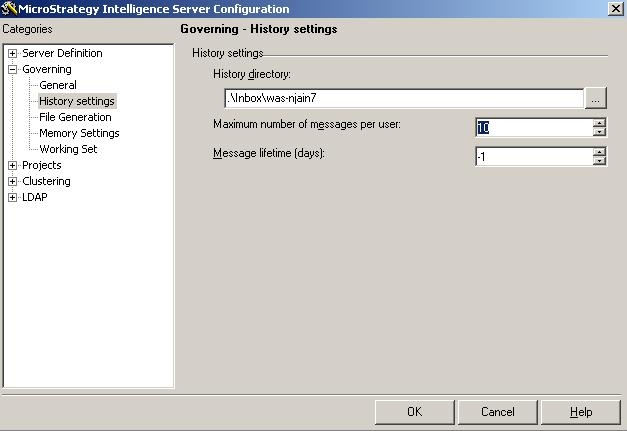
Users are unable to add additional entries to their history list even though the number of History List messages setting as set in the Server Configuration governor (see below) is not met:
 

ka04W0000014855QAA_0EM440000002BtZ.jpeg

 
For example, the maximum number of messages per user setting is set to 10. User A has 3messages in Project A and 4 messages in Project B. When User A attempts to add another entry to their history list, the oldest entry is removed. User A can only see 7 (3of Project A and 4of Project B) entries in the history list even though the setting is actually at 10.
 
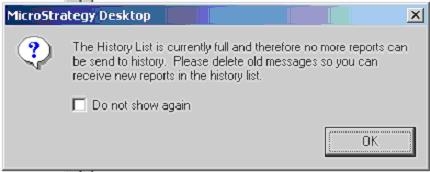
In Strategy Desktop, users will receive an error message similar to the following:
 

ka04W0000014855QAA_0EM440000002Btc.jpeg


The History List is currently full and therefore no more reports can be sent to history. Please delete old messages so you can receive new reports in the history list.

 
Users in Strategy Web will receive messages similar to this:
 

ka04W0000014855QAA_0EM440000002BtX.jpeg


Error in report results. Your request could not be processed. Please try again. If the problem persists, contact the Administrator. Strategy Server error: (User history list is full.)


How to identify this issue for individual users
The following steps will instruct administrators on how to identify users who may have this issue:

  1. Go to the history list directory. This path can be found in the History Settings of the Strategy Intelligence Server configuration.
  2. Note the 'maximum number of history list messages per user' governing setting. Create a test user. Login as that user and send the maximum number of history list messages to history until the governor is reached and the above message is received.
  3. Note the user ID of the test user and search the above directory for the inbox file. Note the size of the file. The size of this file indicates how large a full history list inbox file will be based on the value set in the governing setting.
  4. Look for files that are near or exceed that limit (or by sorting by file sizes).
  5. For files that exceed that size, get the file name and save it to notepad. This file name is also the user ID.
  6. Use a SQL tool such as Open Database Connectivity (ODBC) Test Tool to connect to the project source or Strategy Intelligence Server metadata.
  7. Enter the following SQL:


    SELECT
    OBJECT_ID,
    OBJECT_NAME,
    ABBREVIATION,
    DESCRIPTION
    FROM MICRO.DSSMDOBJINFO
    WHERE OBJECT_ID = `USER ID`

     
    Note: Running SQL queries directly against the metadata is not always recommended, however since this is only a SELECT, it can be done. DO NOT execute any other queries directly against the metadata.
     
  8. Inspect the user's history messages in the projects to which the user has access. A high number of history messages indicate that the user is probably using the Strategy Web product properly. A low number may indicate the above issue.

CAUSE:
A user's history list is a flat file stored in the Strategy Intelligence Server which contains all the information about all of their history list messages.
 
When a project is deleted or unregistered, any history list entries for that project in the user's history list are not deleted. This means that the user may have more History List messages than what appears in the interface. Before deleting or unregistering a project from a project source, the history messages must be deleted first so that those invalid messages are not counted as part of the "Maximum number of messages per user" governor setting.
 
Note also that this governor is at the server level, so it will apply to all projects under the Strategy Intelligence Server. A user will only be able to have, in total across all projects, as many history list messages as set by the governor.
 
WORKAROUND:
Perform either of the following workarounds for this issue:
Delete and recreate the user
 
When a user is deleted and recreated, a new history list file is created. This file is empty by default. However, this solution will remove all of a user's personal objects and history list messages for all projects.
 
Delete the user's History List file from the server
To achieve this, perform the following steps:
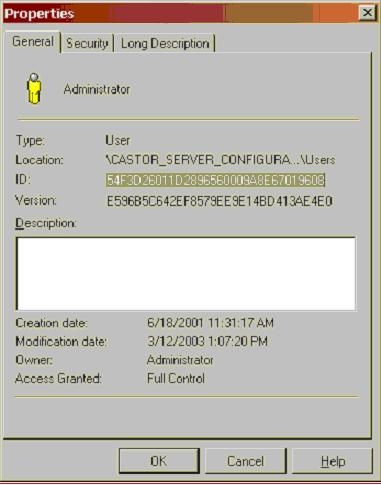
  • Find the user in the user editor.
  • Right mouse click on the user and select properties.
  • Highlight and copy the user ID.
ka04W0000014855QAA_0EM440000002Bta.jpeg
  • Go to the history list directory. This path is available in the History Settings of the Strategy Intelligence Server configuration.
  • Locate the file named from the user ID copied in step 3.
  • Ensure the user is not connected to the Strategy Intelligence Server or any project (see user connection monitor).
  • Delete the file.

    Note: This will clear out the History List for this user for ALL projects.


Steps to Avoid Repeating the Problem
When deleting a project from a project source, ensure that all users delete their messages before taking this action. In Strategy 9.x, the deletion of history list messages can be scheduled which can be utilized to delete all users' messages before deleting a project.
 
Additionally, the system administrator should delete old history list messages or set the history list message lifetime governing so that older history list messages are removed regularly. The lifetime governor called, 'Message Lifetime (Days),' can be found in the same dialog in the Strategy Intelligence Server Configuration wizard as the 'Maximum Number of Messages Per User setting.'
 
For additional information, refer to the related Strategy Knowledge Base documents:
Managing History Lists


Comment

0 comments

Details

Knowledge Article

Published:

June 6, 2017

Last Updated:

June 6, 2017