EducationSoftwareStrategy.com
StrategyCommunity

Knowledge Base

Product

Community

Knowledge Base

TopicsBrowse ArticlesDeveloper Zone

Product

Download SoftwareProduct DocumentationSecurity Hub

Education

Tutorial VideosSolution GalleryEducation courses

Community

GuidelinesGrandmastersEvents
x_social-icon_white.svglinkedin_social-icon_white.svg
Strategy logoCommunity

© Strategy Inc. All Rights Reserved.

LegalTerms of UsePrivacy Policy
  1. Home
  2. Topics

KB8419: What are database logins in MicroStrategy Developer and how are they created and edited?


Stefan Zepeda

Salesforce Solutions Architect • Strategy


A database login specifies the user ID and password to use in order to access the warehouse. A database connection designates one database login as the default login for MicroStrategy users, however, users and groups can be mapped to other database logins using connection mappings.

A database login specifies the user ID and password to use in order to access the warehouse. A database connection designates one database login as the default login for Strategy users, however, users and groups can be mapped to other database logins using connection mappings.
 
Database Logins can created and edited in the Database Connection dialog box:

ka02R000000kZvVQAU_0EM440000002G4y.jpeg

 
For more information on Database Connections, please refer to the Strategy System Administration Guide.
 
Any database login created within the database connection dialog box is available for use across all connections in the Project Source.
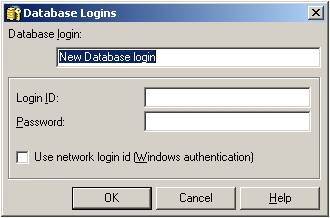
When creating and editing new or existing database logins, the Database Login dialog opens, as shown below:
ka02R000000kZvVQAU_0EM440000002G50.jpeg

 
To create or edit a database login, perform the following steps:

  1. In the Database Login field, enter the name of the database login.
  2. In the Login ID field, enter the user ID needed to access the warehouse.
  3. In the Password field, enter the password that is paired with the user ID entered in Step 2. As the password characters are entered, asterisks will appear in the box.
  4. Click 'OK'.

Note: Database logins are passed to the warehouse anytime a user executes a report or browses attribute elements, therefore all database logins created in Strategy Developer must also be created as valid logins in the warehouse.


Comment

0 comments

Details

Knowledge Article

Published:

June 2, 2017

Last Updated:

June 2, 2017