EducationSoftwareStrategy.com
StrategyCommunity

Knowledge Base

Product

Community

Knowledge Base

TopicsBrowse ArticlesDeveloper Zone

Product

Download SoftwareProduct DocumentationSecurity Hub

Education

Tutorial VideosSolution GalleryEducation courses

Community

GuidelinesGrandmastersEvents
x_social-icon_white.svglinkedin_social-icon_white.svg
Strategy logoCommunity

© Strategy Inc. All Rights Reserved.

LegalTerms of UsePrivacy Policy
  1. Home
  2. Topics

KB8429: How to create a 'Top 10 Contributors vs. All Others' report in MicroStrategy Developer 10.x


Stefan Zepeda

Salesforce Solutions Architect • Strategy


Users can create a report which displays the top ten contributors versus all other contributors by use of custom groups. This 'Top 10 Customers vs All' custom group will have two elements. One element will show the top ten customers and another element will show all customers.

Users can create a report which displays the top ten contributors versus all other contributors by use of custom groups. This 'Top 10 Customers vs All' custom group will have two elements. One element will show the top ten customers and another element will show all customers.
 
Using the Strategy Tutorial project, perform the following steps to achieve this:
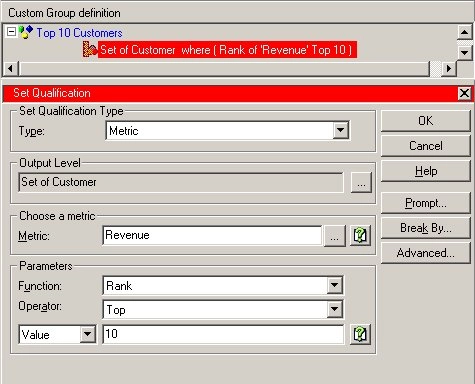
  • The first element will be called "Top 10 Customers" and will be a set qualification on the "Revenue" metric, which is a rank on the top ten, and where the output level is the Customer attribute.
ka044000000kJZbAAM_0EM440000002G4w.jpeg
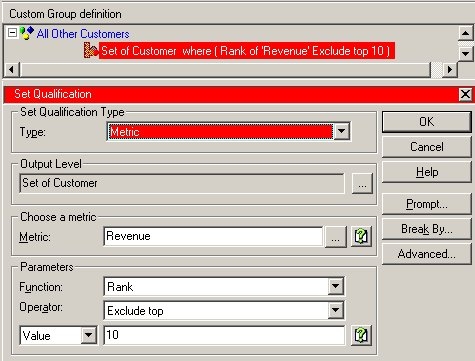
  • The second element will be called "All Other Customers" and will be a set qualification on the "Revenue" metric, which is a rank that excludes the top ten customers, and where the output level is the Customer attribute.
ka044000000kJZbAAM_0EM440000002G52.jpeg
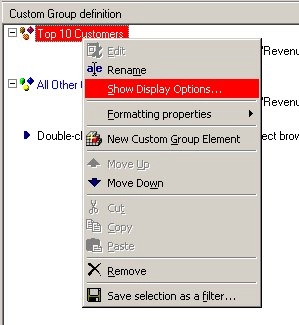
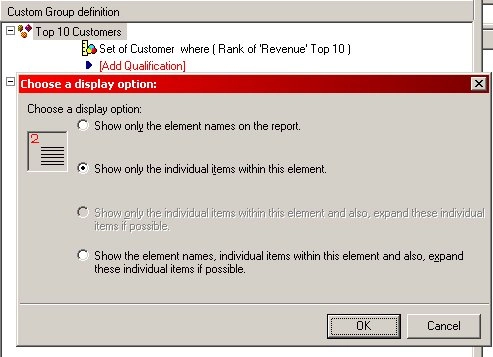
  • To display the Top 10 Customers' names, right click on the first custom group element. Choose "Show Display Options" and select the second option ("Show only the individual items within this element"). Since all other customers are not being displayed, it is not necessary to perform this step for the second custom group element.
ka044000000kJZbAAM_0EM440000002G4v.jpeg
ka044000000kJZbAAM_0EM440000002Hsz.png
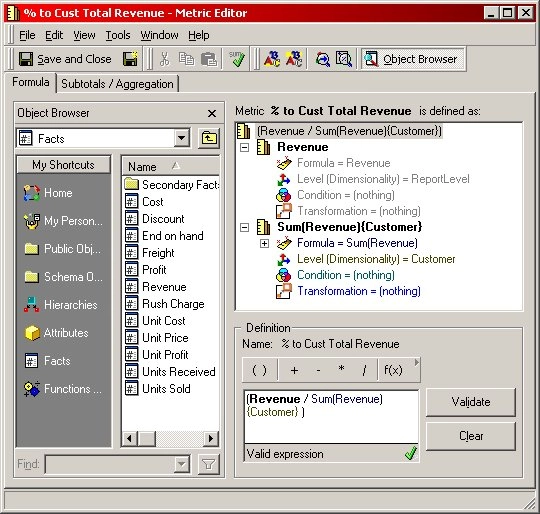
  • In order to display the percent contribution of each of the top ten customers, create a "Percent to Total Customers Revenue" metric.

    To create this metric, perform the following steps:
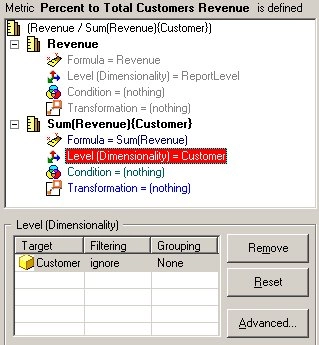
    • Create the percent to total metric by defining it like below:
ka044000000kJZbAAM_0EM440000002G53.jpeg
    • Place the denominator at the customer level with filtering set to "Ignore" and grouping set to "None":
ka044000000kJZbAAM_0EM440000002G4x.jpeg
    • Change the formatting of the percent to total with the appropriate settings (decimal places, negative value formatting, etc).
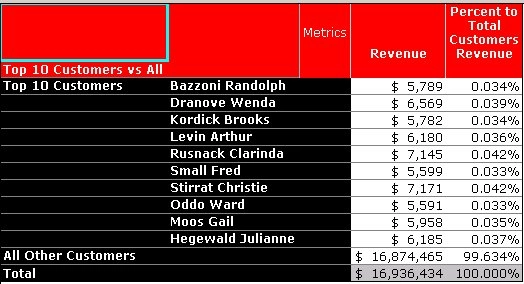
  • Place the "Top 10 Customers vs All" (as is done with an attribute), the "Percent to Total Customers Revenue", and "Revenue" on the report and the result will as shown in the screen shot below:
ka044000000kJZbAAM_0EM440000002G4z.jpeg


KB8429


Comment

0 comments

Details

Knowledge Article

Published:

April 4, 2017

Last Updated:

January 8, 2019