EducationSoftwareStrategy.com
StrategyCommunity

Knowledge Base

Product

Community

Knowledge Base

TopicsBrowse ArticlesDeveloper Zone

Product

Download SoftwareProduct DocumentationSecurity Hub

Education

Tutorial VideosSolution GalleryEducation courses

Community

GuidelinesGrandmastersEvents
x_social-icon_white.svglinkedin_social-icon_white.svg
Strategy logoCommunity

© Strategy Inc. All Rights Reserved.

LegalTerms of UsePrivacy Policy
  1. Home
  2. Topics

KB8430: What is the External Application Manager in MicroStrategy Developer 9.4.1 and 10.x


Stefan Zepeda

Salesforce Solutions Architect • Strategy


What is the External Application Manager in MicroStrategy Developer 9.4.1 and 10.x

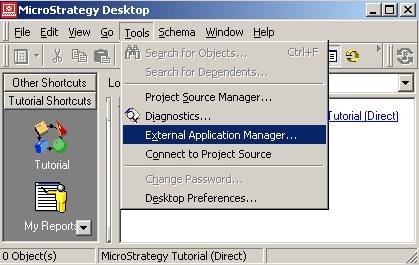
The External Application feature allows users to execute any application from the Strategy Developer 9.4.1 and 10.x interface and can be accessed from the Tools menu of the primary window. This feature allows shortcuts to applications or even web pages that may be useful for quick access from Developer.
 

ka02R000000kVtwQAE_0EM440000002G59.jpeg

 
Once inside the External Application Manager, users can select which executables to run from the Strategy Developer interface:
 
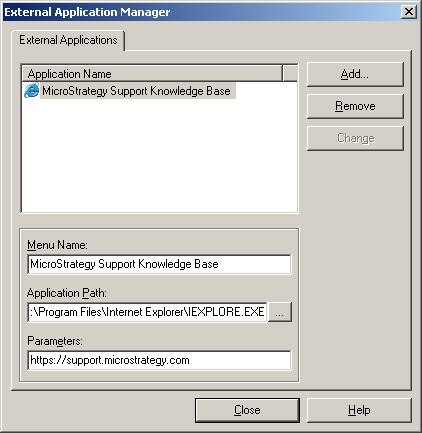
The External Application Manager pane, as shown below, will contain the following after the selection(s) have been made:
 

ka02R000000kVtwQAE_0EM440000002G5B.jpeg


  • Application Name: Displays the name of the executable file that the external application is using. Selecting the external application menu will execute this file.
  • Menu Name: Populated automatically when an external application is added using the Add button. The Menu Name is the text that appears on the Strategy Tools menu. This can be renamed by selecting it and typing in a new name.
  • Application Path: Populated automatically when an external application is added using the Add button. The application path is the full path to the executable file in the file system.
  • Parameter: The parameter is a list of switch commands that are passed to the command executable. This is an optional field.
  • Add: Click to display the Open dialog box when selecting executables to add to the Tools menu.
  • Remove: Click to delete an application listed under Application Name. Deleting the application from this list removes it from the Tools menu.
  • Change: Click to save any changes in the Application Name, Menu Name, Application Path, or Parameter fields.

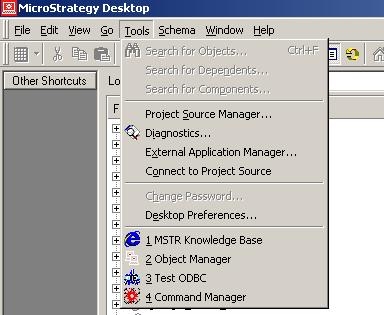
External applications are grouped at the bottom of the main Strategy Developer Tools menu, with the most recently used application first. Nine applications can appear in the Tools menu. If there are more than nine applications, then an option called, "More Applications" is displayed. Clicking on More Applications opens the External Application dialog box, from which any of the applications can be executed.
To execute an application, simply click on the menu option, as shown in the screen shot below:
 

ka02R000000kVtwQAE_0EM440000002G5C.jpeg


Comment

0 comments

Details

Knowledge Article

Published:

May 18, 2017

Last Updated:

May 18, 2017