EducationSoftwareStrategy.com
StrategyCommunity

Knowledge Base

Product

Community

Knowledge Base

TopicsBrowse ArticlesDeveloper Zone

Product

Download SoftwareProduct DocumentationSecurity Hub

Education

Tutorial VideosSolution GalleryEducation courses

Community

GuidelinesGrandmastersEvents
x_social-icon_white.svglinkedin_social-icon_white.svg
Strategy logoCommunity

© Strategy Inc. All Rights Reserved.

LegalTerms of UsePrivacy Policy
  1. Home
  2. Topics

KB8481: How to create a prompt that allows text entries in MicroStrategy Developer


Stefan Zepeda

Salesforce Solutions Architect • Strategy


How to create a prompt that allows text entries in MicroStrategy Developer

To create a prompt that allows users to enter text, perform the following steps:
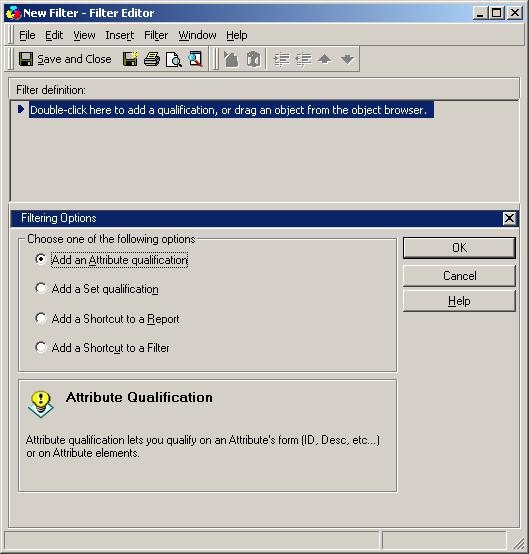
 

  • Open the Filter Editor and select the 'Add an Attribute qualification' radio button. Then, click 'OK'.
ka02R000000kXpoQAE_0EM440000002G2g.jpeg
  • Select an attribute to place in the 'Attribute' box by clicking the browse button.
  • Select "DESC" from the 'Qualify On' drop down options and change the operator to "Contains", as shown below:
ka02R000000kXpoQAE_0EM440000002G2i.jpeg
  • Click the Single Prompt button in the Operator field or change "Value" in the drop down to "Single Prompt". The Prompt Generation Wizard will then appear.
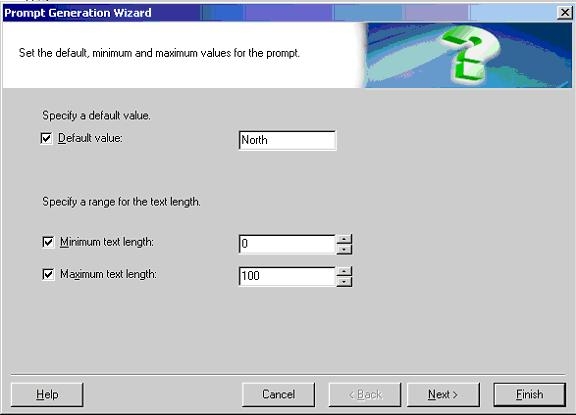
  • Give the prompt a default value and a minimum and maximum text length value, as shown in the example below:
ka02R000000kXpoQAE_0EM440000002G2X.jpeg
  •  
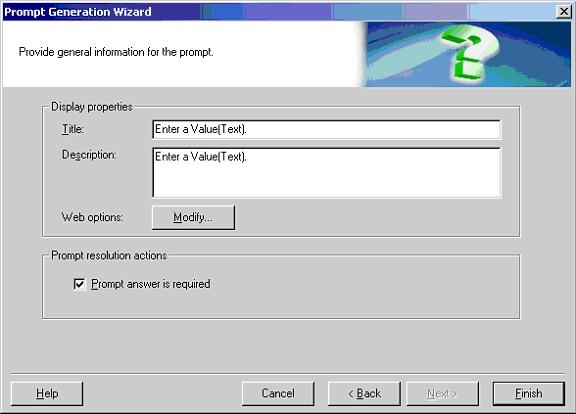
    Click on the 'Next' button.
     
  • Add a title and description and click 'Finish' to complete the filter.
ka02R000000kXpoQAE_0EM440000002G2d.jpeg
  • Save the filter and add it to a report.

Now, when executing the report, the prompt will ask the user to input a text string. The engine will use the text string to find all attributes that have that text within its description.


Comment

0 comments

Details

Knowledge Article

Published:

June 13, 2017

Last Updated:

June 13, 2017