EducationSoftwareStrategy.com
StrategyCommunity

Knowledge Base

Product

Community

Knowledge Base

TopicsBrowse ArticlesDeveloper Zone

Product

Download SoftwareProduct DocumentationSecurity Hub

Education

Tutorial VideosSolution GalleryEducation courses

Community

GuidelinesGrandmastersEvents
x_social-icon_white.svglinkedin_social-icon_white.svg
Strategy logoCommunity

© Strategy Inc. All Rights Reserved.

LegalTerms of UsePrivacy Policy
  1. Home
  2. Topics

KB8547: How to change the order of different subtotals in a report instead of having them appear in alphabetical order in MicroStrategy Developer 9.4.1 and 10.x


Stefan Zepeda

Salesforce Solutions Architect • Strategy


How to change the order of different subtotals in a report instead of having them appear in alphabetical order in MicroStrategy Developer 9.4.1 and 10.x

SYMPTOM
When a user executes a long report in Strategy Developer 9.4.1 and 10.x with multiple subtotals, the subtotals appear in alphabetical order as shown in the image below.
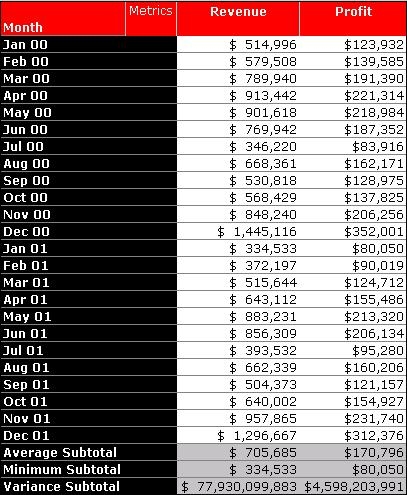
 

ka02R000000kcHdQAI_0EM440000002G6x.jpeg

 
To create subtotals that appear in the order users wish instead of having them appear in alphabetical order, follow the steps below:
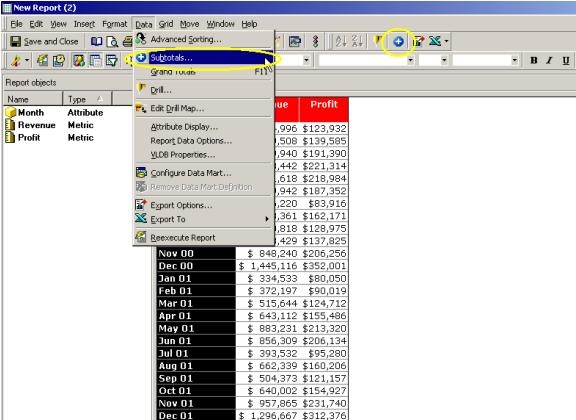
 

  • In the report, go to the Data menu and click Subtotals or click on the blue Subtotal button located below the menu bar.
ka02R000000kcHdQAI_0EM440000002G71.jpeg
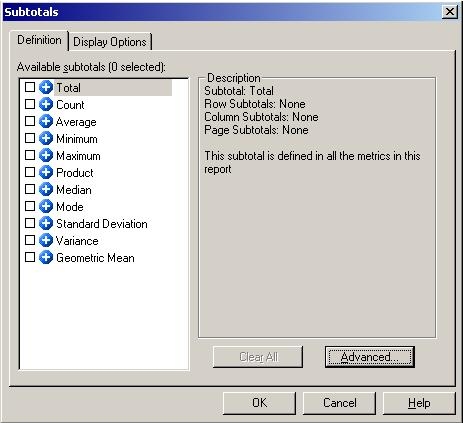
  • In the Subtotals window, under the Definition tab, click on the "Advanced" button.
ka02R000000kcHdQAI_0EM440000002G6Z.jpeg
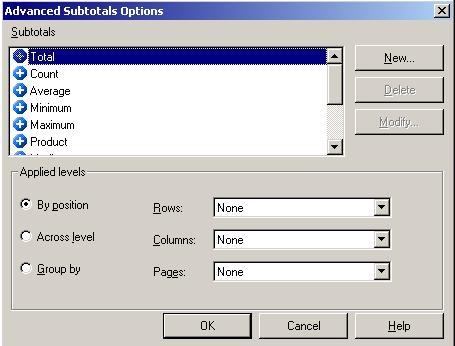
  • In the Advanced Subtotals Options window, click on the "New" button.
ka02R000000kcHdQAI_0EM440000002G6u.jpeg
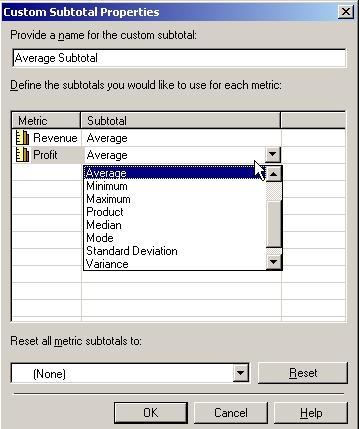
  • In the Custom Subtotals Property window, users create custom subtotals. These subtotals need to be created in order to change the ordering. In the first text box, create a name for the new subtotal. Also, change the subtotal column according to the particular calculation of the metric. If there are several metrics, you will want to change them accordingly as well.
ka02R000000kcHdQAI_0EM440000002G73.jpeg
  • Click on "OK."
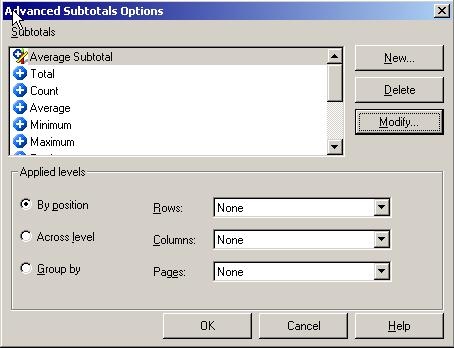
  • The new custom subtotal appears at the top of the Advanced Subtotals Options window.
ka02R000000kcHdQAI_0EM440000002G6p.jpeg
  • Click on the "New" button again. Repeat steps 4-6 again until all the subtotals are created for the report.
  • Click on the "OK" button.
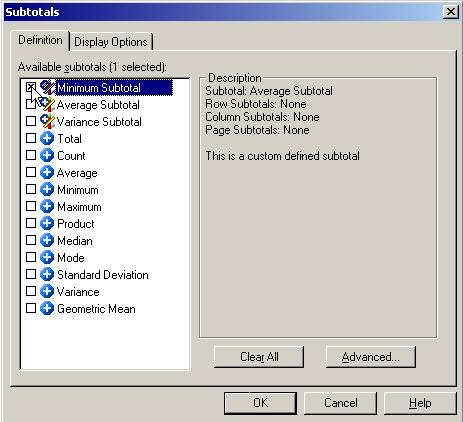
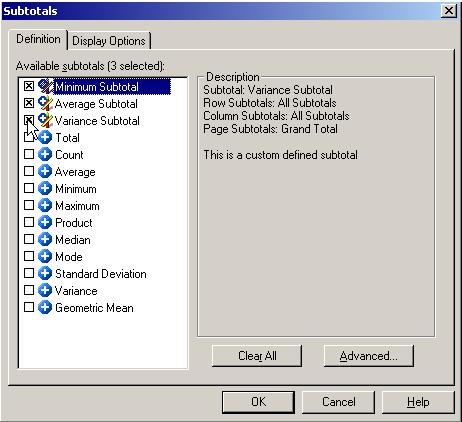
  • All of the subtotals that were created should appear in the Subtotals window under the Definition tab. User should place an "x" in the first subtotal to appear in the report.
ka02R000000kcHdQAI_0EM440000002G6s.jpeg
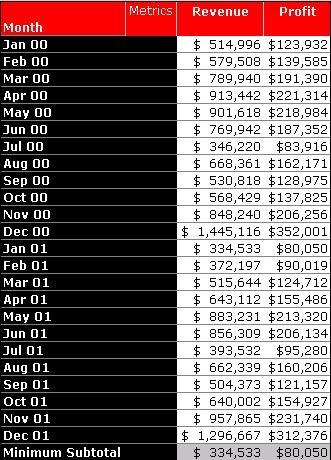
  • Click the "OK" button. The report should show the first subtotal that was selected.
ka02R000000kcHdQAI_0EM440000002G6n.jpeg
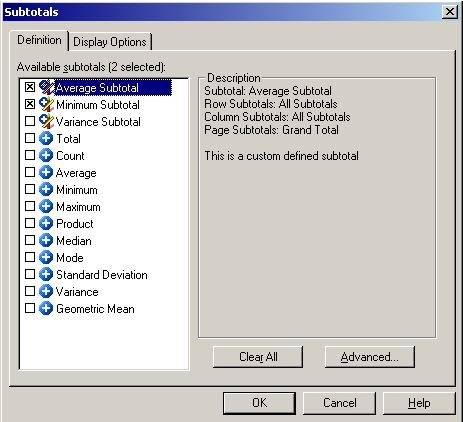
  • Go back into Subtotals and place an "x" next to the second subtotal you would like to display under the first subtotal.
ka02R000000kcHdQAI_0EM440000002G6k.jpeg
  • Click the "OK" button.
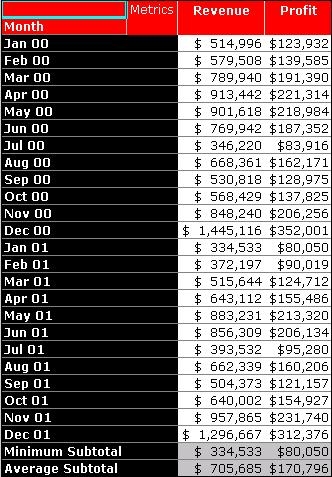
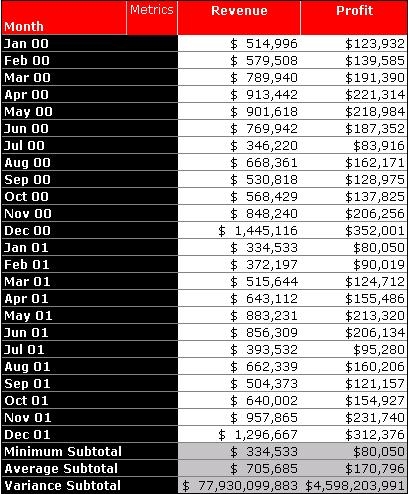
  • The report should have the second subtotal appear under the first one. Notice that the subtotals do not appear in alphabetical order on the report.
ka02R000000kcHdQAI_0EM440000002G6m.jpeg
  • Go back into Subtotals and place an "x" next to the third subtotal you would like to display under the second subtotal.
ka02R000000kcHdQAI_0EM440000002G6Y.jpeg
  • Click on the "OK" button. The third subtotal will appear on the report along with the others, as specified.
ka02R000000kcHdQAI_0EM440000002G6z.jpeg

Comment

0 comments

Details

Knowledge Article

Published:

May 15, 2017

Last Updated:

May 15, 2017