EducationSoftwareStrategy.com
StrategyCommunity

Knowledge Base

Product

Community

Knowledge Base

TopicsBrowse ArticlesDeveloper Zone

Product

Download SoftwareProduct DocumentationSecurity Hub

Education

Tutorial VideosSolution GalleryEducation courses

Community

GuidelinesGrandmastersEvents
x_social-icon_white.svglinkedin_social-icon_white.svg
Strategy logoCommunity

© Strategy Inc. All Rights Reserved.

LegalTerms of UsePrivacy Policy
  1. Home
  2. Topics

KB8624: How to create a subscription using bursting for a report services document with multiple layouts in MicroStrategy Web 2021


Community Admin

• Strategy


This article provides instructions on how to create a subscription using bursting for a report services document with multiple layouts in MicroStrategy Web 2021.

For general information about the Bursting feature in Strategy Distribution Services, see the below knowledge base article:
KB3857: How to use the Bursting feature in MicroStrategy Distribution Services 9.3.x and above
 
Below is an example of how to burst documents when there are multiple layouts:
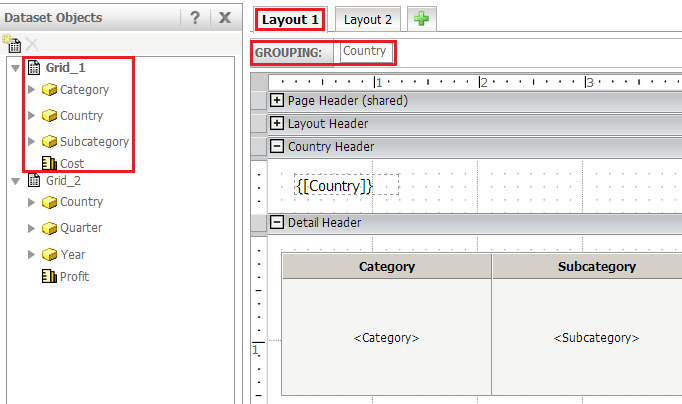
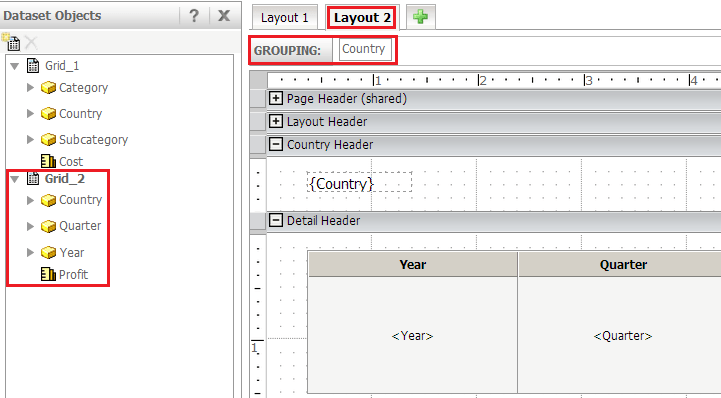
  • Create two reports named "Grid_1" and "Grid_2". "Grid_1" is with attributes "Country", "Category", "Subcategory" and metric "Cost". "Grid_2" is with attributes "Country", "Quarter", "Year" and metric "Profit". Create a document with two layouts based on the two reports. Add "Grid_1" to the Detail Header in "Layout 1" with "Country" in the grouping, and the same for "Grid_2" in "Layout 2" as below:
ka0PW0000000cenYAA_0EM4400000029cv.png


ka0PW0000000cenYAA_0EM440000002NT5.png


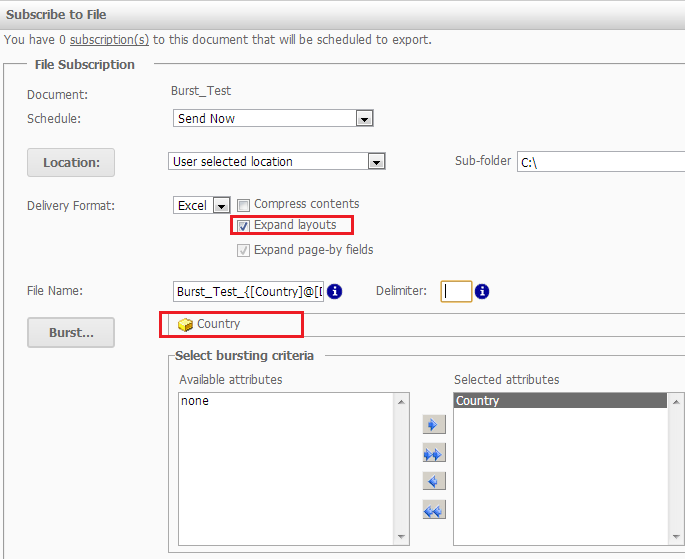
  • Run the document and go to Home > Subscribe to > File. Check the option of "Expand Layouts", and select attribute "Country" as the bursting attribute as below:
ka0PW0000000cenYAA_0EM4400000029cu.png


  • Click "OK" and two files are generated according to the elements under attribute "Country" as below:
ka0PW0000000cenYAA_0EM4400000029d5.png


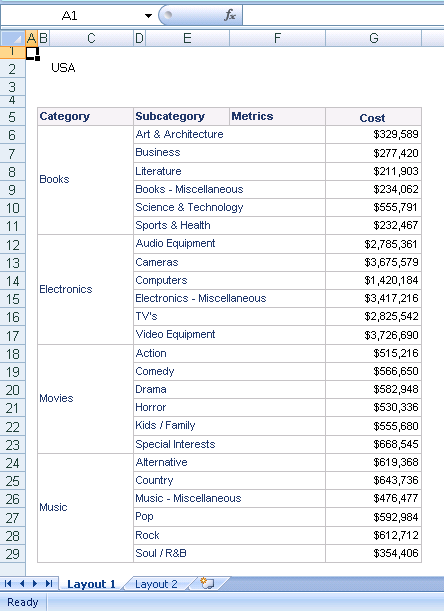
  • Each file will have two sheets, which are the layouts in the documents as below:
ka0PW0000000cenYAA_0EM4400000029ct.png

 
Note: By unchecking the option of "Expand Layouts", the only current displayed layout will be shown in the generated file.
Article Reference Number: 
KB8624


Comment

0 comments

Details

Knowledge Article

Published:

June 1, 2017

Last Updated:

February 13, 2024