EducationSoftwareStrategy.com
StrategyCommunity

Knowledge Base

Product

Community

Knowledge Base

TopicsBrowse ArticlesDeveloper Zone

Product

Download SoftwareProduct DocumentationSecurity Hub

Education

Tutorial VideosSolution GalleryEducation courses

Community

GuidelinesGrandmastersEvents
x_social-icon_white.svglinkedin_social-icon_white.svg
Strategy logoCommunity

© Strategy Inc. All Rights Reserved.

LegalTerms of UsePrivacy Policy
  1. Home
  2. Topics

KB8750: How to enable the use of Extended Fetch in MicroStrategy Intelligence Server


Community Admin

• Strategy


In MicroStrategy 9.x, the ‘Use extended fetch’ setting is only relevant when the database instance is set up to use ODBC 2.0 calls. This is controlled by the 'ODBC Version' setting located at Database Instance > Advanced.

In Strategy 9.x, the ‘Use extended fetch’ setting is only relevant when the database instance is set up to use ODBC 2.0 calls. This is controlled by the 'ODBC Version' setting located at Database Instance > Advanced as shown in the screenshot below: 
 

ka04W000000Ohe2QAC_0EM440000002Btl.gif

 
By default, Strategy 9.x and newer uses ODBC 3.x calls, which does not use the Extended Fetch option (SQLExtendedFetch). Strategy 9.x and newer always uses SQLFetchScroll call to fetch data when using ODBC 3.x calls.
 
The following content in the technical note is based on the assumption that Strategy 9.x is set up to use ODBC 2.0 calls.
 
Data may be retrieved from the warehouse through ODBC  by Strategy Intelligence Server (or by Strategy Desktop in 2-tier mode), by using either the SQLFetch or the SQLExtendedFetch ODBC call. The default mode in Strategy Intelligence Server (or Strategy Desktop) is SQLFetch.
 
SQLFetch returns data one row at a time while SQLExtendedFetch returns multiple rows at one time. SQLExtendedFetch may therefore facilitate faster retrieval of query results, especially when the number of result sets is large. However, not all ODBC drivers may support the use of SQLExtendedFetch.
 
The use of SQLExtendedFetch in Strategy Intelligence Server (or Strategy Desktop) may be enabled by following the steps below:
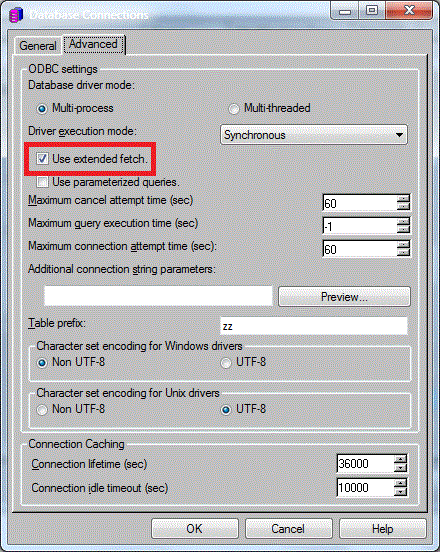
  • In Strategy Desktop 9.x, access the location Configuration Managers > Database Instance > Database Connection > Advanced and check the box, 'Use extended fetch'. This is shown on the screenshot below:
ka04W000000Ohe2QAC_0EM440000002Btm.gif
  • Upon enabling/disabling ‘Use extended fetch’, disconnect existing database connections or restart Intelligence Server (if using 3-tier mode) or disconnect and reconnect to project source (if using 2-tier mode). This step is necessary for the new setting to take effect.

Comment

0 comments

Details

Knowledge Article

Published:

May 4, 2017

Last Updated:

May 4, 2017