EducationSoftwareStrategy.com
StrategyCommunity

Knowledge Base

Product

Community

Knowledge Base

TopicsBrowse ArticlesDeveloper Zone

Product

Download SoftwareProduct DocumentationSecurity Hub

Education

Tutorial VideosSolution GalleryEducation courses

Community

GuidelinesGrandmastersEvents
x_social-icon_white.svglinkedin_social-icon_white.svg
Strategy logoCommunity

© Strategy Inc. All Rights Reserved.

LegalTerms of UsePrivacy Policy
  1. Home
  2. Topics

KB8767: How to apply multiple conditions within a custom group based on a metric in MicroStrategy Developer


Stefan Zepeda

Salesforce Solutions Architect • Strategy


Article how to apply multiple conditions within a custom group based on a metric in MicroStrategy Developer

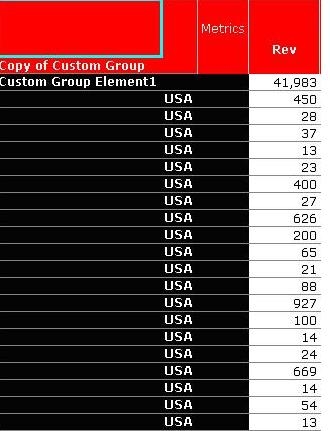
When a user attempts to create a custom group based on a set qualification by placing filters on the band, the resulting report does not display the correct data in Strategy Developer
 

ka044000000kJZIAA2_0EM440000002G55.jpeg

 
In this example, the custom group should display the top ten customers in the country USA between specified dates. Instead, it is displaying every instance of the country USA.
 
To create a custom group which will allow multiple filters to be placed on it, perform the following steps:
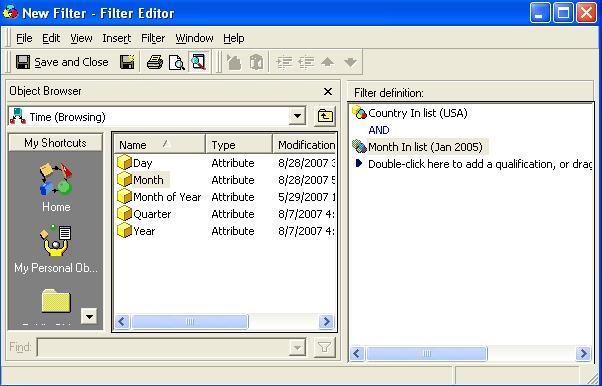
 

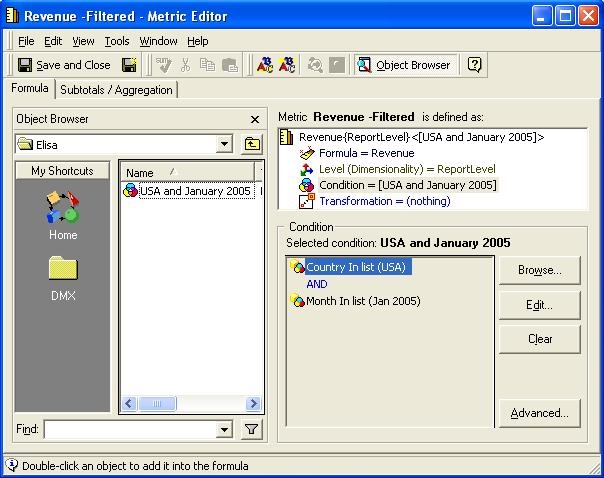
  • Create one filter which contains all the qualifications that will be placed in the custom group.
ka044000000kJZIAA2_0EM440000002G5D.jpeg
  • Copy the metric to be placed in the report.
  • Open up the copy of the metric and place the filter from step #1 in the condition section of the metric.
ka044000000kJZIAA2_0EM440000002G57.jpeg
  • Save and close the metric.
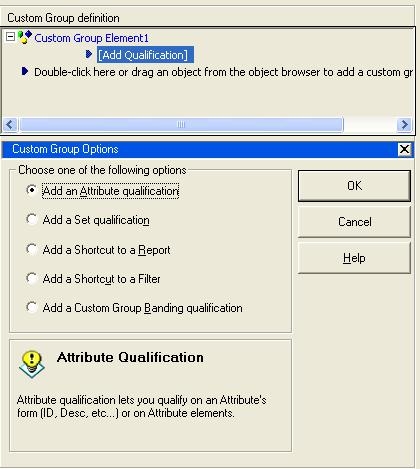
  • Create a new custom group and select the radio button entitled "Add a Set qualification."
ka044000000kJZIAA2_0EM440000002G5E.jpeg
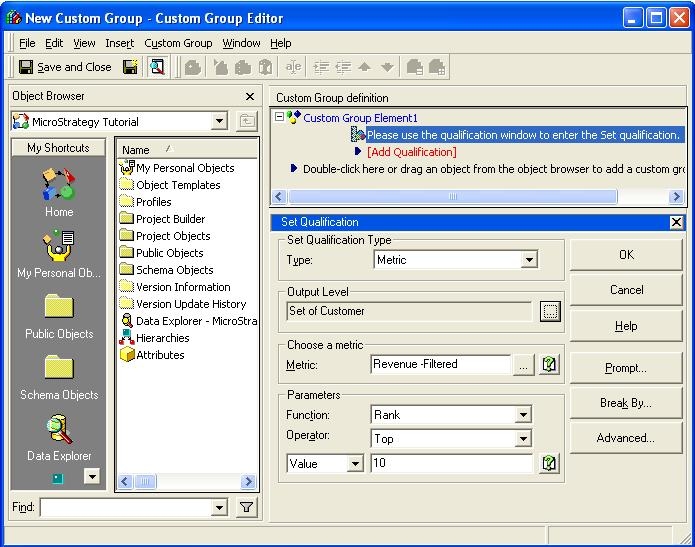
  • Drag in the metric created in step #3.
  • Change the Output Level to use the appropriate attribute which is desired. To do so, click on the browse button. The custom group should look as follows:
ka044000000kJZIAA2_0EM440000002G56.jpeg
  • Set the parameters as desired for the custom group.
  • Save and close.
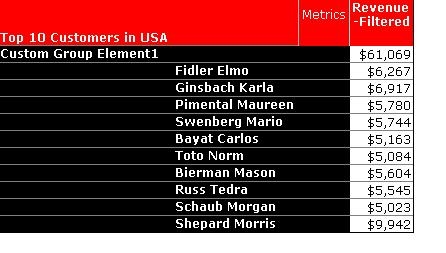
  • In the report, place the custom group and the newly created metric.
  • Execute the report and the results will display correctly.
ka044000000kJZIAA2_0EM440000002G54.jpeg

Refer to the following Strategy Technical document for additional information on custom group creation:
 

  • KB4000-007-0100 - How to create a report that displays the top 'n' Item sales (variable) for each Subcategory within a Category


KB8767


Comment

0 comments

Details

Knowledge Article

Published:

June 12, 2017

Last Updated:

January 4, 2019