EducationSoftwareStrategy.com
StrategyCommunity

Knowledge Base

Product

Community

Knowledge Base

TopicsBrowse ArticlesDeveloper Zone

Product

Download SoftwareProduct DocumentationSecurity Hub

Education

Tutorial VideosSolution GalleryEducation courses

Community

GuidelinesGrandmastersEvents
x_social-icon_white.svglinkedin_social-icon_white.svg
Strategy logoCommunity

© Strategy Inc. All Rights Reserved.

LegalTerms of UsePrivacy Policy
  1. Home
  2. Topics

KB8940: How to use “Rank By Percent” function for metrics in MicroStrategy Developer 9.4.x-10.x?


Stefan Zepeda

Salesforce Solutions Architect • Strategy


This document explains how to use “Rank By Percent” function for metrics in MicroStrategy Developer 9.4.x-10.x

The current Strategy "Rank" function can be used as a "Rank by Value" and a "Rank by Percent".
To use "By Percent" option for the "Rank" function, perform the following steps:
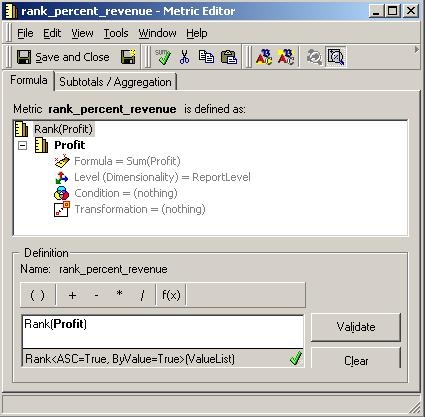
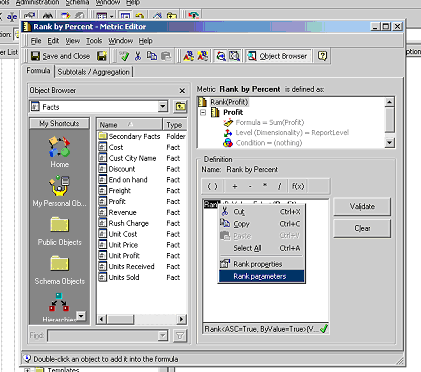
  • Open a new metric and use the "Rank" function in the metric formula.
ka02R000000kafyQAA_0EM440000002G04.jpeg
  • Click on the word "Rank" to highlight and then right-click to show the "Rank" function's menu.
  • Select "Rank parameters".
ka02R000000kafyQAA_0EM440000002Fzw.gif
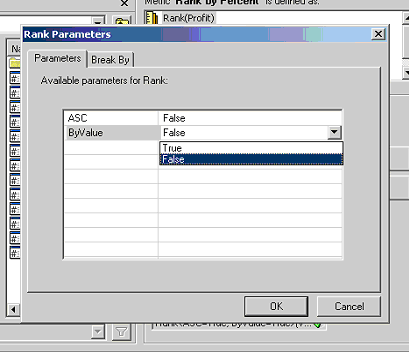
  • Choose "False" for "ByValue". Setting "ByValue" to False enables the "ByPercent" option, even though there is no "ByPercent" parameter in the list.
ka02R000000kafyQAA_0EM440000002G00.gif
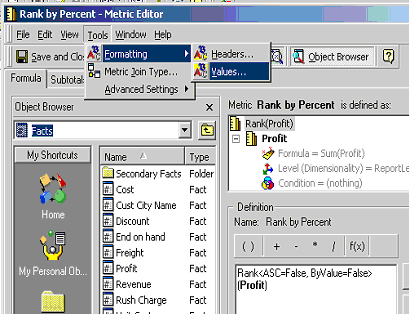
  • Go to "Tools" menu, select "Formatting", and select "Values".
ka02R000000kafyQAA_0EM440000002Fzy.gif
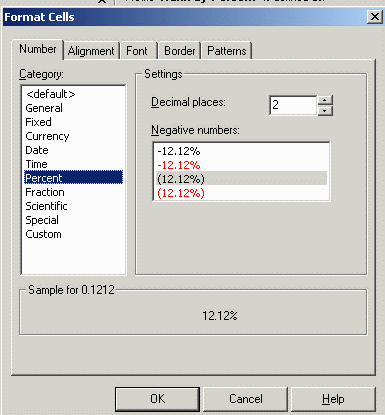
  • Change the Category to "Percent" in the "Format Cells" window.
ka02R000000kafyQAA_0EM440000002G01.gif

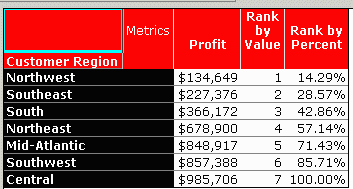
Below is the final report with "Profit", "Rank by Value", and "Rank by Percent":
ka02R000000kafyQAA_0EM440000002Fzu.gif

NOTE:
The metric, "Rank by Percent", which uses "Rank" function with "ByPercent" option, shows how the top element is located among the rows in percentage. In the example report, Northwest is located in the top 14.29% ( * 1) among the rows in the report by ascending order.
The formula for calculation of the percentage is the following:
Percent = (100 / total number of the elements of Customer Region in the report) * Rank(ByValue)


Comment

0 comments

Details

Knowledge Article

Published:

April 7, 2017

Last Updated:

April 7, 2017