EducationSoftwareStrategy.com
StrategyCommunity

Knowledge Base

Product

Community

Knowledge Base

TopicsBrowse ArticlesDeveloper Zone

Product

Download SoftwareProduct DocumentationSecurity Hub

Education

Tutorial VideosSolution GalleryEducation courses

Community

GuidelinesGrandmastersEvents
x_social-icon_white.svglinkedin_social-icon_white.svg
Strategy logoCommunity

© Strategy Inc. All Rights Reserved.

LegalTerms of UsePrivacy Policy
  1. Home
  2. Topics

KB8948: How to create a report that shows the beginning and ending values of a date range on the template in MicroStrategy Developer 10.x


Stefan Zepeda

Salesforce Solutions Architect • Strategy


How to create a report that shows the beginning and ending values of a date range on the template in MicroStrategy Developer 10.x

Consider that a user requires a report which will prompt on a range of dates and the data on this report must display the date range in the leftmost columns.
 
The following procedure will use the Strategy Tutorial project to illustrate how to create a report which will display the beginning and ending values for a date range:
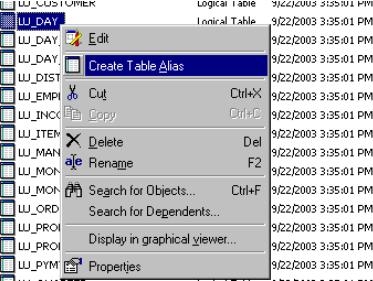
 

  • Under the 'Schema Objects > Tables' folder, locate the LU_DAY table and create two table aliases for it (such as LU_DAY_BEG and LU_DAY_END).
ka02R000000kc9WQAQ_0EM440000002G3d.jpeg
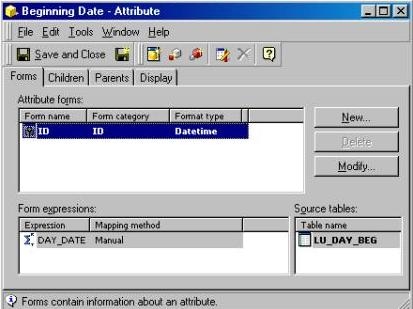
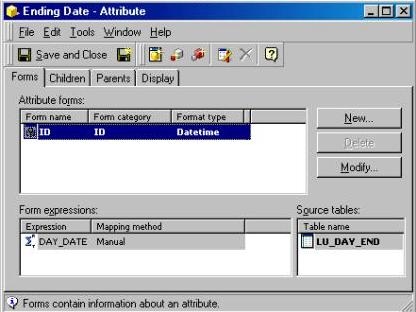
  • Create two new attributes. Each one of these attributes will be based on each one of the previously created table aliases:
     
    Beginning Date - Attribute:
ka02R000000kc9WQAQ_0EM440000002G3U.jpeg
  •  
    Ending Date - Attribute:
ka02R000000kc9WQAQ_0EM440000002G3e.jpeg
  •  
    Note: These two attributes are mapped ONLY to their respective lookup table and they have no parent-child relationship with themselves or any other attributes.
     
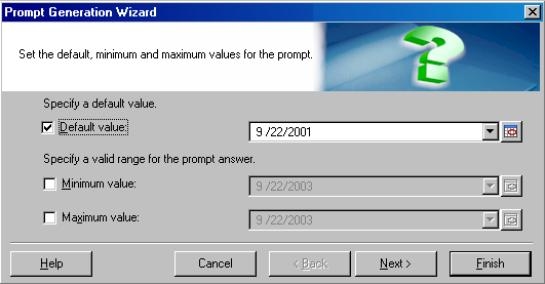
  • Create two date value prompts:
     
    • BEG_DT_P - will prompt for the beginning date
    • END_DT_P - will prompt for the ending date
ka02R000000kc9WQAQ_0EM440000002G3T.jpeg
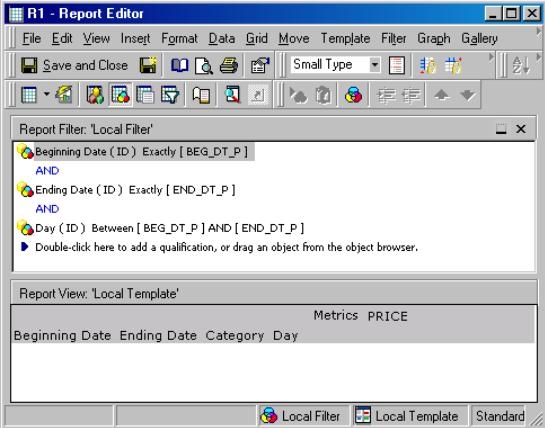
  • Create the following report:
ka02R000000kc9WQAQ_0EM440000002G3N.jpeg
  •  
    Notice that all the filters are using the prompts previously defined:
     
    @ID =
    @ID =
    @ID between ( and )

The report returns the following in Grid view:
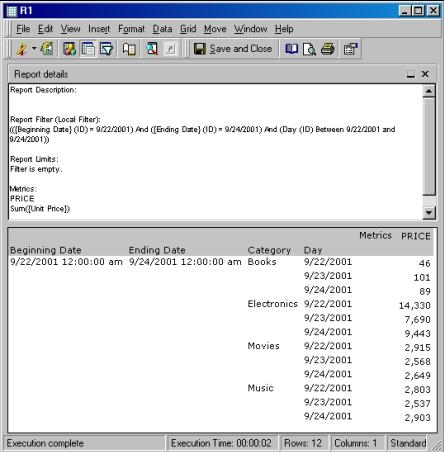
 

ka02R000000kc9WQAQ_0EM440000002G3V.jpeg

 
Below is the SQL view for the same report:
 
select a12.DAY_DATE DAY_DATE,
    a13.DAY_DATE DAY_DATE0,
    a15.CATEGORY_ID CATEGORY_ID,
    max(a16.CATEGORY_DESC) CATEGORY_DESC,
    a11.ORDER_DATE DAY_DATE1,
    sum(a11.UNIT_PRICE) PRICE
from
    cross join
    cross join
    join
    on (a11.Item_Id = a14.Item_Id)
    join
    on (a14.SUBCAT_ID = a15.SUBCAT_ID)
    join
    on (a15.CATEGORY_ID = a16.CATEGORY_ID)
where (a12.DAY_DATE = '2001-09-22'
and a13.DAY_DATE = '2001-09-24'
and a11.ORDER_DATE between '2001-09-22' and '2001-09-24')
group by a12.DAY_DATE,
    a13.DAY_DATE,
    a15.CATEGORY_ID,
    a11.ORDER_DATE
Notice that there are two cross joins against the LU_DAY table, once for each one of the new date attributes. This is because there is no parent-child relationship to the other objects on the report. Nevertheless, the results are correct and performance should not be affected since the cross join is limited to only one date for each table.


Comment

0 comments

Details

Knowledge Article

Published:

May 24, 2017

Last Updated:

May 24, 2017