EducationSoftwareStrategy.com
StrategyCommunity

Knowledge Base

Product

Community

Knowledge Base

TopicsBrowse ArticlesDeveloper Zone

Product

Download SoftwareProduct DocumentationSecurity Hub

Education

Tutorial VideosSolution GalleryEducation courses

Community

GuidelinesGrandmastersEvents
x_social-icon_white.svglinkedin_social-icon_white.svg
Strategy logoCommunity

© Strategy Inc. All Rights Reserved.

LegalTerms of UsePrivacy Policy
  1. Home
  2. Topics

KB8970: How to hide the word "Metrics" in an exported Excel Report in MicroStrategy Developer 9.x


Stefan Zepeda

Salesforce Solutions Architect • Strategy


How to hide the word "Metrics" in an exported Excel Report in MicroStrategy Developer 9.x

By default, when exporting a report to Excel from Strategy Developer, the word "Metrics" is also exported (just as it is displayed in a grid report).
 
Perform the following steps to export a report to Excel without the word "Metrics" appearing:
 

  • Create any report in Strategy Developer:
ka02R000000g4CKQAY_0EM440000002G3F.jpeg
  •  
    Notice the word "Metrics" within the grid report view, as designed.
     
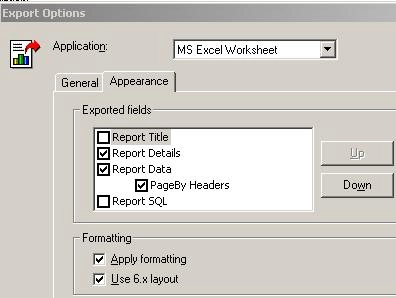
  • In the report editor, go to Data menu > Export Options > Appearance tab.
  • Check the Formatting option box for 'Use 6.x layout', as shown below:
ka02R000000g4CKQAY_0EM440000002G3J.jpeg
  • Execute the report and export it to Excel.

The same report should appear without "Metrics" appearing, as follows:
 

ka02R000000g4CKQAY_0EM440000002G3H.jpeg


Comment

0 comments

Details

Knowledge Article

Published:

June 13, 2017

Last Updated:

November 7, 2019