EducationSoftwareStrategy.com
StrategyCommunity

Knowledge Base

Product

Community

Knowledge Base

TopicsBrowse ArticlesDeveloper Zone

Product

Download SoftwareProduct DocumentationSecurity Hub

Education

Tutorial VideosSolution GalleryEducation courses

Community

GuidelinesGrandmastersEvents
x_social-icon_white.svglinkedin_social-icon_white.svg
Strategy logoCommunity

© Strategy Inc. All Rights Reserved.

LegalTerms of UsePrivacy Policy
  1. Home
  2. Topics

KB9033: How to sort on multiple attribute forms in a prompt or when browsing elements in MicroStrategy Developer 10.x


Stefan Zepeda

Salesforce Solutions Architect • Strategy


An attribute may have attribute elements with descriptions that are identical but the ID forms are unique. In such situations, it may be beneficial to display all the same descriptions together and sort the ID in a particular manner, ascending or descending. This can help the end user more easily distinguish between elements when browsing or selecting elements from a prompt

In some instances, an attribute may have attribute elements with descriptions that are identical but the ID forms are unique. In such situations, it may be beneficial to display all the same descriptions together and sort the ID in a particular manner, ascending or descending. This can help the end user more easily distinguish between elements when browsing or selecting elements from a prompt.
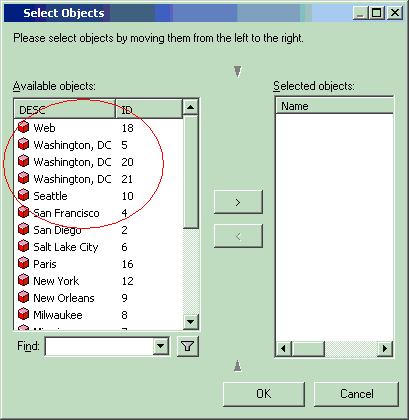
For this example, the Strategy Tutorial Project has been modified so that the 'Call Center' attribute has three elements that have a description of "Washington, D.C." The display sorts first by the description descending from Z to A, then sorts by the ID form ascending, 1 to X.
The following screen shot shows the display of an attribute element prompt in Strategy Developer:
ka02R000000kVQ9QAM_0EM440000002G25.gif

Before implementing the steps below, users should get familiar with how Strategy resolves the sort order for attributes and understand the concept for the primary sort order form. Refer to the following KB article for further information:
KB16623: How does MicroStrategy 9.x resolve the default sort order for an attribute?
Perform the following steps to sort on multiple attribute forms in a prompt or element browsing:
  • Open the Attribute Editor.
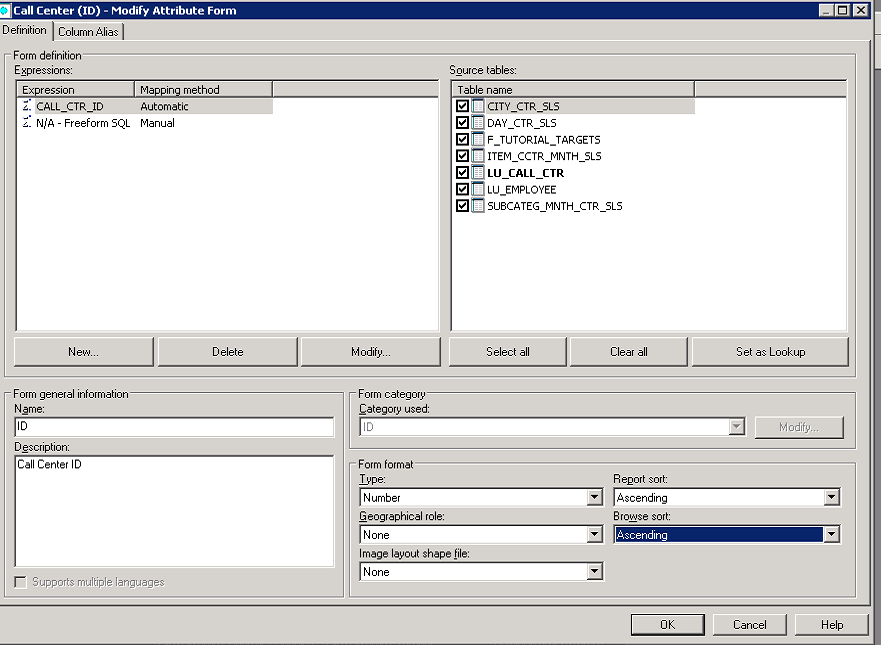
  • Highlight the ID form and click 'Modify.'
  • Set the Browse Sort and Report Sort drop-downs to either Ascending or Descending and click 'OK,' as shown in the screen shot below:
ka02R000000kVQ9QAM_0EM44000000QDvY.png
  • Highlight the Desc form of the attribute and click 'Modify.'
  • Set the Default Sort drop-down to either Ascending or Descending and click 'OK.'
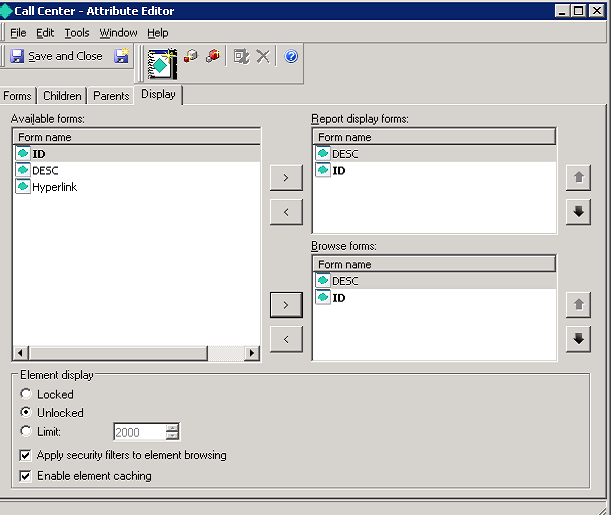
  • Click on the Display tab in the Attribute Editor.
  • Move the Forms from the left to the 'Report display form' and 'Browse forms' boxes on the right in the order that the forms should be evaluated.
ka02R000000kVQ9QAM_0EM44000000QDvx.png
  1. Save and close the attribute.
  2. Update the Schema and select the option to "Purge all element caches."

Comment

0 comments

Details

Knowledge Article

Published:

April 3, 2017

Last Updated:

January 4, 2018